
Applies to: Workforce · Premium · LawBillity
Every person who signs in to Time Tracker uses one user seat. Your subscription includes a set number of seats. When they're all in use, add a seat before you invite someone new.
Checking Your Seats
- In the left menu, click Admin > Settings, then click Firm Information.
- Click Manage Subscription.
- Scroll to User Seats. The line under the heading tells you how many seats your plan allows and how many people are active or invited.
People you've invited count toward your seats even before they accept the invitation. Empty seats show as [Unassigned].
Adding a Seat
- Under User Seats, click Add User Seat (or the + on the right). A new [Unassigned] seat appears.
- Repeat for each extra person.
- Check the new total at the bottom of the page.
- Click Update Subscription.
- Invite the new person from Admin > Manage Users. See How to Invite and Add New Users.
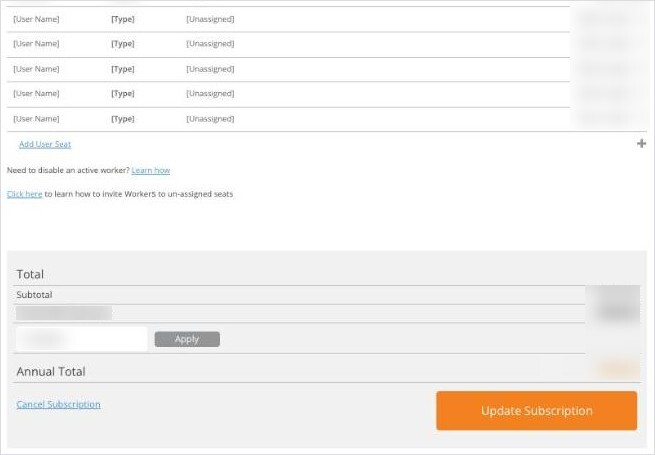
Add User Seat adds an empty seat. The X at the end of an [Unassigned] row removes it.
Removing an Empty Seat
Click the X at the end of an [Unassigned] seat, then click Update Subscription. You can only remove empty seats. To free a seat someone is using, uninvite them first. See Removing a User: Uninvite and Disable.
People Who Aren't in a Seat
The Manage Users page has two lists: people assigned to seats, and people not yet assigned to seats. The second list holds people you've uninvited and people brought in from an integration, such as your payroll or accounting software. They can't sign in, and they don't use a seat. To give one of them access, invite them from the menu at the end of their row. That uses a seat.