
Applies to: Workforce · Premium · LawBillity
When your firm uses approvals, time isn't final until a manager or admin approves it. Approved time is what gets invoiced and sent to payroll, so this is your chance to catch mistakes first.
Seeing Who's Ready
Click Entries > Approvals. You'll see one line per person with their Pending hours (not submitted yet), Submitted hours (waiting for you), and Approved hours, split into regular time, paid time off, and unpaid time off.
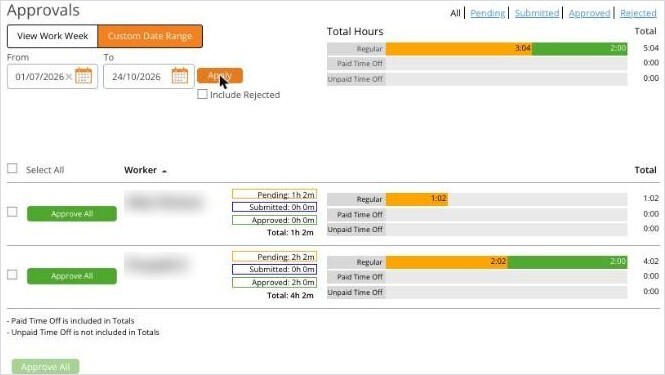
The Approvals page: each person's hours by status, with Approve All.
Use View Work Week for this week, or Custom Date Range for a pay period. Tick Include Rejected to see entries you've already sent back.
Approving Everyone at Once
If you've already checked the hours, click Approve All next to a person. To approve several people, tick them (or Select All) and click Approve All at the bottom.
Checking Entries One by One
- Click Entries > Manage Team Entries, then click Submitted at the top right.
- Use Find to narrow the list to one person, client, project, or date range.
- Click the arrow at the end of a row to see the entry's details and description.
- Tick the entries that look right and click Approve.
Sending an Entry Back
Tick the entry and click Reject, then add a short reason. The person sees it under Rejected, with your reason, fixes the entry, and submits it again. You can also reject an entry you've already approved if you spot a problem later.
What to Look For
- Time logged to the wrong client or project.
- Hours that look off, like 12 hours on a task that usually takes 2.
- Billable entries with no description. The client will see these on their invoice.
- Time off logged as regular hours, or the other way around.
Saving Time
- Trust someone's entries? Turn on auto-approval for them. Open their row menu in Admin > Manage Users, click Edit User, and set Enable auto-approval for Time Entries and Time Off Entries? to Yes.
- Lock past weeks after you run payroll so approved time can't change. See Locking Time Entry Periods.