
Applies to: Workforce · Premium · LawBillity
Connect Clio to bring your Clio contacts, matters, and users into Time Tracker and send time and expense entries back to Clio. Matters in Clio become projects in Time Tracker.
Connecting
Go to More > Integrations and click Clio, or open Clio in the left menu. Work down the Clio Setup checklist: Enable Clio, Connect to Clio (sign in to Clio and allow access), Sync Queue Settings, and Sync with Clio.
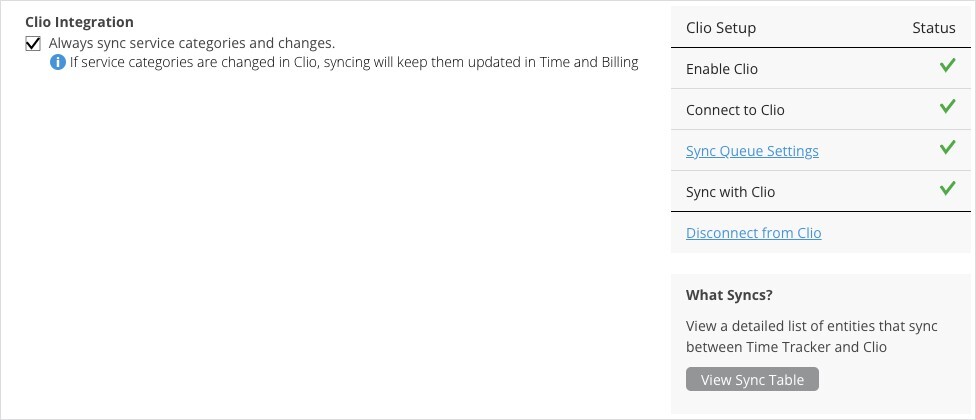
The Clio page: integration options on the left and the setup checklist on the right.
Clio Integration Options
What Syncs
Syncing
Clio is a cloud integration: click Sync in the Sync menu, or turn on Auto Sync. See How Syncing Works: Sync Queue, Sync Log, and Auto Sync.
Common Problems
- A Clio contact isn’t in Time Tracker. Contacts with no matters only come across if Sync Clio Contacts (Clients with no matters) is ticked.
- Something doesn’t arrive in Clio. See My Integration Isn't Syncing: Finding and Fixing a Failed Sync.