
Applies to: Billing
Visit these settings once when you set up your account. Your company details appear on every invoice, and the regional formats decide how dates, times, and money look for everyone.
Entering Your Company Details
- Click Settings > Company Information.
- Enter your Company Name and Company Email.
- Fill in your address and phone numbers.
- Click Save.
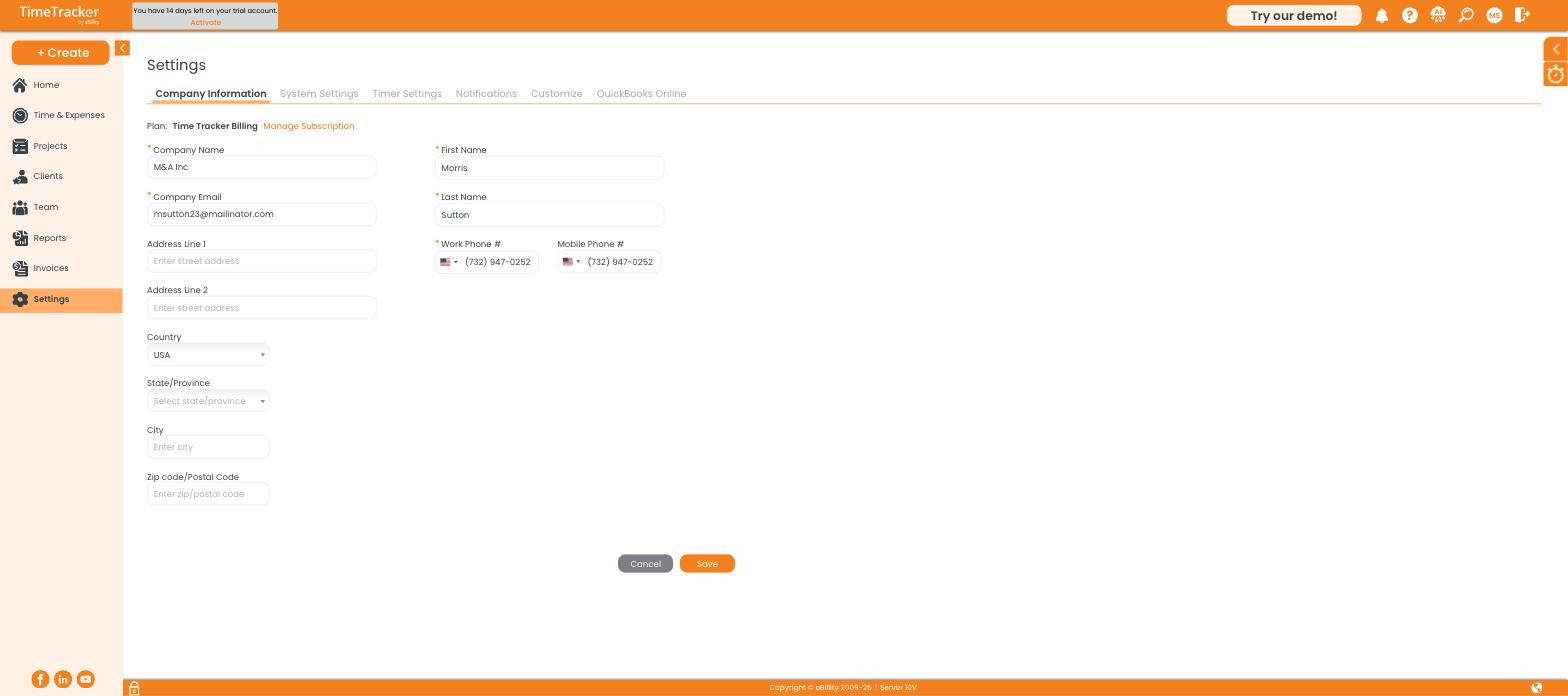
Company Information, with your plan and the Manage Subscription link at the top.
Your company name and address print at the top of every invoice, so enter them the way clients should see them. Your plan name is at the top of this page, with a Manage Subscription link beside it.
Setting Formats, Time Zone, and Currency
Click Settings > System Settings.
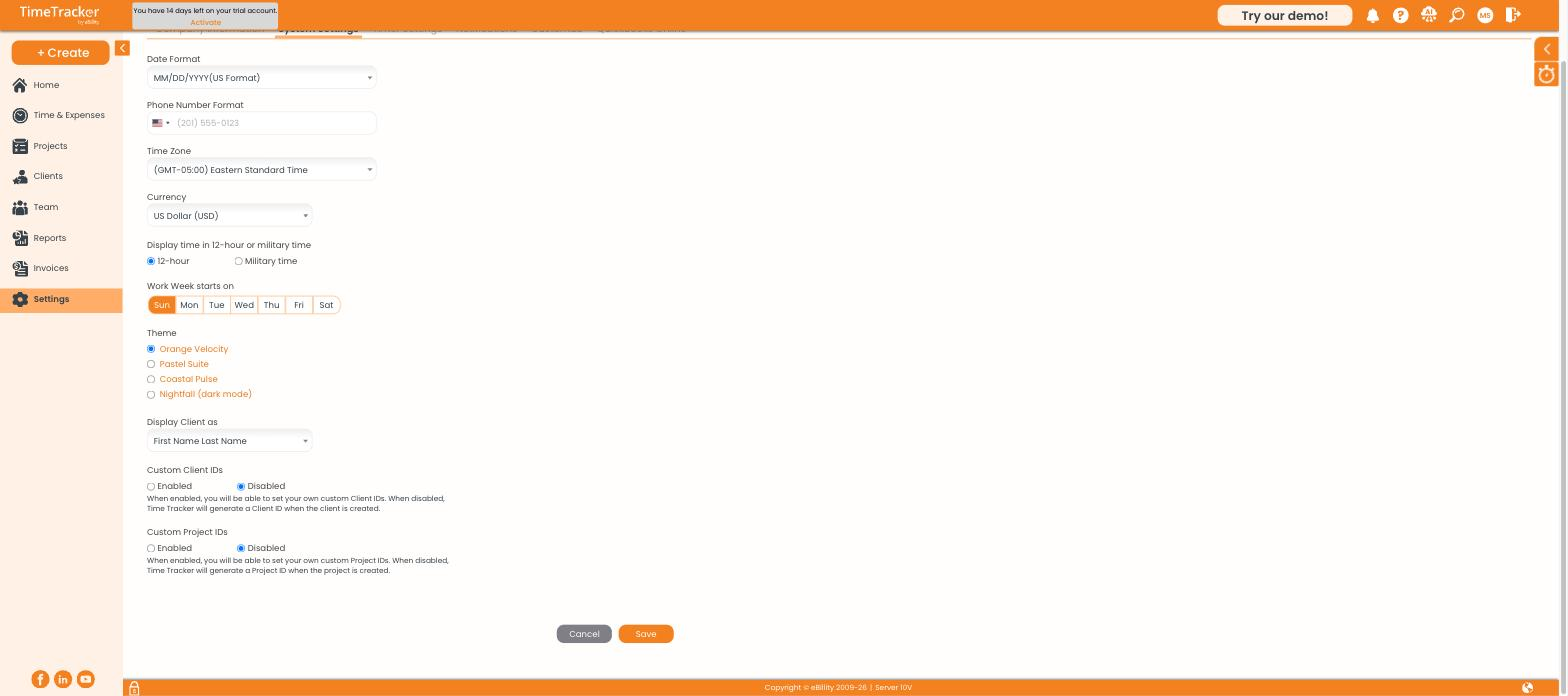
System Settings: regional formats, week start, theme, and custom IDs.
Using Your Own Client and Project IDs
Time Tracker Billing numbers clients and projects for you (C1, C2... and P1, P2...). If your firm already has its own numbers, like job codes, turn on Custom Client IDs and Custom Project IDs. You'll then enter the ID yourself each time you create one.