
Applies to: Workforce · Premium · LawBillity
Hide timesheet columns you never use, or print a clean copy when a supervisor needs to sign off or a client wants backup for an invoice.
Hiding and Showing Columns
- Click Entries > Weekly Timesheets.
- Click the eye icon on a column to hide it. For example, hide Bill if all your work is billable.
- To bring every column back, click Reset Timesheet View.
Setting the Layout for Everyone (Admins)
Admins can set up the timesheet for the whole firm in Admin > Settings > Customize > Timesheets: which columns appear and which days show, with a preview of the layout. The pay period itself is set in Admin > Settings > System Settings.
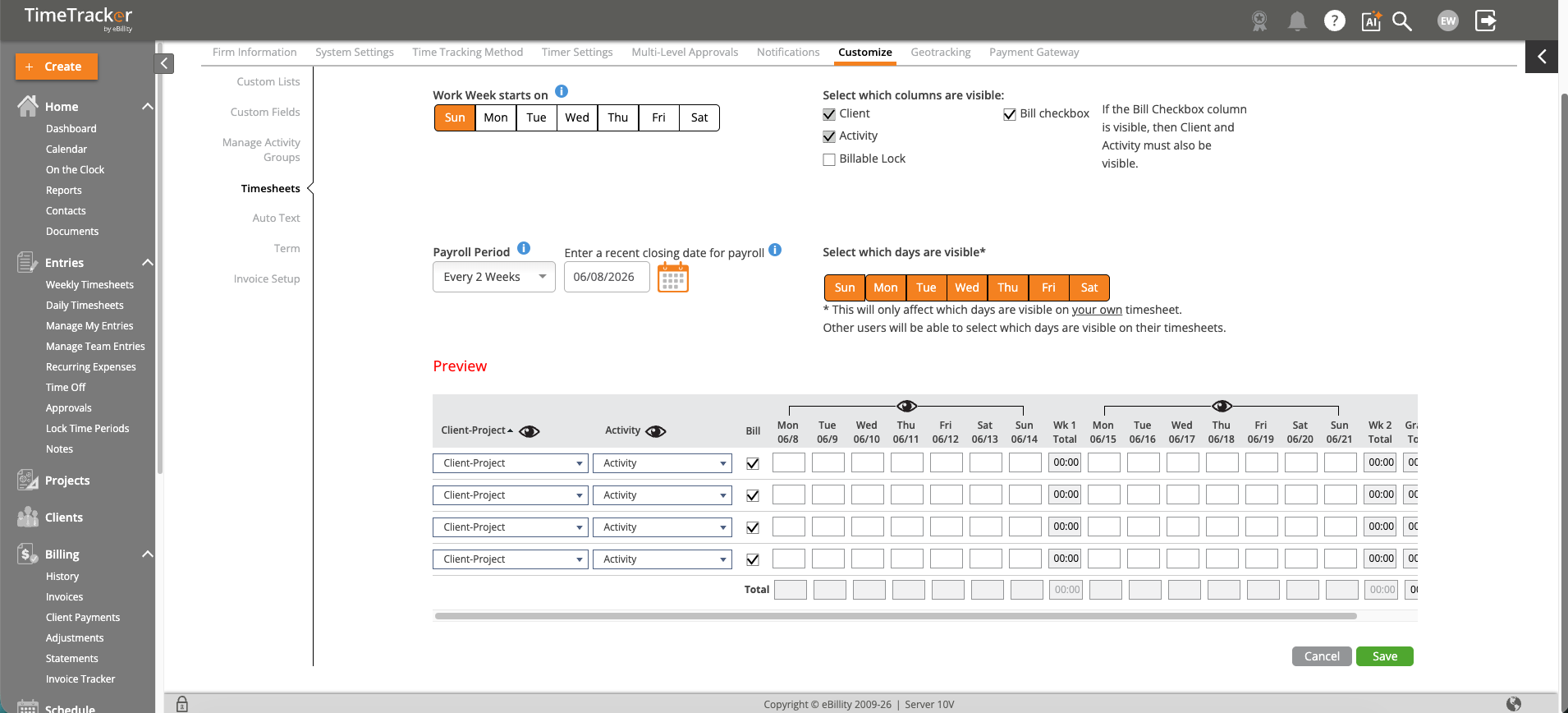
Timesheet settings: choose the columns and days, and preview the layout.
Printing a Timesheet
- Go to the week (or day) you want to print.
- Click Print. Your browser's print window opens.
- Print or save as PDF. The printout shows your name, the date range, and the columns you can see.
People print timesheets for a supervisor's signature, as backup a client asked for, or for their own records, for example contractors who work for several clients.
Common Problems
- Your grid looks different from your coworker’s. Columns may be hidden. Click Reset Timesheet View.
- The printout is cut off. Print in landscape, or hide columns you don't need before you print.
- A column you need is missing for everyone. Ask your admin to check the timesheet settings.