
Applies to: Workforce · Premium · LawBillity
When someone leaves your firm or no longer needs Time Tracker, remove them in two steps. First uninvite them, which takes them out of their seat so they can't sign in. Then, if you like, disable them so they no longer appear in your lists. Their past time entries, expenses, and invoices stay in Time Tracker and in your reports.
Uninviting Someone
- In the left menu, click Admin > Manage Users.
- Click the menu (three lines) at the end of the person's row and click Uninvite. To uninvite several people, tick them and click Uninvite under the list.
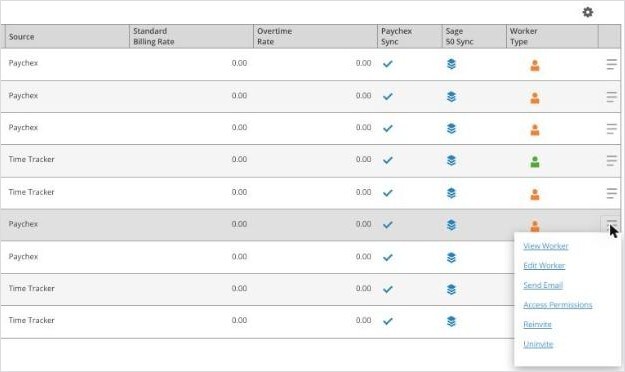
The row menu, with Edit, Access Permissions, Reinvite, and Uninvite.
The person moves to the list of people not yet assigned to seats, lower on the page. Their seat is now empty. To stop paying for it, remove the seat. See Adding More Users: User Seats.
Disabling Someone
In the list of people not yet assigned to seats, tick the person and click Disable. Use the all, active, and disabled filters above that list to find people.
Bringing Someone Back
Open the menu at the end of their row and click Reinvite. They need a free seat.
When an Employee Leaves
- Make sure all their time entries and expenses are submitted and approved.
- Run any final reports you need, such as payroll or utilization.
- Uninvite them, then disable them if you like.
- Remove their seat from your subscription if you won't fill it.