
Applies to: Workforce · Premium · LawBillity
What you can do with a time entry depends on its status. Entries start as Pending. Once you submit them they're Submitted, and your approver then approves or rejects them.
If an entry has a lock icon, its time period may also be locked. Only an admin can unlock it. See Locking Time Entry Periods.
Finding the Entry
- In the left menu, click Entries > Manage My Entries.
- At the top right, click Pending, Submitted, Approved, or Rejected to show entries with that status.
- To look further back, click the date range under Find (it starts at Last 30 Days), or click Find to search.
Editing an Entry
- Click the arrow at the right end of the entry's row to expand it.
- Click View / Edit Entry.
- Make your changes and save.
You can also change Pending hours directly on the Weekly or Daily Timesheet.
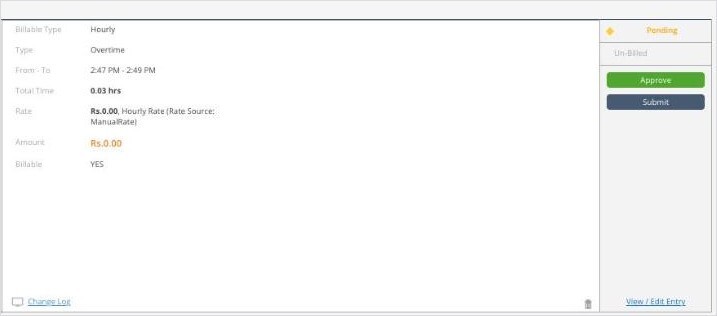
The right side of an expanded entry: its status (here Pending and Un-Billed), Approve and Submit, the Change Log, the trash can, and View / Edit Entry.
Deleting an Entry
Expand the entry and click the trash can at the bottom right. To delete several at once, tick them in the list and click Delete.
The Change Log link on an expanded entry shows the changes made to it.
Taking Back a Submitted Entry
- In Manage My Entries, click Submitted at the top right.
- Tick the entries you want back.
- Click Revert to Pending.
The entries go back to Pending. Edit them, then submit them again.
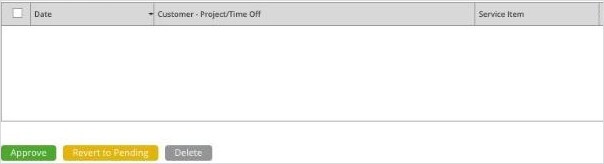
With Submitted selected, the buttons are Revert to Pending and Delete. Admins also see Approve.
Changing an Approved Entry
An approved entry can't be edited. Ask your approver to reject it: in Entries > Manage Team Entries, they click Approved, tick the entry, and click Reject. It comes back to you as Rejected, so you can fix it and resubmit.
For Admins and Managers
Manage Team Entries works the same way for your team's entries. The buttons under the list change with the status you're viewing: