
Applies to: Workforce · Premium · LawBillity
Your team can only log time to a client once it's in Time Tracker. To get started, all you need is the client's name. You can fill in billing details now or come back to them before you send the first invoice.
Adding a Client
- Click Customers in the left menu, then Add Customer.
- Choose the Customer Type. For a Person, enter their first and last name. For an Organization, enter the business name.
- Click Save & Close.
The client shows up right away in timesheets, timers, and expense forms.
Note: Your firm may say Customer instead of Client, or Matter instead of Project. The steps are the same. See
Renaming Clients, Projects, and Other Terms.
Before You Invoice This Client
If you bill this client from Time Tracker (Premium and LawBillity), take a minute to set these up:
- Billing Contact tab: who receives the invoices. Tick Same as Main Contact if it's the same person.
- Tick Grant this contact access to the Customer Portal on the same tab if you want them to view and pay invoices online. They're emailed a password.
- Address tab: the address printed on invoices.
- Other Details tab: Payment Terms. It's COD unless you choose something else, such as Net 30. Click Add to create your own terms.
Settings for Special Cases
Most clients don't need these. Open the Other Details tab if one of these sounds like your client:
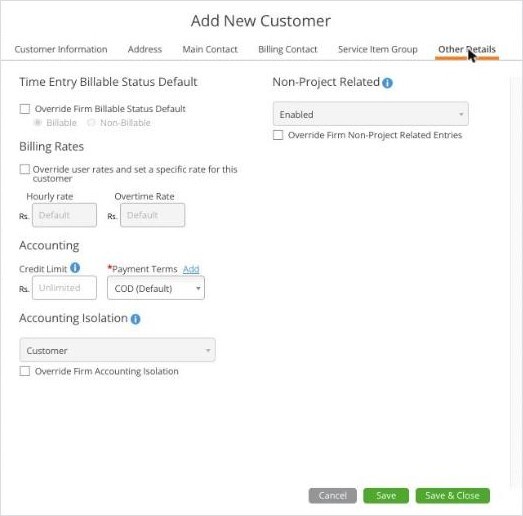
The Other Details tab, where the special-case settings live.
The Service Item Group tab controls which kinds of work can be logged for this client. Leave it on the default to allow all of them.
Common Problems
- Your team can’t find the new client. Their access may be limited to certain clients. See Choosing What Each User Can See (Access Permissions).
- Save doesn’t work. Fill in every field marked with a red star, and leave out these characters: / : ? * \ | < > ".
- You have a lot of clients to add. Import them from a spreadsheet instead. See Importing Users, Clients, and Projects from a Spreadsheet.
- You use QuickBooks, Xero, or another accounting integration. Clients may come in when you sync, so check before adding them by hand to avoid duplicates.