
Applies to: Workforce · Premium · LawBillity
If your team works set shifts, as in retail, field service, or healthcare, use the Schedule to plan who works when. Your team can check their upcoming shifts, and you get a plan to compare against the hours they actually log.
Creating a Shift
- Click Schedule in the left sidebar.
- Click the day and time where you want the shift.
- Enter the start time and end time. Add a client and project and any notes if they help.
- Assign the shift to one or more people.
- Click Save.
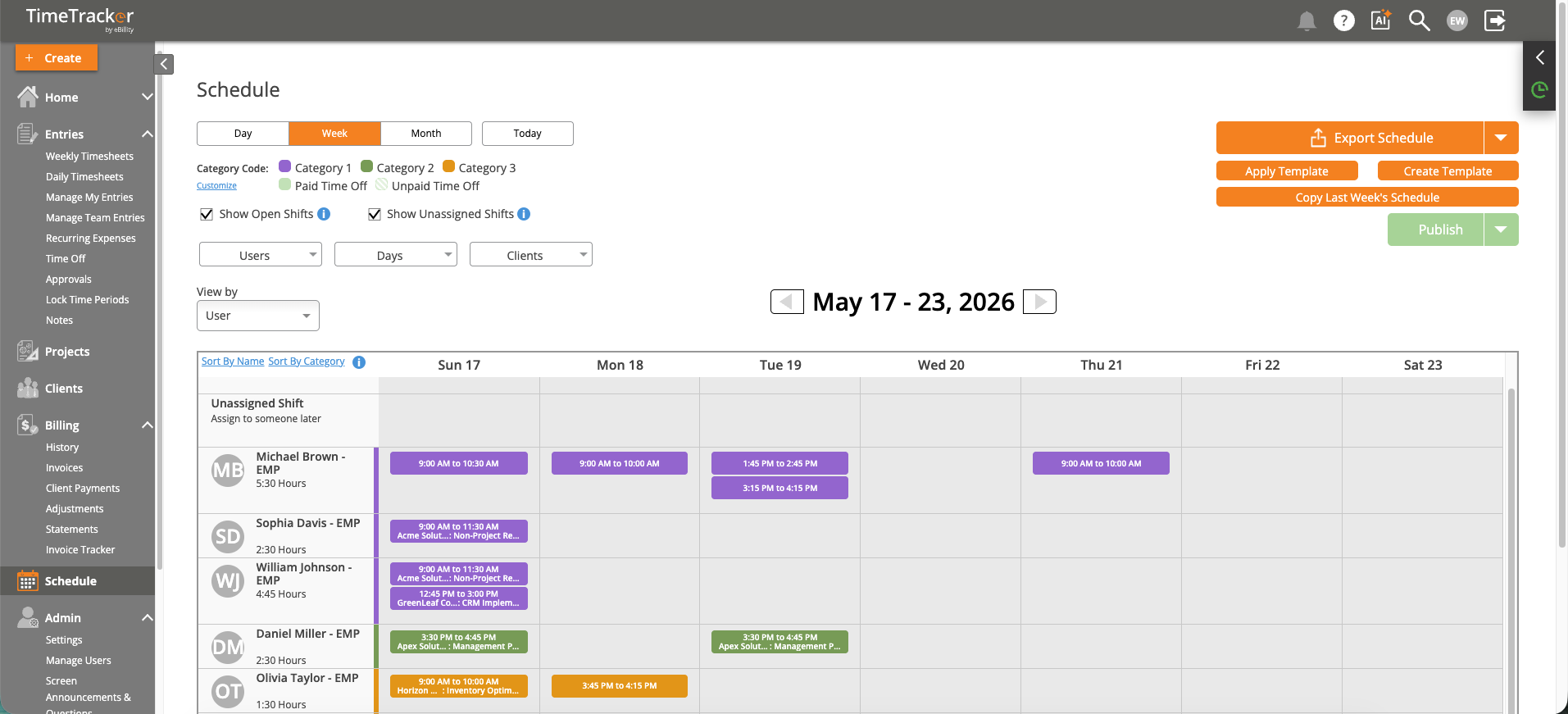
The Schedule in week view, with each person’s shifts. Click the picture to see it full size.
Choosing a View
- Day: everyone's shifts for one day. Good for checking today's staffing.
- Week: the whole week. The one most people plan in.
- Month: an overview for longer-term planning.
Changing the Schedule
- Move a shift: drag it to another day or time.
- Repeat a pattern: copy a shift, or a whole week, instead of building it again.
- Keep people informed: employees are notified when their schedule changes.
After the Shift
Compare the schedule with the hours people actually logged to catch no-shows, overtime, and gaps. See Comparing Scheduled Time vs. Actual Time Worked.
Common Problems
- An employee can’t see their shift. Make sure the shift is assigned to them. Employees only see their own shifts. See Viewing Your Schedule.
- You build the same week over and over. Copy last week's schedule and adjust it.