
Applies to: Workforce · Premium · LawBillity
Time Tracker connects to accounting software, payroll services, and a few other tools, so time, expenses, invoices, and payments don't have to be typed in twice. Use this page to see which integrations exist, which ones you can use together, and how each one connects. Each integration has its own setup article.
Where to Find Integrations
Go to More > Integrations. The page lists every integration in groups. Click a tile to read what it does and see its sync table, then click Integrate with the integration to add it. Once it's added, its own section appears in the left menu (for example QuickBooks, Sage 50, or Xero), together with the Sync section.
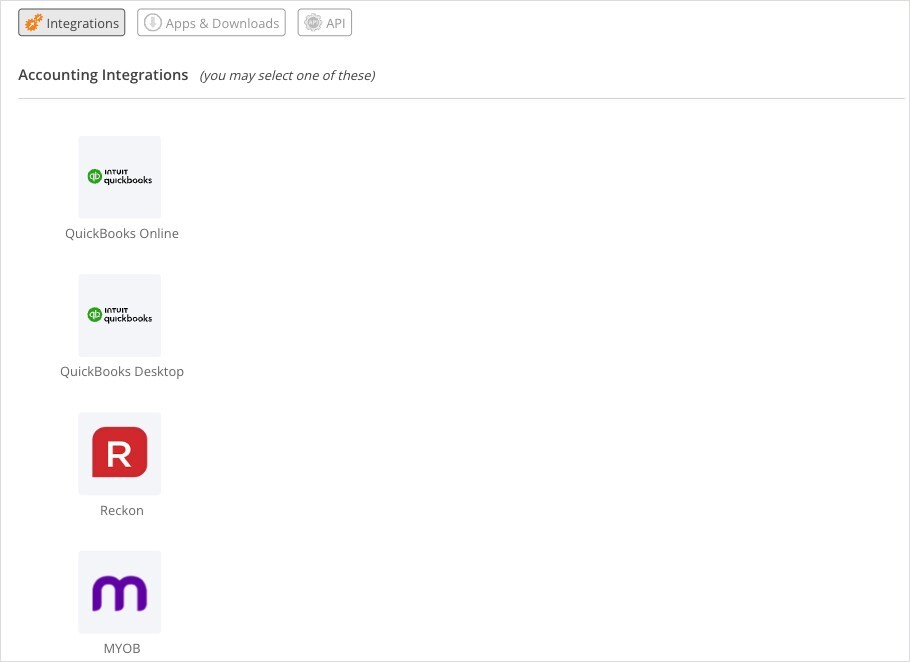
More > Integrations. Accounting integrations are listed first.
Which Integrations Can I Use Together?
Which Integrations Come with My Plan?
Zapier also works with Time Tracker, but you set it up from your Zapier account rather than from this page. See Using Zapier with Time Tracker.
Two Ways an Integration Connects
How you sync depends on whether the other software runs in the cloud or on a computer in your office.

The Sync menu for a cloud integration has a Sync button.

For QuickBooks Desktop, the same menu tells you to run the Web Connector.
What Every Integration Has in Common
- A setup page with a status checklist on the right. A green tick next to every step means setup is complete.
- A sync table. Click View Sync Table on the setup page to see each type of record and which way it travels.
- A Sync Queue that holds everything waiting to go to the other software.
- A Sync Log that records every sync from the last three months, with any errors.
How the queue, log, and Auto Sync work is explained in How Syncing Works: Sync Queue, Sync Log, and Auto Sync.
Setup Articles
- Connecting QuickBooks Online: Setup and Linking
- Connecting QuickBooks Desktop with the Web Connector
- Connecting Sage 50 with the Sage 50 Connector
- Connecting Sage Intacct
- Connecting Xero and Xero Payroll
- Connecting Reckon Accounts Hosted
- Clio Integration
- Connecting Gusto Payroll
- Connecting Paychex Flex
- Connecting ADP (RUN and Workforce Now)
- Connecting SAP Concur
- Jira Integration: Tracking Time in Jira