
Applies to: Workforce · Premium
With the Time Tracker app for Jira, your team tracks time on projects and tickets without leaving Jira, and that time syncs to Time Tracker. Installing the app is enough to start tracking. Integrating also syncs users, projects, and permissions.
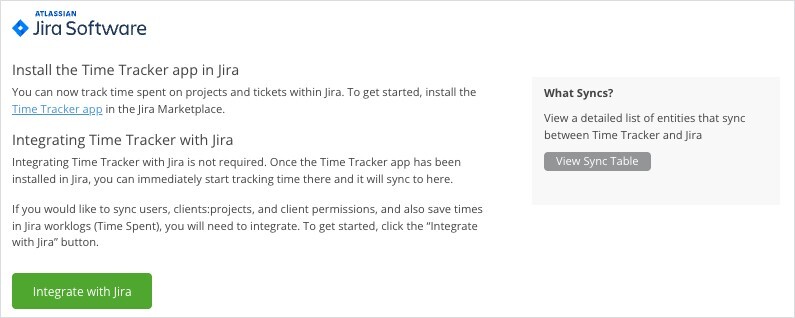
Click Jira in the left menu to open this page.
Step 1: Install the Time Tracker App in Jira
Install the Time Tracker app from the Atlassian Marketplace (the Jira page in Time Tracker links to it). Once it's installed, you can start tracking time in Jira straight away, and it syncs to Time Tracker. You don't have to integrate.
Step 2 (Optional): Integrate with Jira
Integrate if you also want to sync users, clients and projects, and client permissions, and to save your time in Jira worklogs (Time Spent). In Time Tracker, click Jira in the left menu, then click Integrate with Jira and follow the prompts.
What Syncs When You Integrate
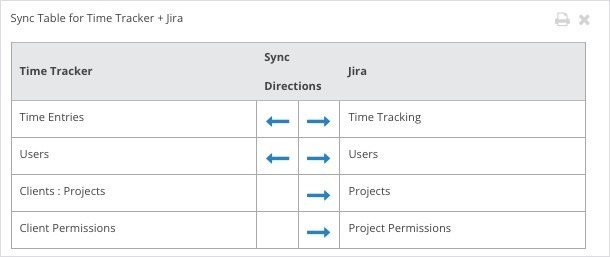
The Jira sync table.
Common Problems
- Time logged in Jira doesn’t show in Jira worklogs. Saving time to worklogs needs the full integration (step 2), not just the app.
- Projects from Time Tracker aren’t in Jira. Clients and projects only sync to Jira once you integrate.