
Applies to: Workforce · Premium · LawBillity
A project can be open to everyone or limited to the people who work on it. Limit it when the work is confidential, or when people keep logging time to it by mistake.
Choosing Who Can Log Time
- Make sure Project Level Access Permissions is set to Enabled in Admin > Settings > System Settings. Without it, you can't give or deny access per project.
- Open the project from Projects > Project List.
- Go to the Users tab.
- Choose ALL (everyone in your firm) or SOME (only the people you pick).
- If you chose SOME, select the users who should have access.
- Click Save.
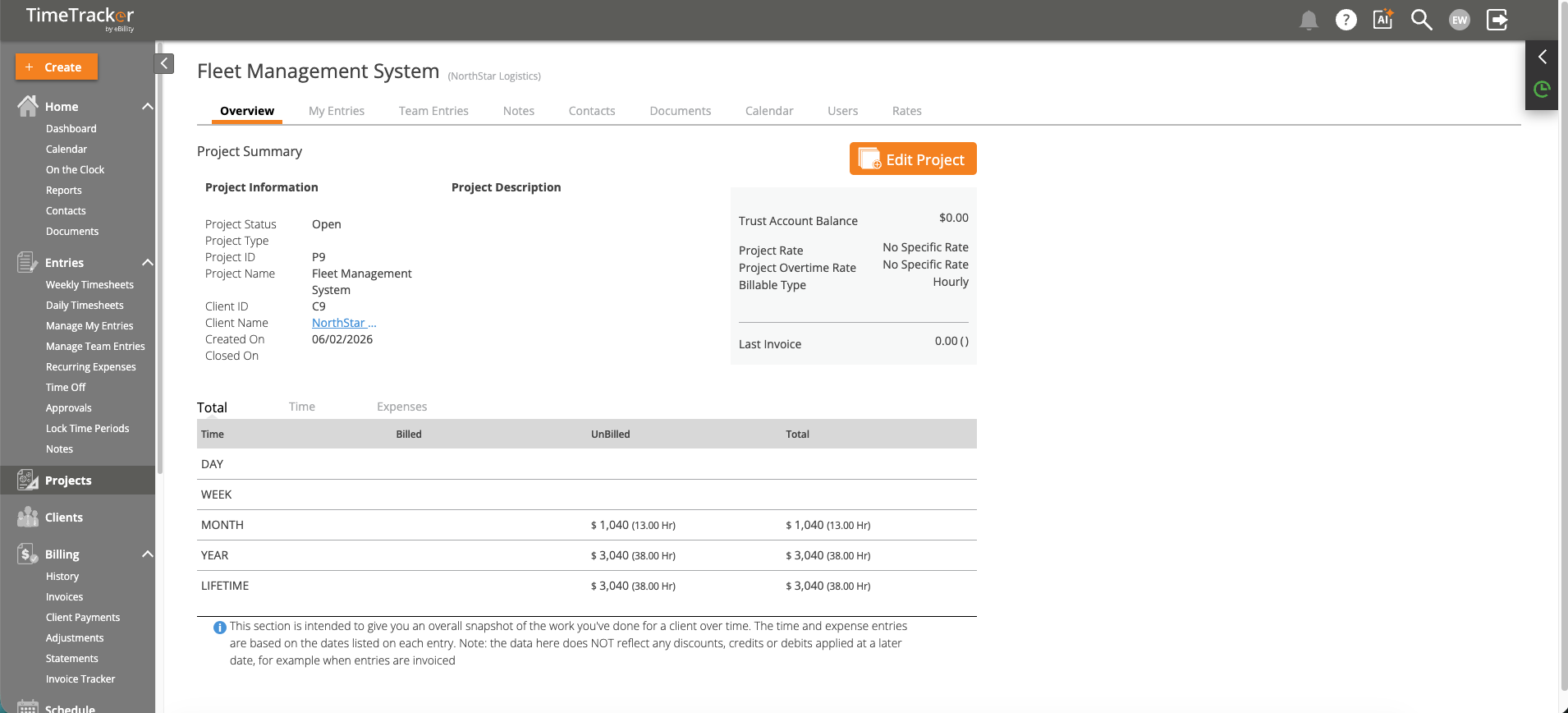
The project overview: summary, billing information, and the people assigned.
When to Limit Access
Access to clients is set separately. Each user's client access is set to All, Some, or No, in the grid in Admin > Settings > System Settings or on the Access Permissions tab of their profile.
Project Lead and Subscribers
- Project Lead: gets notifications about the project, such as new time entries, budget thresholds, and status changes. The lead is also shown in project reports, so it's clear who owns each project.
- Subscribers: get an email whenever a time entry or expense is added to the project. Useful for managers who want to follow along without logging in every day.
Common Problems
- Someone can’t find the project. Add them on the Users tab, or switch it to ALL. Also check their access to the project's client. See Why Can't I See Certain Clients, Projects, or Activities?.
- There’s no way to limit a project. Turn on Project Level Access Permissions in Admin > Settings > System Settings.
- A new team member can’t see their projects. Projects set to SOME don't include new people automatically. Add them to each one.
- Someone gets too many emails. Subscribers are emailed for every new entry. Remove them from the subscribers.