
Applies to: Billing
Need to check what you logged last Tuesday, fix a description, or see what hasn't been invoiced yet? Time & Expenses > Manage Time & Expense Entries lists every time and expense entry, grouped by day with daily totals.
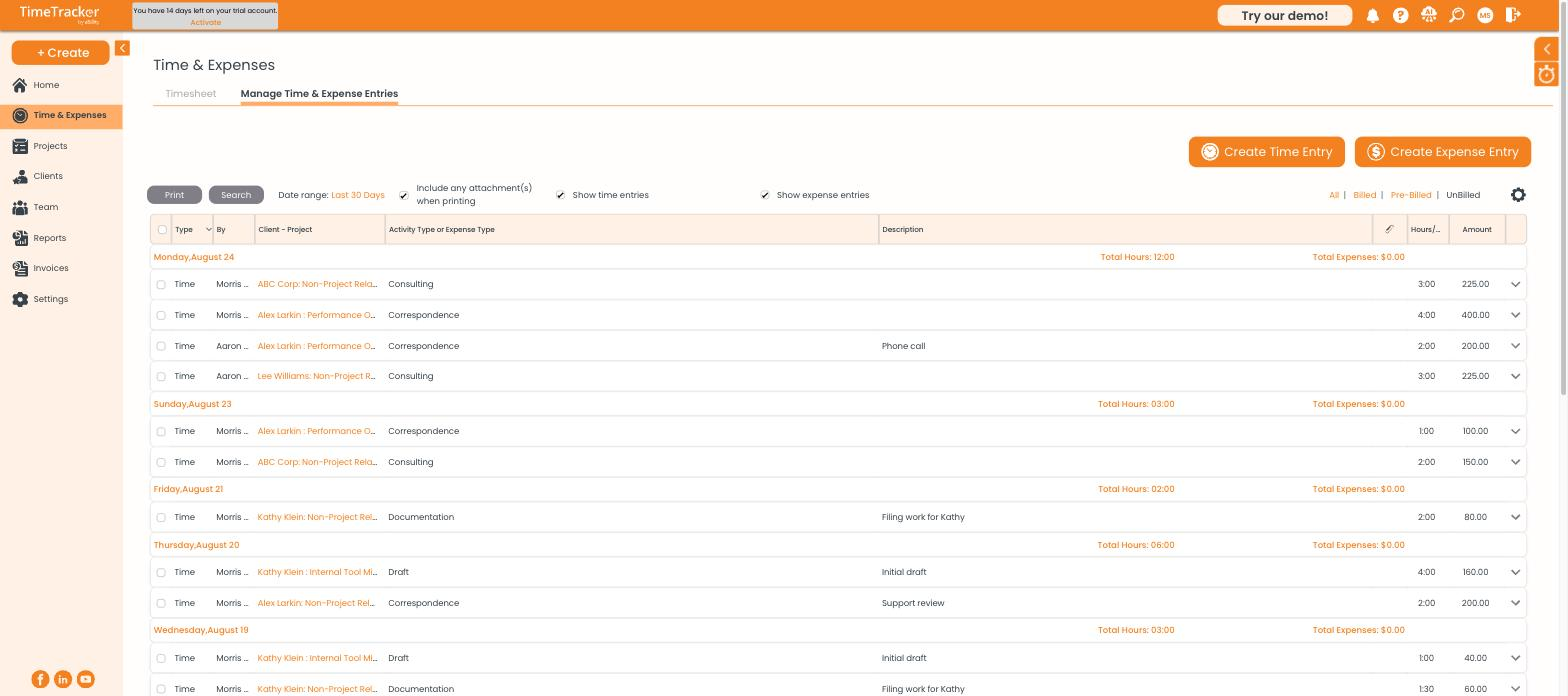
The entries list, grouped by date, with the billing status filters at the top right. Click the picture to see it full size.
Finding Entries
- Date range: shows the last 30 days unless you change it.
- Show time entries and Show expense entries: tick one or both.
- All | Billed | Pre-Billed | UnBilled: filter by billing status. Choose UnBilled before invoicing to see everything still waiting to be charged.
Editing an Entry
- Click the arrow at the right end of the entry's row to open it.
- Change what you need and save.
Whether you can edit depends on the entry's billing status:
Adding Entries Here
Create Time Entry and Create Expense Entry open the same forms as the + Create menu, in a separate browser window.
Common Problems
- An entry won’t let you edit it. It's been billed. Unfinalize the invoice if the client hasn't received it, or leave it alone and post an adjustment. See Understanding Billing Statuses: UnBilled, Pre-Billed, and Billed.
- You can’t find an older entry. Widen the date range. The list only shows the last 30 days by default.
- Create Time Entry does nothing. Your browser blocked the pop-up. Allow pop-ups for secure.ebillity.com and click again.