
Applies to: Workforce · Premium · LawBillity
Your admin sets the firm-wide notification defaults, but you can change them for yourself. From My Account you can switch an email alert to the web app only, turn off a digest, or add a reminder the firm doesn't send.
Getting There
Click your initials in the top-right corner, choose My Account, and open the Notifications tab. The same tabs as the firm settings appear on the left, limited to the ones that apply to your role.
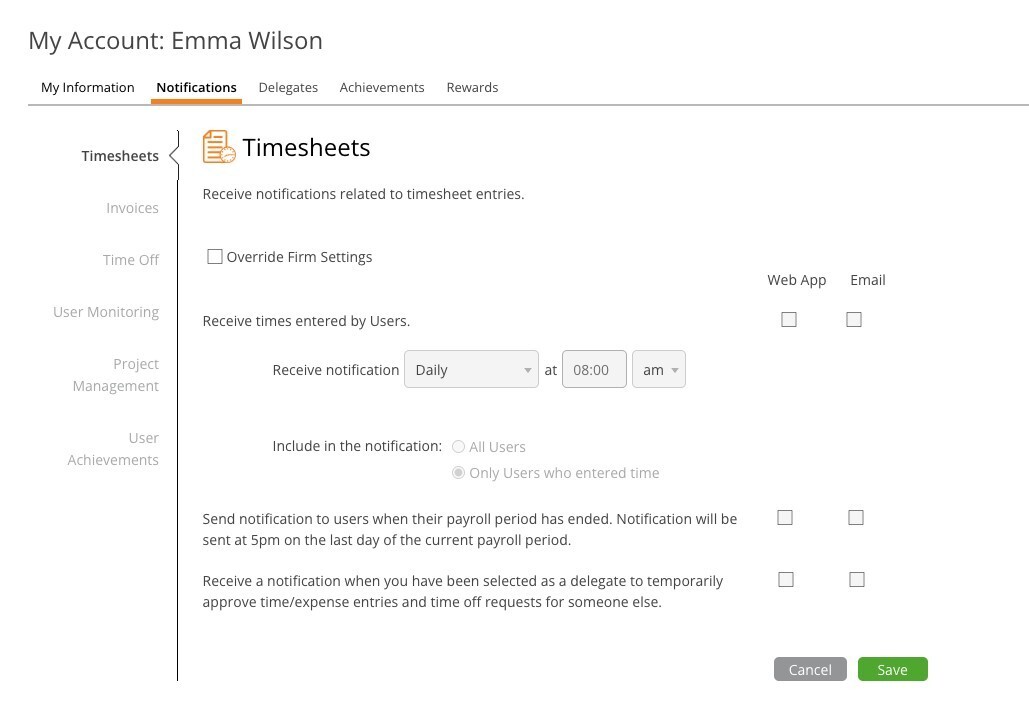
My Account > Notifications, with the Override Firm Settings checkbox.
Changing a Tab
- Open the tab you want to change (Timesheets, Invoices, Time Off, and so on).
- Tick Override Firm Settings. Until you do, the controls are greyed out and the firm's defaults apply.
- Tick or untick Web App and Email for each alert, and adjust any times.
- Click Save.
To go back to the firm defaults for a tab, untick Override Firm Settings.
Tips
- Web App alerts show under the bell icon in the top bar. The number on it tells you how many are unread.
- Overrides are per tab, so you can keep the firm's Time Off settings and change only your Timesheets reminders.
Common Problems
- You stopped getting an alert you expect. Check whether Override Firm Settings is ticked on that tab, and whether the alert is ticked there.
- You can’t change a setting. Tick Override Firm Settings first. The controls stay greyed out until you do.
- You don’t see a tab your coworker has. You only see tabs that apply to your role. For example, alerts for managers don't appear for employees.