
Applies to: Premium · LawBillity · Billing (mobile app)
Log an expense when it happens, while you still have the receipt in hand. It syncs to the web so it can be billed to the client or reimbursed to you.
Adding the Expense
- Tap Add Expense on the Dashboard or in the menu.
- Check the Date (today unless you change it) and choose the Client - Project.
- Choose the Expense type, such as Travel, Meals, Supplies, or Mileage.
- Enter a Description.
- Enter the Cost ($) for one unit, and change Quantity if you bought more than one (it starts at 1).
- Tap Attach Receipt to add a photo. See Mobile: Attaching a Receipt Photo.
- Tap Save. (Cancel throws it away.)
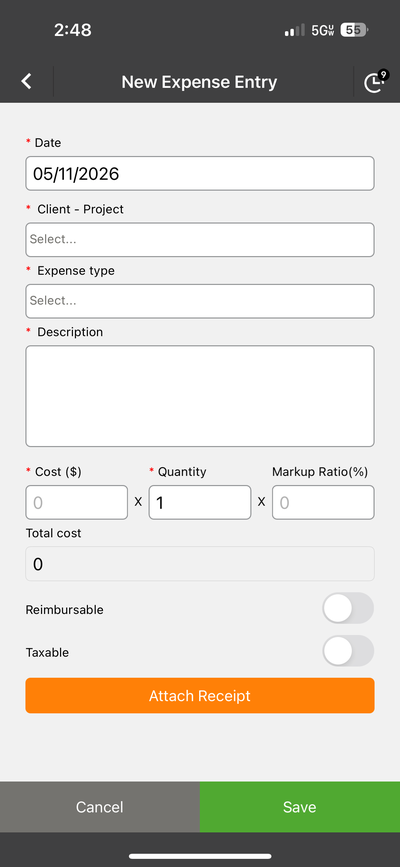
The New Expense Entry form, with Attach Receipt at the bottom.
Optional Settings
To learn more, see Expense Markups and Reimbursable Settings.
Common Problems
- You can’t save. Every field with a red asterisk is required, including Description, Cost, and Quantity.
- The expense type you need isn’t listed. Your admin manages the list. See Managing Custom Lists (Activities, Expense Categories, etc.).
- You don’t see Add Expense. Your plan or permissions don't include expenses. Ask your admin.