
Applies to: Premium · LawBillity · Billing (mobile app)
Check an invoice or see what clients still owe while you're away from your desk. Tap View & Create Invoices on the Dashboard or in the menu.
Reading the List
Invoices are grouped by month, newest first. Each month shows its total Paid and Owing. Each invoice shows:
- A status circle on the left (open, partly paid, paid, and so on).
- The client name and invoice description.
- The invoice date and number, for example 05.08.2026 - #10240.
- The amount, on the right.
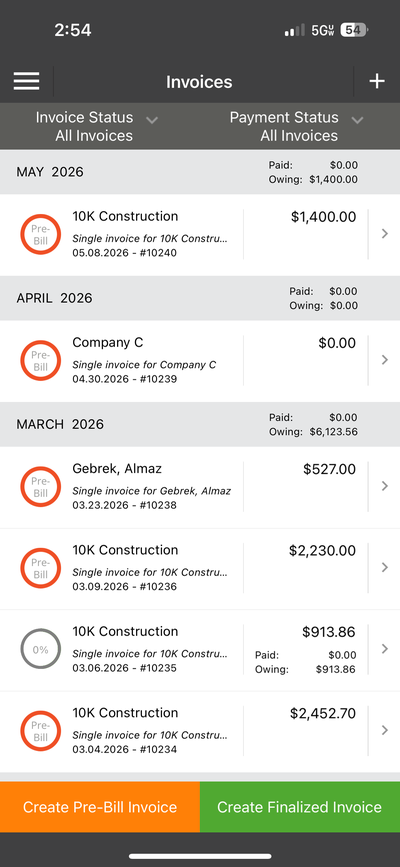
The Invoices list, grouped by month with paid and owing totals.
Finding an Invoice
Use the two filters at the top:
- Invoice Status: such as Pre-Bill or Finalized.
- Payment Status: such as Paid, Unpaid, or Partially Paid.
Tap any invoice to open it. See Mobile: Viewing Invoice Details.
Common Problems
- You don’t see View & Create Invoices. Your plan or permissions don't include invoicing. Ask your admin.
- An invoice is missing. Set both filters back to All Invoices, then tap the refresh icon in the sync bar.