
Applies to: Workforce · Premium · LawBillity · Billing (mobile app)
Open the menu and tap Time Off to see time off that's been taken or requested.
Yours or Everyone's
- Mine: only your time off.
- All: everyone's time off, if you have permission to see your team's.
Each entry shows the person, the type of time off (such as Holiday, Vacation, Unpaid TO, Comp Time, or Personal Day), the date, and the hours. Turn on Show Cancelled Entries to include cancelled ones.
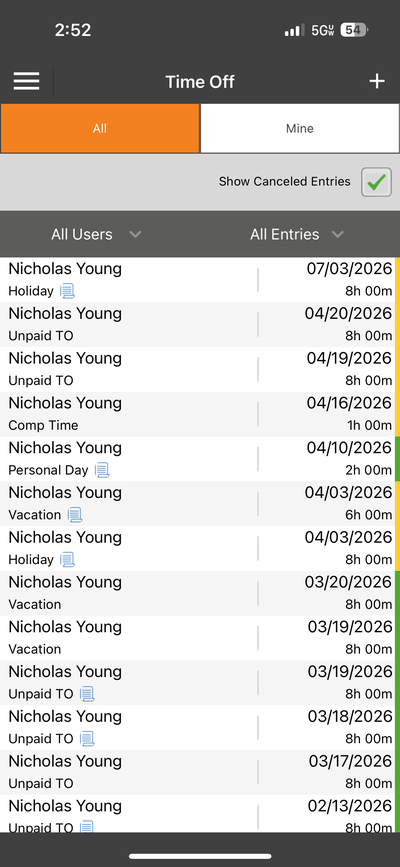
The Time Off list. Switch between All and Mine at the top.
Common Problems
- You want to ask for time off. Tap the + icon on this screen. See Mobile: Requesting Time Off.
- A request you made isn’t here. If it was cancelled, turn on Show Cancelled Entries. Otherwise tap the refresh icon in the sync bar.