
Applies to: Workforce · Premium
When you send hours to payroll through an integration, the payroll side needs to know how to pay them: as regular time, overtime, double time, holiday, and so on. Map each kind of hours to a payroll item (also called a pay type or earning rate) for every user, so hours arrive in payroll as the right type.
Where It Appears
The Payroll Item Mapping page appears next to the setup page for integrations that send time to payroll, such as Sage 50, Sage Intacct, Xero Payroll, and Reckon. Open it from the integration's section in the left menu (for example Sage 50 > Payroll Item Mapping) or from the tab at the top of the setup page. The payroll items in the lists come from your accounting or payroll software, so sync at least once before mapping.
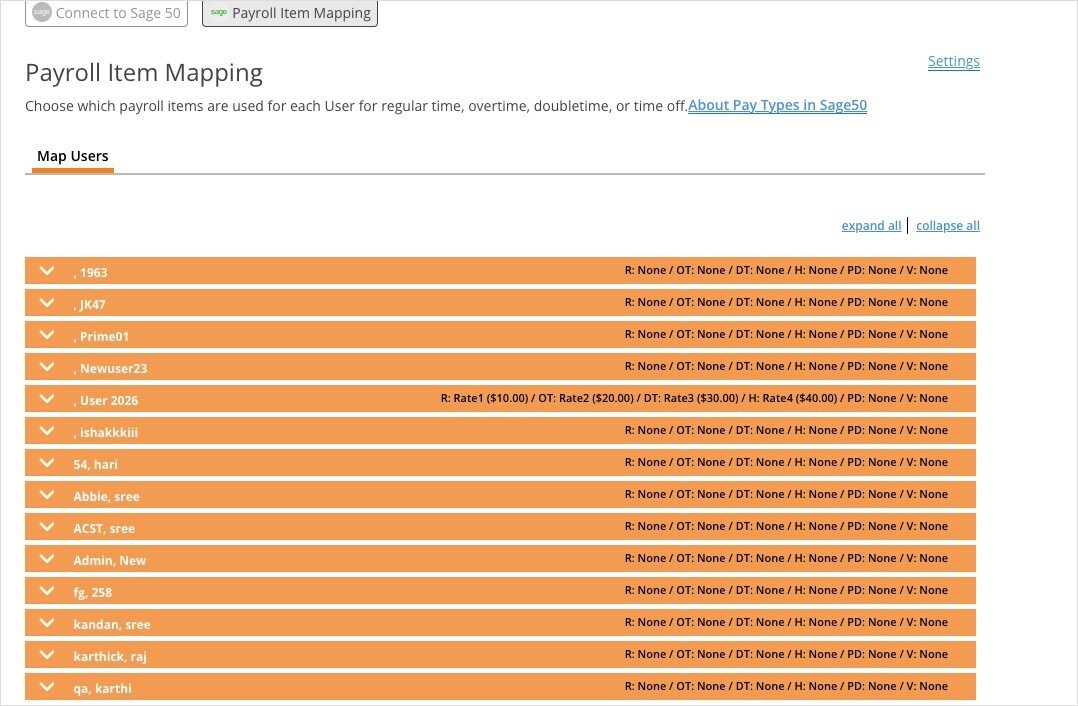
Payroll Item Mapping for Sage 50. Each bar is a user, with a summary of their mapping.
Mapping a User
- Click a user's name to expand their row. Use expand all to open every row at once.
- Choose a payroll item from each list. For Sage 50 these are Regular (R), Overtime (OT), Double Time (DT), Holiday (H), Personal Day (PD), and Vacation (V).
- Repeat for each user. The bar shows a summary, for example R: Rate1 ($10.00) / OT: Rate2 ($20.00).
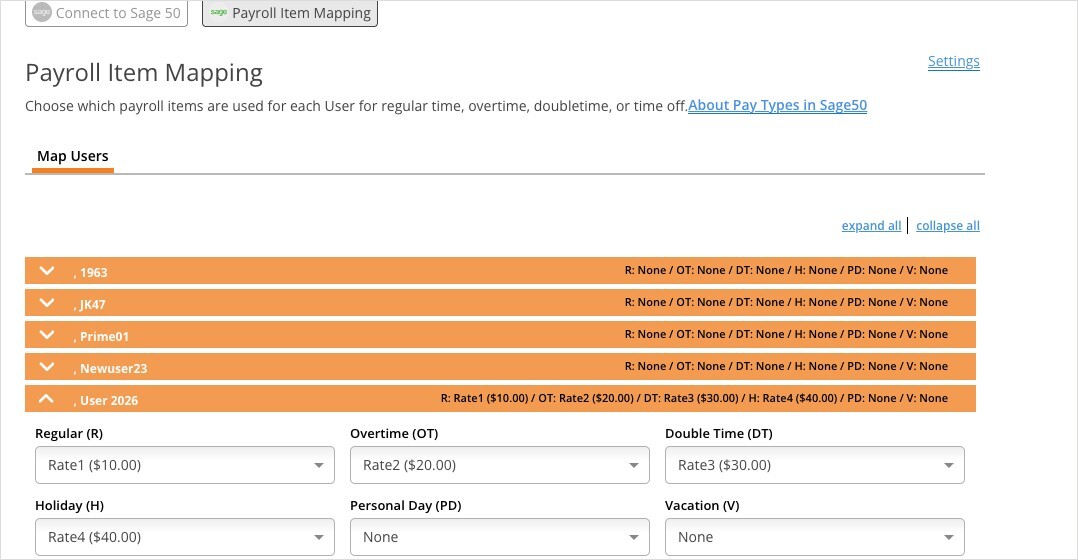
An expanded user with a payroll item chosen for each kind of hours.
Firm Defaults (Xero Payroll)
For Xero Payroll you first set firm-wide defaults: a Time Entries Payroll Regular Earning Rate and a Time Entries Payroll Overtime Earning Rate. Click Save. Every user then uses the firm default unless you choose a different option under their name. Each user's row also has a column for each time off code (for example Holiday, Personal Day, Sick).
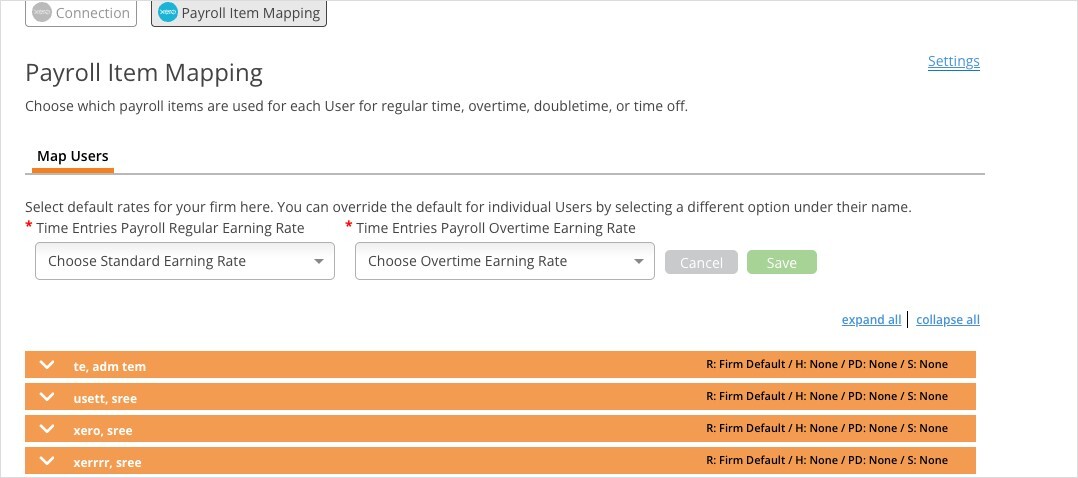
Xero Payroll: firm defaults at the top, with per-user overrides below.
If the earning-rate lists are empty and the page says "Error retrieving Xero Payroll Earning Rates. Check you have properly configured Payroll inside Xero", finish setting up Payroll in Xero (including its earning rates), then come back and refresh the page.
Paychex and ADP
Paychex has its own Payroll Item Mapping tab (Paychex > Connect to Paychex, then the tab at the top). Each worker has a Regular (R), Holiday (H), and Sick (S) item. Contractors aren't listed, because they sync to Paychex Flex as 1099-NEC contractors. See Connecting Paychex Flex.
For ADP, the equivalent page is ADP > Time Off Code Mapping, where you map each user's time off codes. See Connecting ADP (RUN and Workforce Now).
Tips
- Map new users as soon as you add them, before their first time entries sync.
- If someone's hours arrive in payroll as the wrong type, check their row here first.
- To find users whose entries failed because of mapping, look for the Regular Payroll Item error in the Sync Log. See My Integration Isn't Syncing: Finding and Fixing a Failed Sync.