
Applies to: Billing
Agreed a budget with a client? Set an estimate on the project, and Time Tracker Billing can warn you while there's still time to act, not when you're building the invoice.
Adding an Estimate
- Open the project and click the Project Estimates tab.
- Tick Add an estimate for this project.
- Choose an estimate method (see below).
- Enter the Projected Start Date and Projected End Date.
- Enter the Estimated Hours and, if you're budgeting by money, the Project Budget.
- Save.
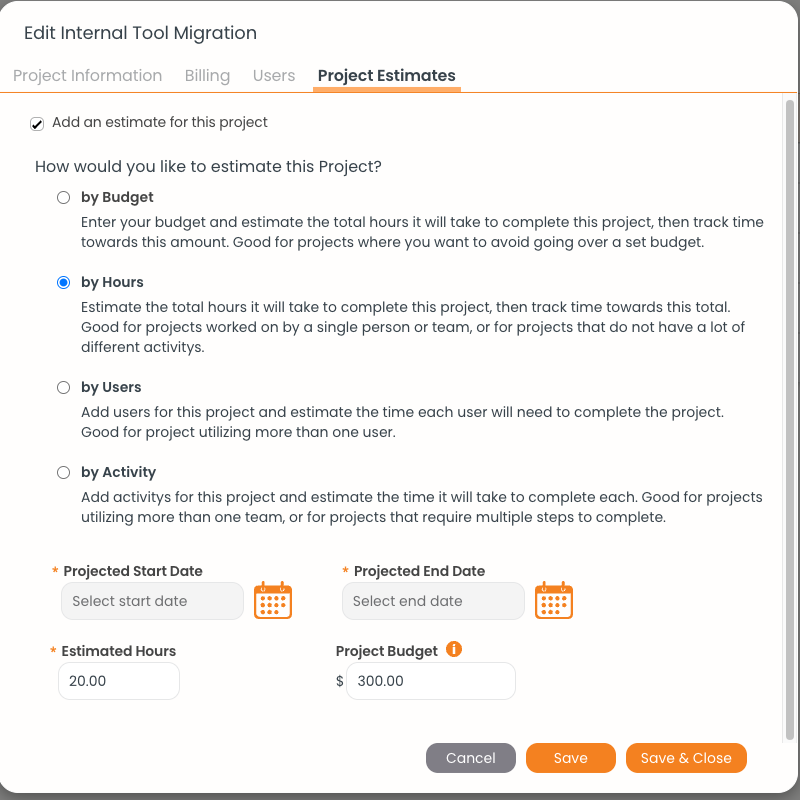
The four estimate methods, each with a short note on what it suits.
Choosing a Method
Once it's set, the project list shows a Budget column next to the billed and unbilled totals.
Getting Budget Alerts
Click Settings > Notifications and choose which alerts you want, in the web app, by email, or in the mobile app:
- When a project's total estimated time is reached
- When a percentage of the estimate is reached (80% unless you change it)
- On the project's projected end date
- A number of days before the projected end date (5 unless you change it)
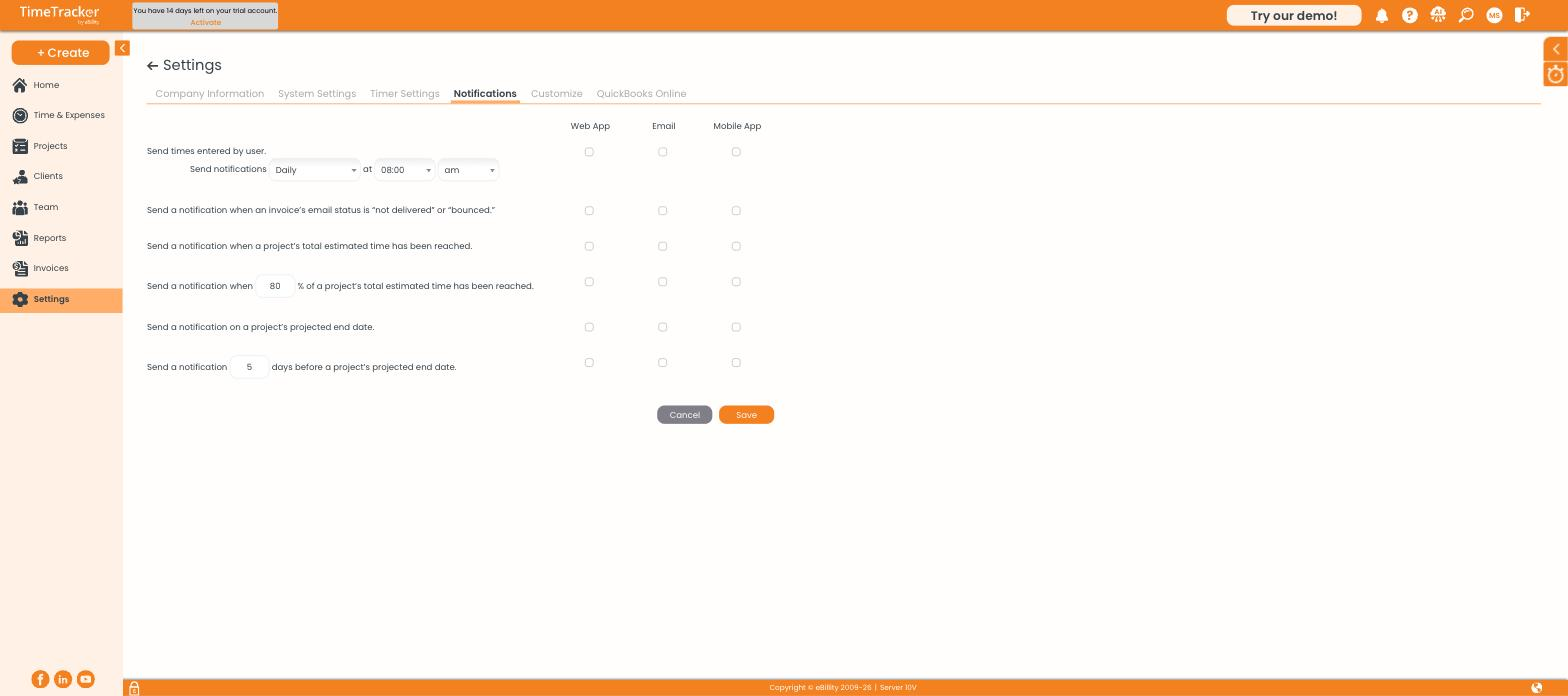
Each alert can go to the web app, email, or the mobile app.
Tip: Turn on the percentage alert. Hearing at 80% that a project is running hot gives you time to talk to the client before the budget is gone.
Common Problems
- The Budget column is empty. The project has no estimate yet. Add one on its Project Estimates tab.
- You never got an alert. Check that the alert is turned on for the channel you use in Settings > Notifications, and that the project has projected dates.