
Applies to: Workforce · Premium · LawBillity
Once QuickBooks Online is connected, use this page to check which records travel in which direction, change where transactions post in QuickBooks, and fix the errors customers run into most often.
The Connected QuickBooks Page
Open QuickBooks > Connect to QuickBooks in the left menu. When setup is complete you'll see "You are now connected to QuickBooks", a checklist with every step ticked, and your QuickBooks Realm ID (the company you're connected to).
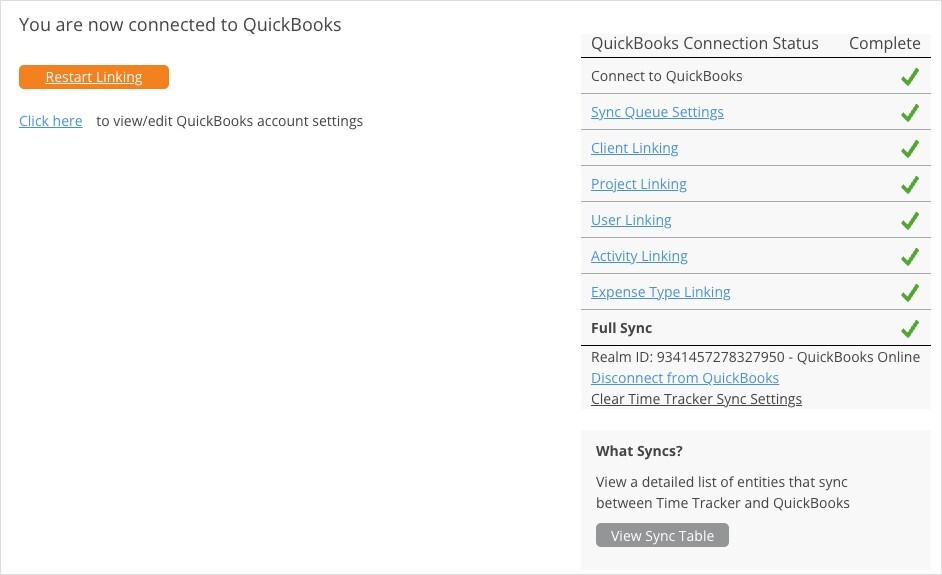
The connected QuickBooks Online page.
What Syncs
QuickBooks Account Settings
On the connected page, click Click here next to "to view/edit QuickBooks account settings". These settings decide where Time Tracker's transactions post in QuickBooks. Click Save when you're done.
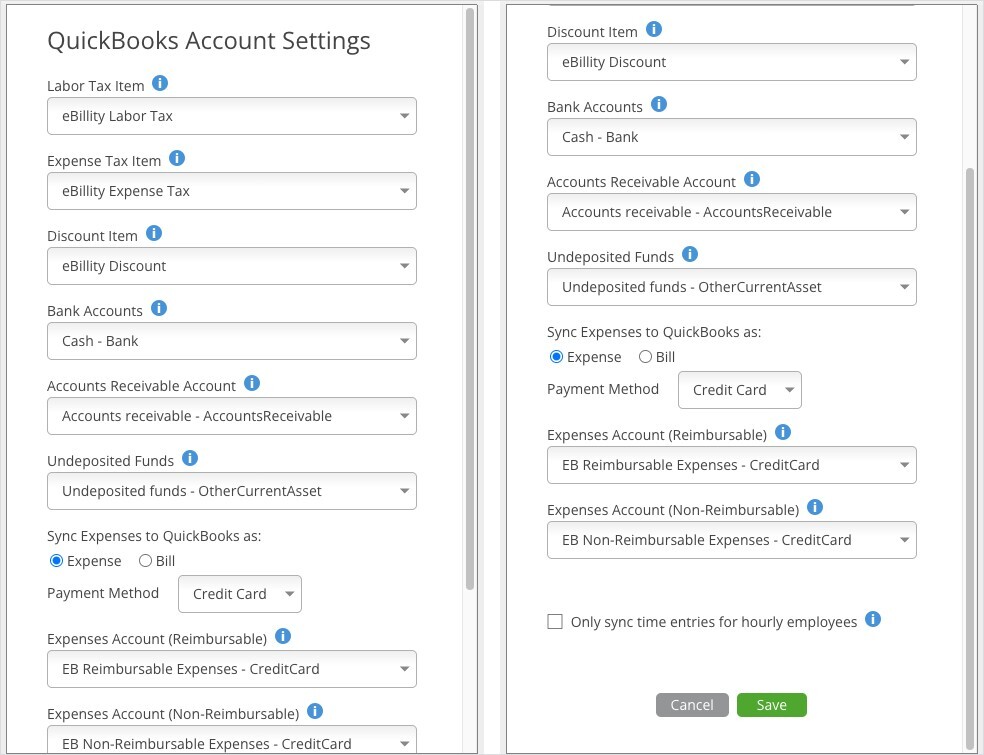
QuickBooks Account Settings (top and bottom of the window).
Common Errors and Fixes
Read errors in Sync > Sync Log: expand the failed sync and click Error. The general steps are in My Integration Isn't Syncing: Finding and Fixing a Failed Sync.