
Applies to: Billing
Every report in Time Tracker Billing works the same way: choose the report, set the filters, and generate it. Once you've run one, you can run them all.
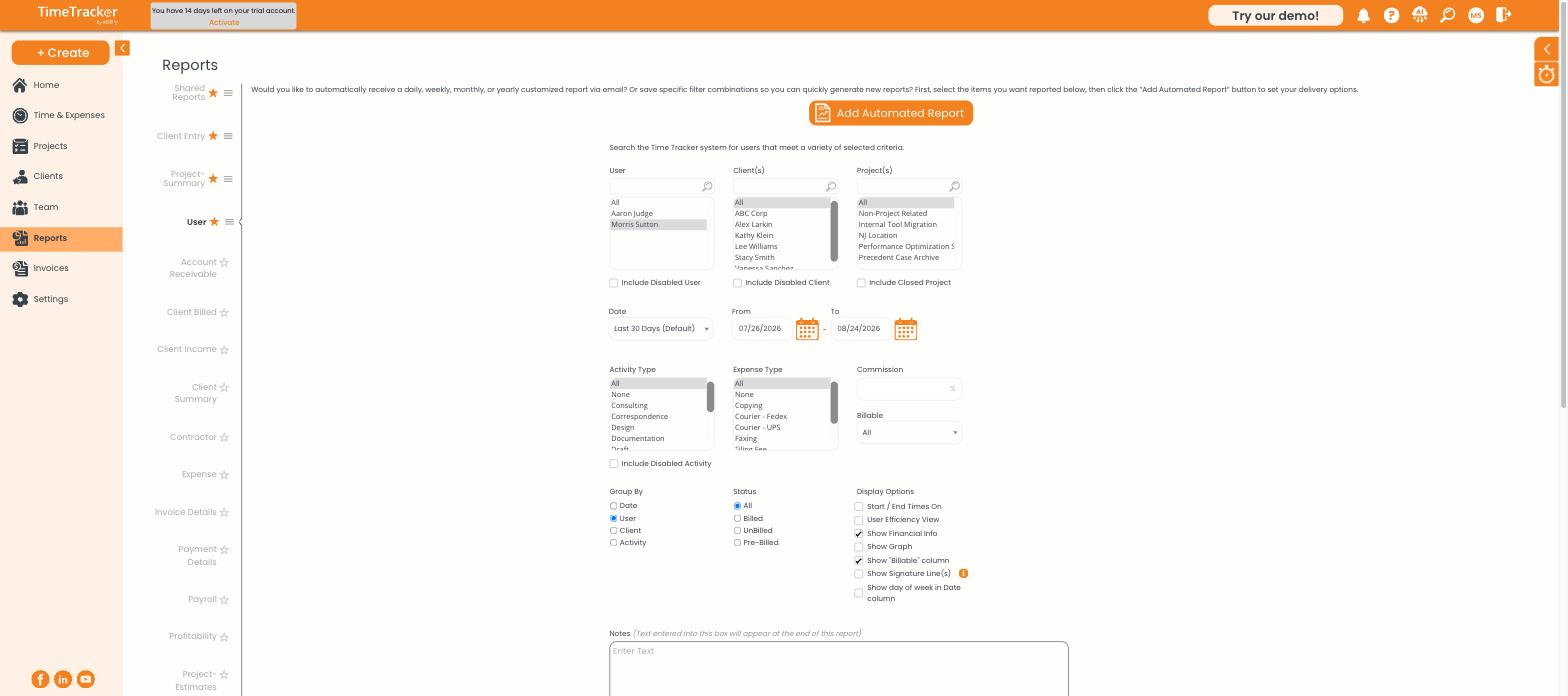
The Reports page: the report list on the left, filters in the middle.
Generating a Report
- Click Reports and choose a report from the list on the left. Not sure which? See Which Report Should I Use?.
- Narrow it down by User, Client(s), and Project(s).
- Set the Date range. It's the last 30 days unless you change it.
- Filter by Activity Type, Expense Type, or Billable if you need to.
- Choose how to Group By: Date, User, Client, or Activity.
- Choose a Status: All, Billed, UnBilled, or Pre-Billed.
- Click Generate Report.
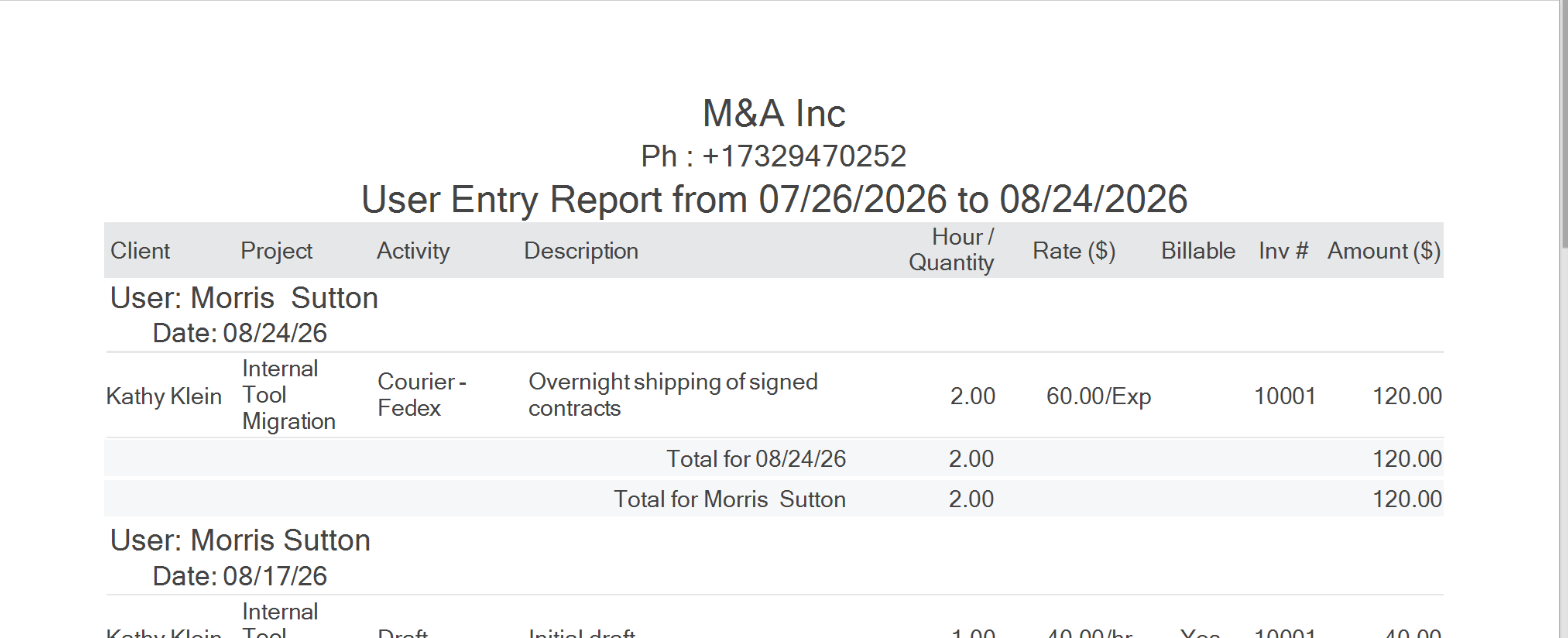
A generated User Entry Report, grouped by user and date with subtotals. Click the picture to see it full size.
Changing What the Report Shows
The checkboxes on the right add start and end times, financial info (rates and amounts), a graph, the billable column, signature lines for reports a client signs off on, and the day of the week. Anything you type in Notes prints at the end of the report.
Printing and Exporting
- Use the toolbar above the report to print, search, zoom, or download it.
- Click Export To CSV to open the data in a spreadsheet.
Getting a Report by Email
- Set the filters so the report shows what you want.
- Click Add Automated Report at the top of the page.
- Choose how often: daily, weekly, monthly, or yearly.
Common Problems
- The report is empty. Check the date range first. The last 30 days hides older work. Then check the Status filter.
- There are no rates or amounts. Tick Show Financial Info.