
Applies to: Premium · LawBillity
Before you send invoices, set them up to look like your firm's and to follow your billing policies. Everything is on one page.
Getting There
In the left menu, click Admin > Settings, then Customize > Invoice Setup.
Logo and Template
- Under Invoice Logo, click Choose File and pick your logo (up to 5 MB).
- Click Upload.
- Under Invoice Templates, click Default, Euro Style, or VAT Format, or click Add Invoice Template to make your own. A tick marks the template in use.

The logo upload and the three built-in templates.
Late Fees (Finance Charges)
- Under Finance Charge Settings, select Enabled.
- Enter the Annual Interest Rate.
- Set a Minimum Finance Charge. If the calculated charge is less than this, the minimum is used instead.
- Set a Grace Period in days.
- Choose whether to calculate charges from the Invoice Date or the Due Date.
- Optional: tick Assess finance charges on overdue finance charges, and tick Include Adjustments to include adjustments in the calculation.
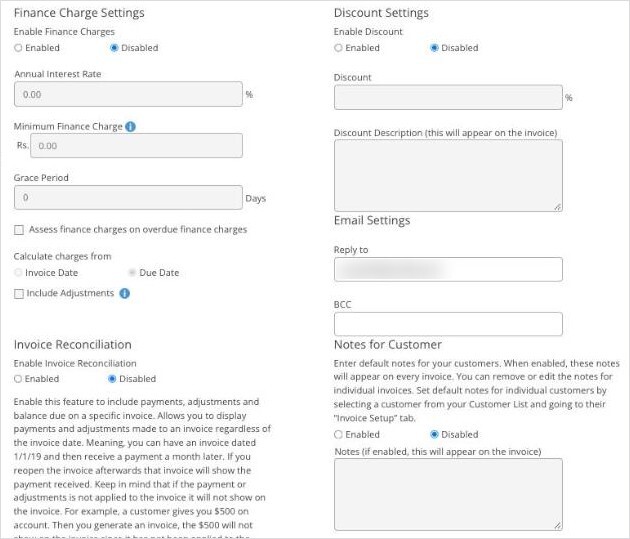
Finance charges, discounts, email settings, invoice reconciliation, and notes for clients.
Other Settings
- Discount Settings: enable a standing discount percentage, with a description that appears on the invoice.
- Email Settings: the Reply to address clients see when you email an invoice, and a BCC address if you want a copy.
- Invoice Reconciliation: shows payments, adjustments, and the balance due on each invoice, even payments received after the invoice date. Only payments and adjustments applied to that invoice appear on it.
- Invoice Approval: lets clients approve or reject Pre-Bill invoices, finalized invoices, or both, and leave comments. You get an email when they respond.
- Notes for Customer: default notes printed on every invoice. You can edit them on individual invoices.
Click Save when you're done. The logo has its own Upload button.
Tip: You can override invoice approval and notes for a single client on that client's Invoice Setup tab.