
Applies to: Workforce · Premium · LawBillity
If you're moving your books from QuickBooks Desktop to QuickBooks Online, follow these five steps to move your Time Tracker connection to the new QuickBooks Online company without starting over.
Getting There
Open QuickBooks > Switch to QuickBooks Online in the left menu. The setup page also has a Click Here link under "Switching from QuickBooks Desktop to QuickBooks Online?".
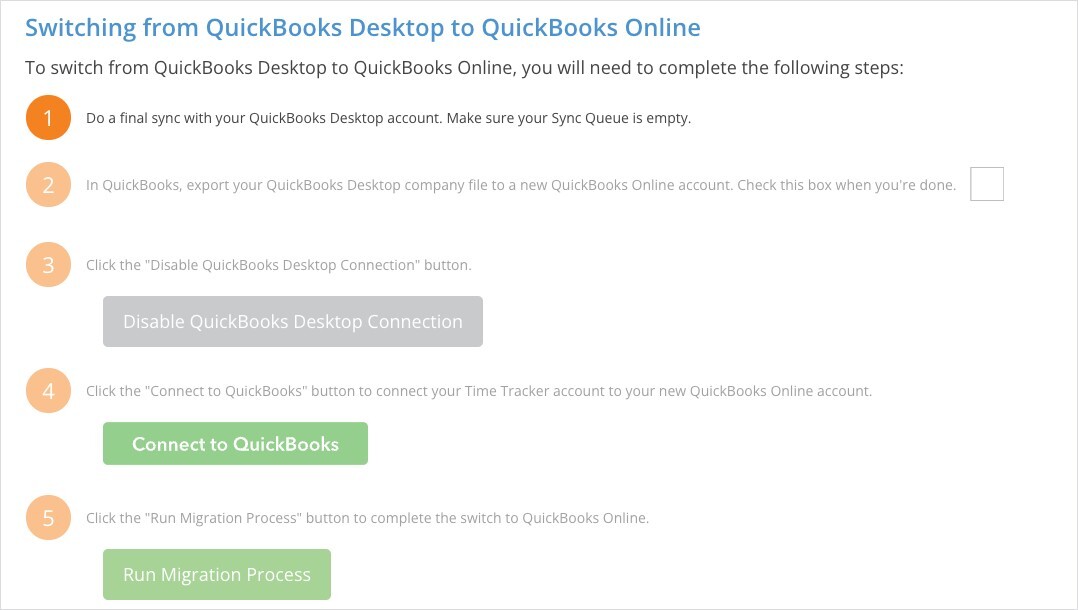
The switch page. Each step unlocks when the one before is done.
The Five Steps
- Do a final sync with QuickBooks Desktop. Run the Web Connector and make sure the Sync Queue is empty.
- Export your company file to QuickBooks Online. Do this in QuickBooks, using Intuit's export tool. When the export has finished, tick the box on this step.
- Disable the Desktop connection. Click Disable QuickBooks Desktop Connection.
- Connect QuickBooks Online. Click Connect to QuickBooks and sign in to the new QuickBooks Online company.
- Run the migration. Click Run Migration Process to finish the switch.
Important: Don't start step 3 until Intuit's export has finished and you can see your data in QuickBooks Online.
Common Problems
- The migration says it’s incomplete. It asks you to make sure the export of the company file from QuickBooks Desktop to QuickBooks Online has completed. Check the export in QuickBooks Online, then run the migration again.
- Items were still waiting when you switched. Always empty the Sync Queue with a final Web Connector run first (step 1). See Running and Scheduling the QuickBooks Web Connector.
After the Switch
- Check Sync > Sync Log after your first QuickBooks Online sync.
- You no longer need the Web Connector for Time Tracker. You can remove Time Tracker from it.
- QuickBooks Online syncs from the Sync menu or on a schedule. See How Syncing Works: Sync Queue, Sync Log, and Auto Sync.