
Applies to: Workforce · Premium · LawBillity
There are a few ways to record time in Time Tracker. They all create the same kind of time entry, which shows on your timesheet and can be approved, invoiced, and sent to payroll. Here's how they differ, so you can pick what fits how your team works.
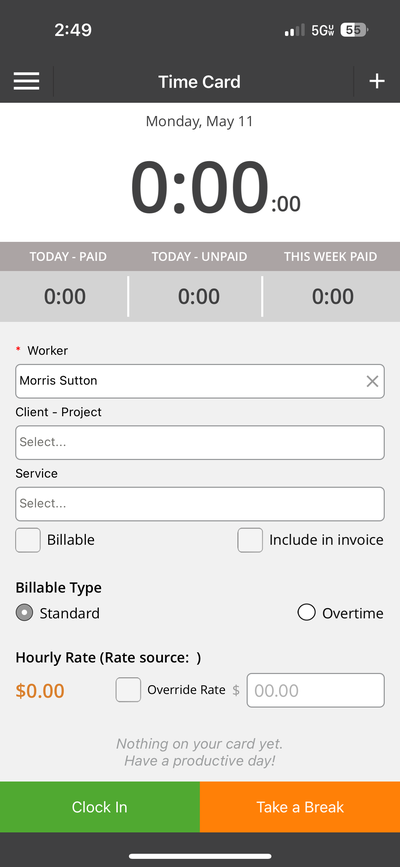
The mobile app in Time Card mode, with Clock In and Take a Break.
Timers and time cards are a firm-wide choice your admin makes. Timers are the default. If your mobile app opens to a Time Card screen, your firm uses time cards. Typing your hours on a timesheet works alongside either.
Switching Between Timers and Time Cards (Admins)
- Click Admin > Settings > Time Tracking Method.
- Choose Timers or Time Cards and save.
With Time Cards on, breaks show a countdown and a reminder before they end. Time card settings are in Admin > Time Card Settings, where you can round clock-in and clock-out times up or down and set overtime rules. You can switch back to Timers with one click, and your previous settings return.
How to Get Started
- Timers: see How to Use Timers.
- Time cards: see Mobile: Clocking In, Taking Breaks, and Clocking Out.
- Typing your hours: see How to Enter Time on the Weekly Timesheet or How to Enter Time on the Daily Timesheet.
Common Problems
- You forgot to start a timer. Type the time in on your timesheet instead. Timers always record the current time, so they can't be used for time you've already worked. See How to Enter Time for a Previous Day.
- Your app shows a time card, but you want timers (or the other way around). Ask your admin. It's set for the whole firm in Admin > Settings > Time Tracking Method. See Mobile: Understanding Your Home Screen.
- Your running timer disappeared. Your firm switched to Time Cards, which stops and deletes running timers. Type that time in on your timesheet.