
Applies to: Workforce · Premium · LawBillity
Auto Text saves typing in time entry descriptions. You set up abbreviations once, and then type an abbreviation followed by your hot key to have it expanded.
For example, with the abbreviation RD, the text Research & Development, and ! as your hot key, typing RD! in a description expands to Research & Development.
Setting Up Auto Text
- In the left menu, click Admin > Settings, then click Customize.
- Click Auto Text on the left.
- Choose a Hot Key: ~, !, @, #, $, or *.
- Click Add Abbreviation. Enter the Abbreviation and its Auto Complete Text.
- Repeat for each abbreviation.
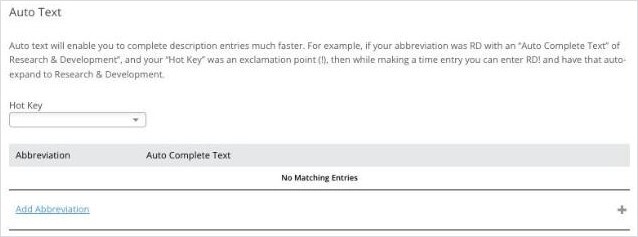
The Auto Text page with the Hot Key choice and the list of abbreviations.
Tip: You can also give each activity a default description that fills in when it's selected. Set it up in
Customize >
Custom Lists. Default descriptions only fill in on the web app. See
Managing Custom Lists (Activities, Expense Categories, etc.).