
Applies to: Workforce · Premium · LawBillity
Use the Document Manager to keep files like engagement letters, scope documents, and internal policies inside Time Tracker, where your team already works, instead of emailing them around.
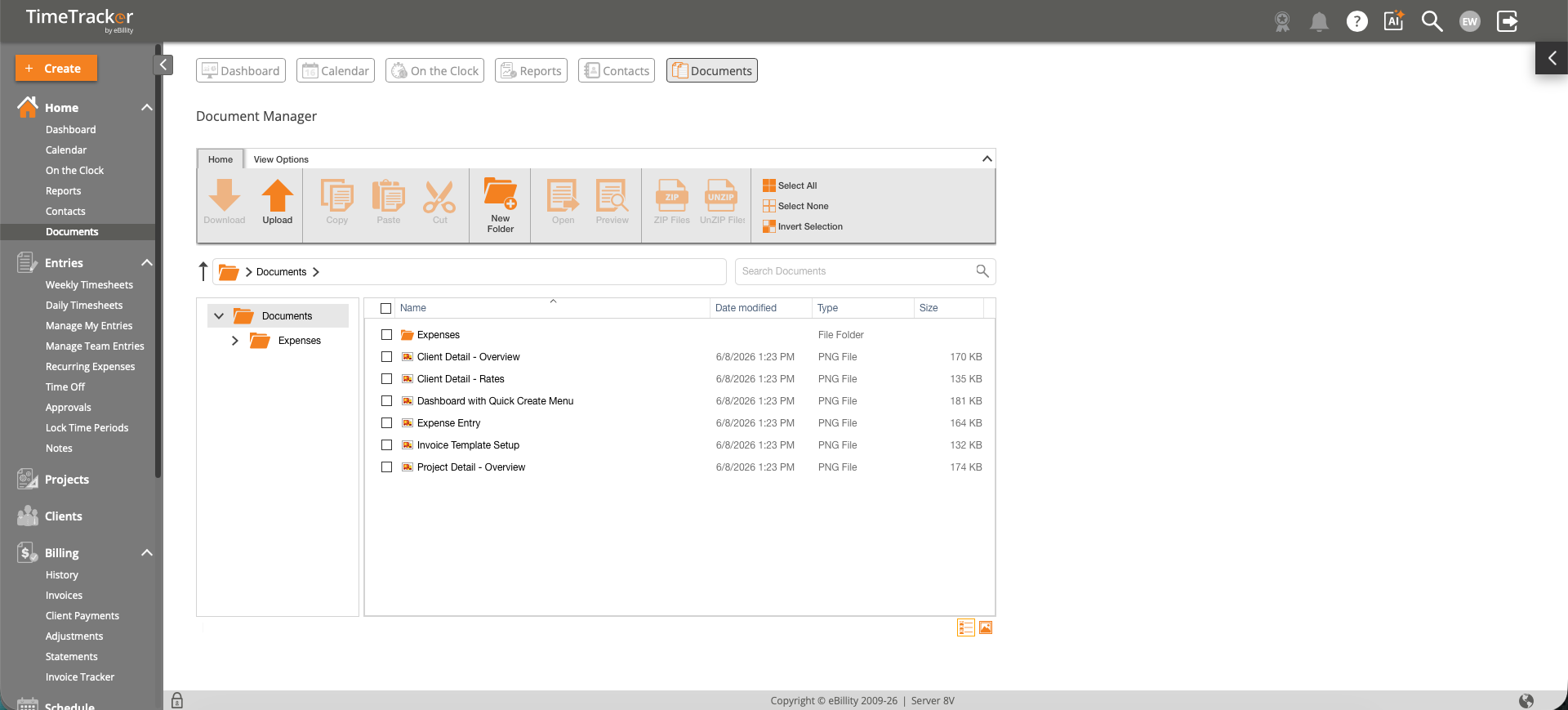
The Document Manager, with tools to upload, organize, and search your files.
Opening the Document Manager
Click Home > Documents in the left menu, or Documents in the bar across the top.
Adding and Organizing Files
- Upload: drag files onto the page, or click Upload.
- Folders: create folders and subfolders, for example one for each client or project.
- Download, copy, and move files between folders.
- Tick several files to download, move, or delete them all at once.
- Compress files into a ZIP file, or Extract one you've uploaded.
Finding a File
- Search by file name with the search bar.
- Preview images and PDFs in your browser without downloading them.
- Use View Options to switch between icon view and list view.
What to Keep Here
- Client contracts: engagement letters, statements of work, and contracts.
- Project files: scope documents, specifications, and deliverables.
- Team policies: time tracking rules, billing guidelines, and onboarding material.
Common Problems
- A file won’t open in the browser. Preview works for images and PDFs. Download other file types to open them.
- You can’t find a file. Search looks at file names, so try part of the name. List view can make long folders easier to scan.