
Applies to: Billing
When someone joins your team, add them on the Team page. Two settings matter most: their role (what they can see) and their billing rate (what their time is worth on invoices).
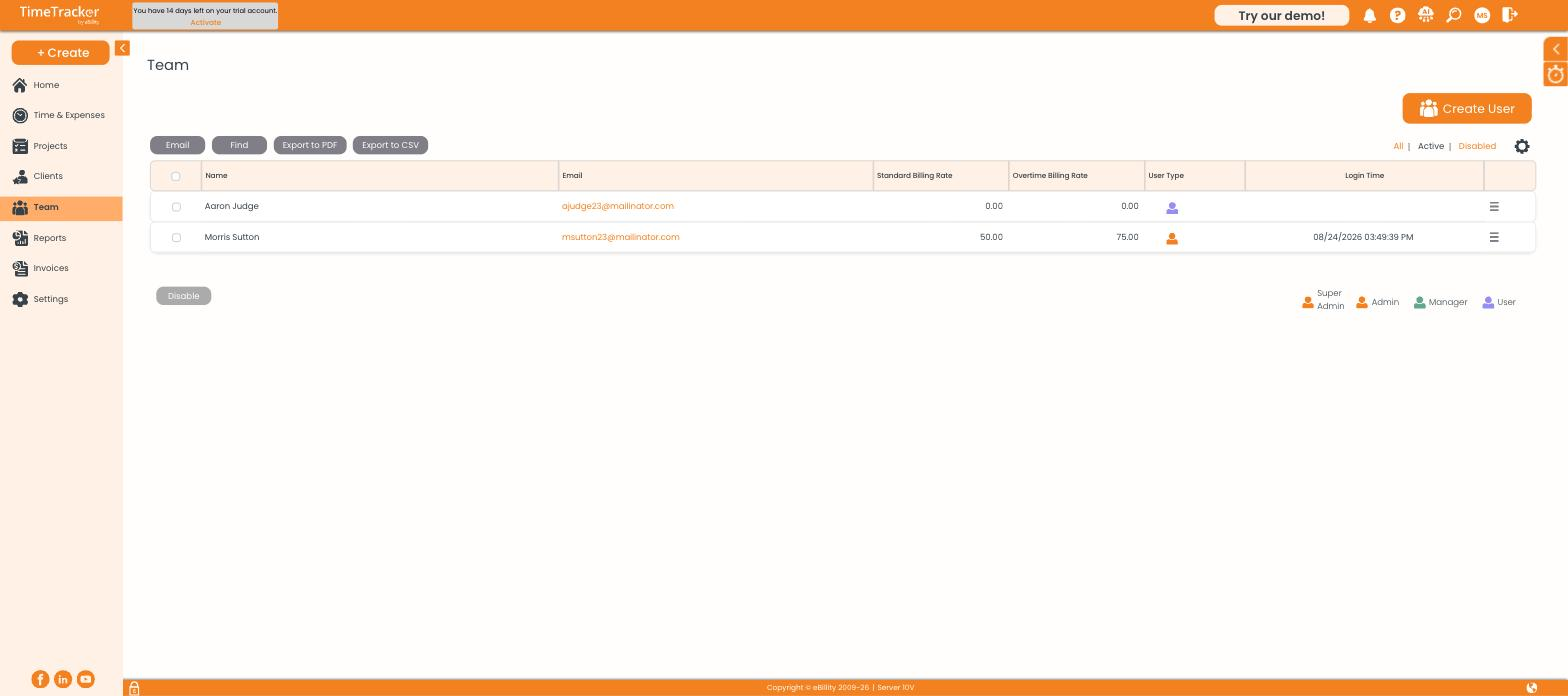
The team list, with each person's standard and overtime rates and a role icon. Click the picture to see it full size.
Adding a User
- Click Team, then Create User.
- Enter their name and email address. They'll sign in with this email.
- Set their Standard Billing Rate and Overtime Billing Rate.
- Choose their role (below).
- Save. They get an email invitation to set a password.
Note: Set the billing rate now. If it's left at 0.00 and no client or project rate covers their work, their hours invoice at $0.00. See
How Billing Rates Work.
Choosing a Role
The icons in the User Type column show each person's role. The legend is below the list.
When Someone Leaves
- Select them in the list.
- Click Disable.
They can't sign in and drop out of the dropdowns, but their entries and invoices stay. Use the All | Active | Disabled filters to see disabled users.
Other Things on This Page
- Export to PDF or Export to CSV downloads the team list.
- Select users and click Email to send them a message.
Common Problems
- The new user didn’t get the invitation. Check the email address on their record, and ask them to look in their spam folder.
- Their hours invoice at $0.00. Their Standard Billing Rate is 0.00. Set it, then rebuild any draft invoices. See How Billing Rates Work.