
Applies to: Workforce · Premium
Follow these nine steps to sync Time Tracker with Reckon Accounts Hosted. Setup takes a little longer than most integrations, because Time Tracker needs your Reckon User ID, the path to your company file, and a dedicated Reckon user. If you'd like help, the setup page has a Book An Appointment button for a free session with a Time Tracker product expert.
Getting There
Go to More > Integrations and click Reckon, or open Reckon > Connect to Reckon in the left menu.
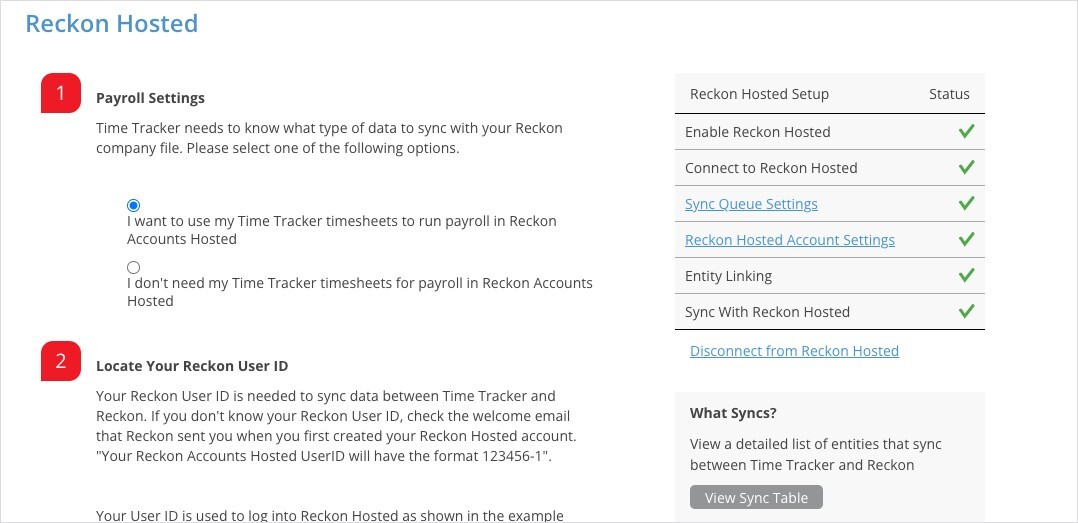
The Reckon Hosted setup page, with the setup checklist on the right.
The Nine Steps
- Payroll Settings: choose "I want to use my Time Tracker timesheets to run payroll in Reckon Accounts Hosted" or "I don't need my Time Tracker timesheets for payroll in Reckon Accounts Hosted".
- Locate your Reckon User ID: it's in the welcome email Reckon sent when you created your Reckon Hosted account, in the format 123456-1. It's the ID you use to sign in to Reckon Hosted. Write it down.
- Authenticate with Reckon Hosted: sign in when prompted. The step then says Time Tracker and Reckon Hosted can share data.
- Find your company file path: sign in to Reckon and click Launch Accounts. The "No Company Open" window shows the location. For a local file the path looks like Q:\Cougar Enterprises.QBW. For a shared file, combine the folder name and file name, for example \\HollisMarineServicesEnterprise\Hollis Marine Services Enterprise.QBW. If the window doesn't appear, close your company file first (File > Close Company). Write the path down.
- Enter your User ID and file path: choose your Country and enter the User ID and file path from steps 2 and 4.
- Authorize Time Tracker to modify the company file: in Reckon, go to Company > Users > Set Up Users and Roles and create a new user with full access rights, used only for Time Tracker (for example eBillityUser). The user must have a password. Enter that user name (it's case sensitive) and password in Time Tracker. Make sure this user is signed out of Reckon first. If other people are signed in to Reckon Hosted, switch to multi-user mode (File > Switch to Multi-user Mode).
- Open your company file: the file must be open for the sync. Don't sign in to it as the step 6 user. If you're signed in to Reckon, switch to multi-user mode.
- Start the Entity Linking Process: link employees, customers, and projects between Time Tracker and Reckon Hosted so neither system ends up with duplicates.
- Start your sync: go to the Sync menu and click Sync.
What Syncs
Reckon also has Auto Sync and a Payroll Item Mapping page. See How Syncing Works: Sync Queue, Sync Log, and Auto Sync and Payroll Item Mapping for Payroll Integrations.
Common Errors
For other errors, see My Integration Isn't Syncing: Finding and Fixing a Failed Sync.