
Applies to: Workforce · Premium
Before Time Tracker can sync with Sage Intacct, a few settings need changing on the Sage Intacct side: the right applications, a trusted Sender ID, a Web Services user with full permissions, and some Time & Expenses and Projects settings. The Sage Intacct page in Time Tracker lists all nine steps, and each one is explained below. Most of the work is in Sage Intacct, so you may want your Sage Intacct administrator with you.
Getting There
Go to More > Integrations and click Sage Intacct, or open Sage Intacct > Connect to Sage Intacct in the left menu.
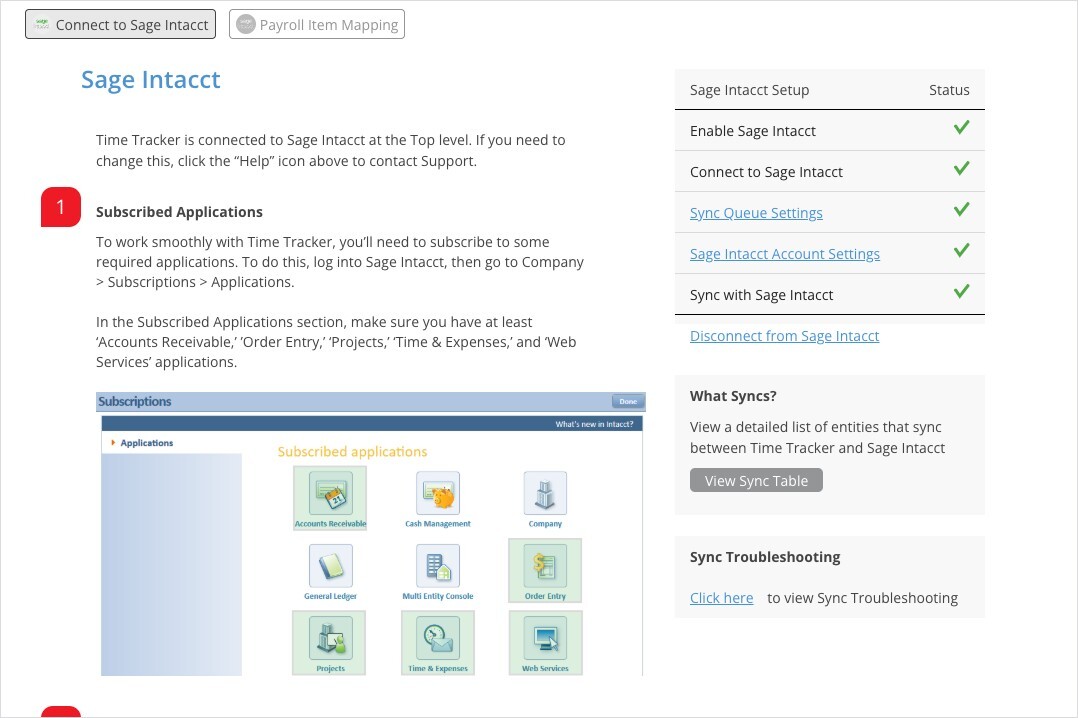
The Sage Intacct setup page, with the setup checklist and Sync Troubleshooting on the right.
Time Tracker connects to Sage Intacct at the Top level. If you need a different level, contact eBillity Support.
Step 1: Subscribe to the Required Applications
In Sage Intacct, go to Company > Subscriptions > Applications and make sure you're subscribed to at least Accounts Receivable, Order Entry, Projects, Time & Expenses, and Web Services.
Step 2: Add eBillity as a Trusted Sender ID
In Sage Intacct, go to Company > Company Info > Security tab > Edit. In the Web Services authorizations section, add a row with the Sender ID eBillityMPP (exactly as written) and click Save.
Step 3: Create a Web Services User
Make sure you're at the Top Level, then go to Company > Web Services Users > Add.
- User ID: something that shows what it's for, such as eBillityUser.
- User type: Business.
- Admin privileges: Full.
After you save, Sage Intacct emails you the user's password.
Step 4: Give the User Full Permissions
- Go to Company > Roles > Add, name the role eBillityRole, and save.
- Tick every Application/Module.
- Click each module's Permissions link, choose All in the top-right corner, and save. Some modules also have a Reports section. Set those to All as well.
- Save the role.
- Go to Company > Web Services Users, edit the user from step 3, open Roles information, select eBillityRole, and save.
Step 5: Configure Time & Expenses
In Sage Intacct, go to Time & Expenses > Open Setup > Configure Time & Expenses.
- In Expense report requirements, untick every required field and save.
- In Auto-numbering sequences, make sure every item has a document number. To create one, click the box, click Add, fill in the required fields, and under Advanced settings use a Fixed number length of 4, a Fixed prefix matching the Sequence ID, and a Prefix separator of "-". Save.
Step 6: Configure Projects
Go to Projects > Open Setup > Configure Projects. In Timesheet settings, choose Top Level and save.
You can track time by any of Sage Intacct's four options. If the option you choose includes Task, also tick Task on the Customize page in Time Tracker. Time entries then let you pick a task for the selected project.
Step 7: Authenticate
Complete step 7 on the Sage Intacct page in Time Tracker to connect the two, using the user you set up in steps 3 and 4. When it works, the step says "Nice Work! You have authenticated the connection between Time Tracker and Sage Intacct."
Step 8: Locations, Departments, and Classes
To tag entries with a Sage Intacct location, department, or class, tick the boxes for them on the Customize page in Time Tracker. New records then have fields for them.
- Time Tracker only shows the locations, departments, and classes the Web Services user can access.
- Invoice lines use the location, department, and class chosen on each time or expense entry.
- If Location isn't ticked or no location is chosen, Time Tracker uses the location set in Sage Intacct Account Settings.
- If Department or Class isn't ticked or is left empty, it syncs blank. That's fine, because they aren't required in Sage Intacct.
- Time and expense entries fill in the employee's location, department, and class automatically if the employee has them.
- Payments, adjustments, finance charges, and refunds for a project fill in the project's location, department, and class if it has them.
Step 9: Start Syncing
Use the Sync button in the Sync menu or on the Sync Queue page. See How Syncing Works: Sync Queue, Sync Log, and Auto Sync.

The Sync menu for Sage Intacct.
What Syncs
If a Sync Fails
Click Click here under Sync Troubleshooting on the setup page for the list of Sage Intacct error messages and fixes. The same list is in Sage Intacct Sync Errors and How to Fix Them.