
Applies to: Workforce · Premium
Connect Xero to send your invoices, payments, and expenses from Time Tracker to Xero without retyping them. Xero is a cloud integration: you connect by signing in to Xero from Time Tracker, then sync with the Sync button or on a schedule. If you also use Xero Payroll, Time Tracker can send approved hours to Xero timesheets and leave.
Connecting
Go to More > Integrations and click Xero, or open Xero > Connection in the left menu. Work down the Xero Setup checklist on the right:
- Enable Xero.
- Connect to Xero: sign in to Xero, choose your organisation, and allow access. Time Tracker then shows "Success! Your Time Tracker account is now connected to Xero" with the organisation name.
- Sync Queue Settings: choose which items are added to the sync queue automatically.
- Xero Account Settings: choose how Time Tracker's transactions post in Xero.
- Sync with Xero: run your first sync. It only takes a few seconds.
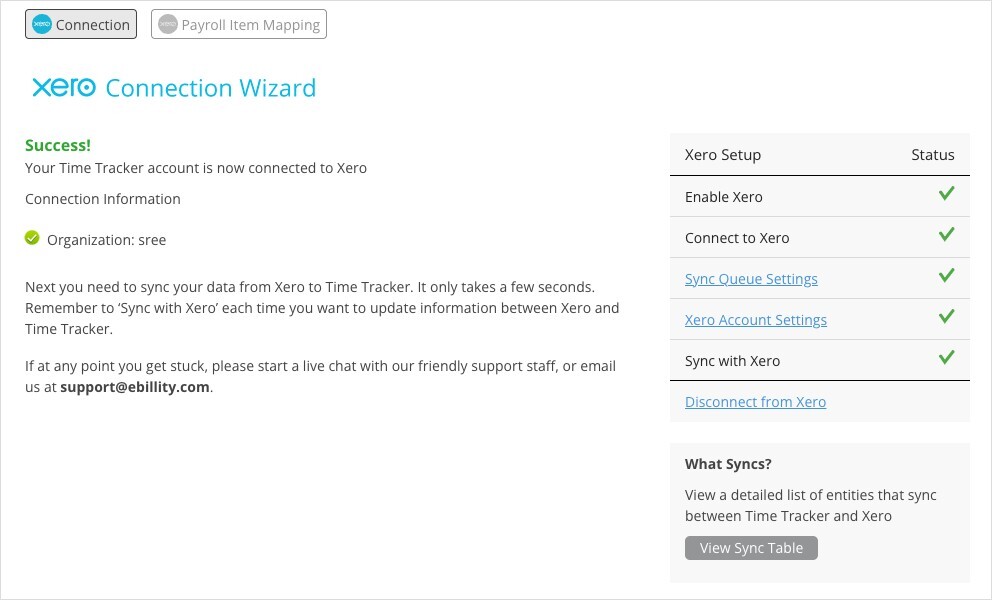
The Xero Connection Wizard once you're connected.
Sync each time you want Xero and Time Tracker updated, or turn on Auto Sync. See How Syncing Works: Sync Queue, Sync Log, and Auto Sync.
What Syncs
Xero Payroll
If you use Xero Payroll, the Sync menu lists Xero Payroll. Before sending time, open Xero > Payroll Item Mapping and choose the firm's default regular and overtime earning rates, plus any per-user overrides. See Payroll Item Mapping for Payroll Integrations.
Common Problems
- “Error retrieving Xero Payroll Earning Rates. Check you have properly configured Payroll inside Xero.” Finish setting up Payroll in Xero, including earning rates, then reload the Payroll Item Mapping page.
- A payment or credit note you entered in Xero isn’t in Time Tracker. These only sync from Time Tracker to Xero. Record them in Time Tracker.
- A sync failed. Open Sync > Sync Log, expand the failed sync, and click Error to read Xero's message. See My Integration Isn't Syncing: Finding and Fixing a Failed Sync.