
Applies to: Billing
At the end of a billing period, turn the client's tracked time and expenses into an invoice. Time Tracker Billing gathers their unbilled entries for you. You choose what to include.
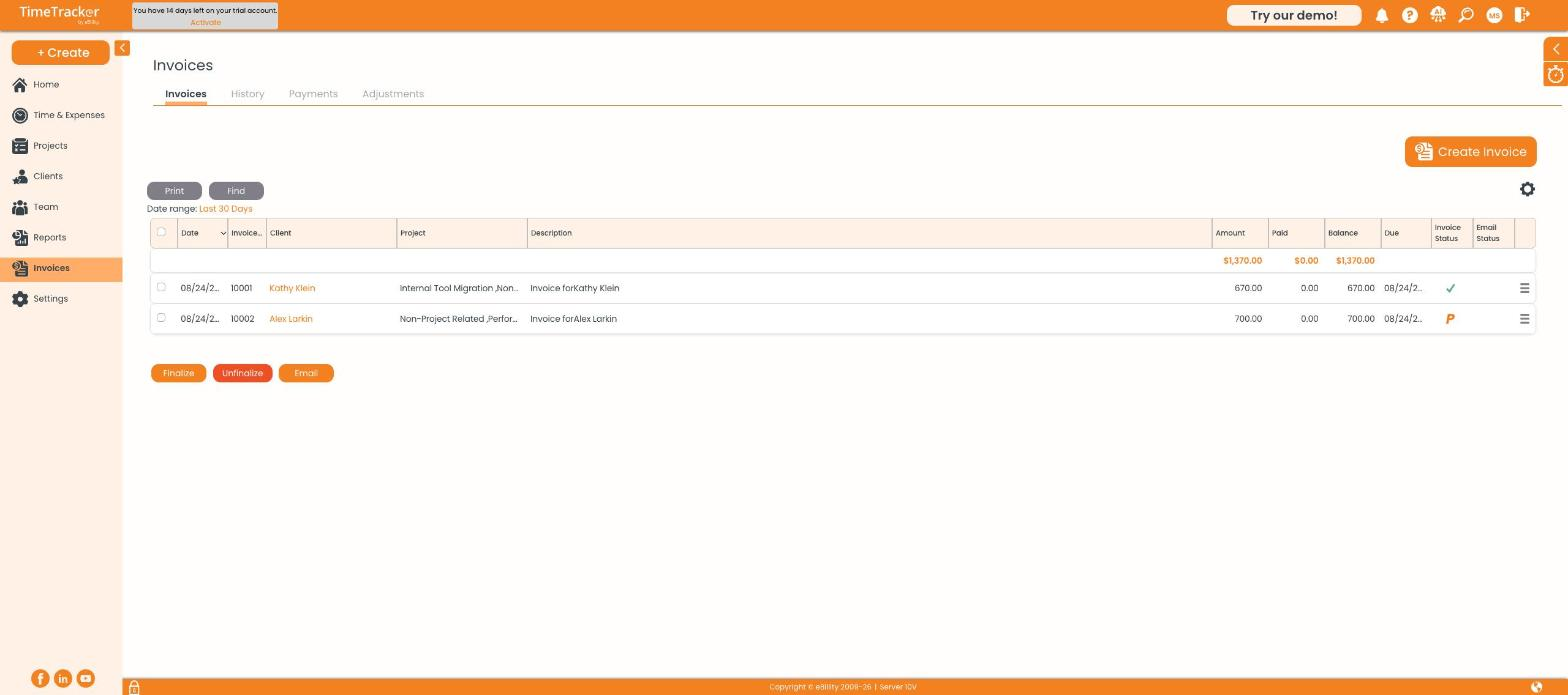
The Invoices page. Each row shows the amount, what's been paid, the balance, and the status. Click the picture to see it full size.
Starting the Invoice
- Click Invoices, then Create Invoice. Or use + Create > Invoice.
- Check the Invoice Date. The invoice number shows TBD until you finalize.
- Choose the Client. Their address and payment terms fill in for you.
- Add Notes for Client if you want text on the invoice, or an Internal Description that only your team sees.
- Click Select Invoice Entries.
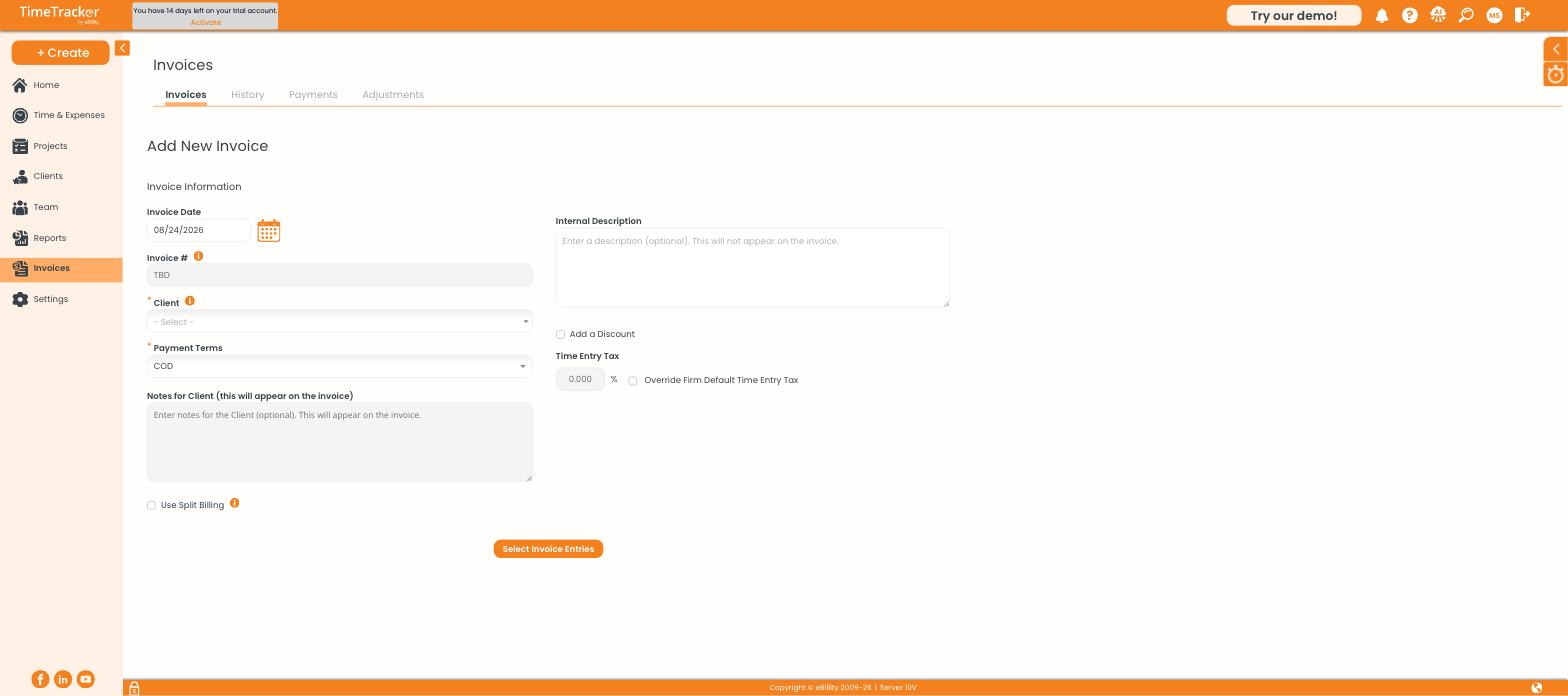
The invoice header: date, client, payment terms, and notes.
Choosing What to Bill
The client's unbilled time entries and expenses appear below, grouped by project, each with a checkbox.
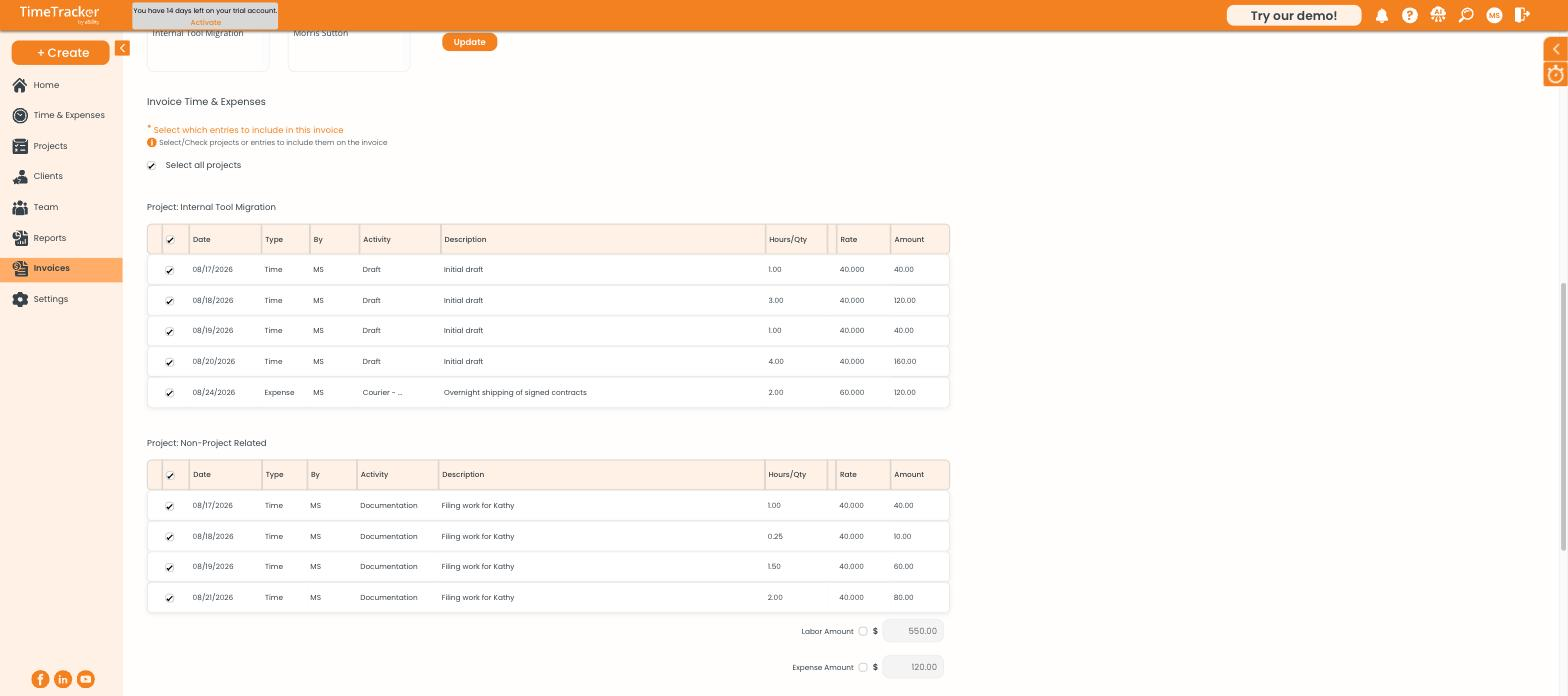
Entries grouped by project, with hours, rate, and amount. Expenses have their own heading.
- Filter by Project or User if you need to, then click Update.
- Choose All entries up to invoice date or set a Custom date range.
- Tick Select all projects to include everything, or untick lines to hold them for a later invoice.
- Check the Rate column. A $0.00 rate means a billing rate is missing. It's much easier to fix now. See How Billing Rates Work.
Saving the Invoice
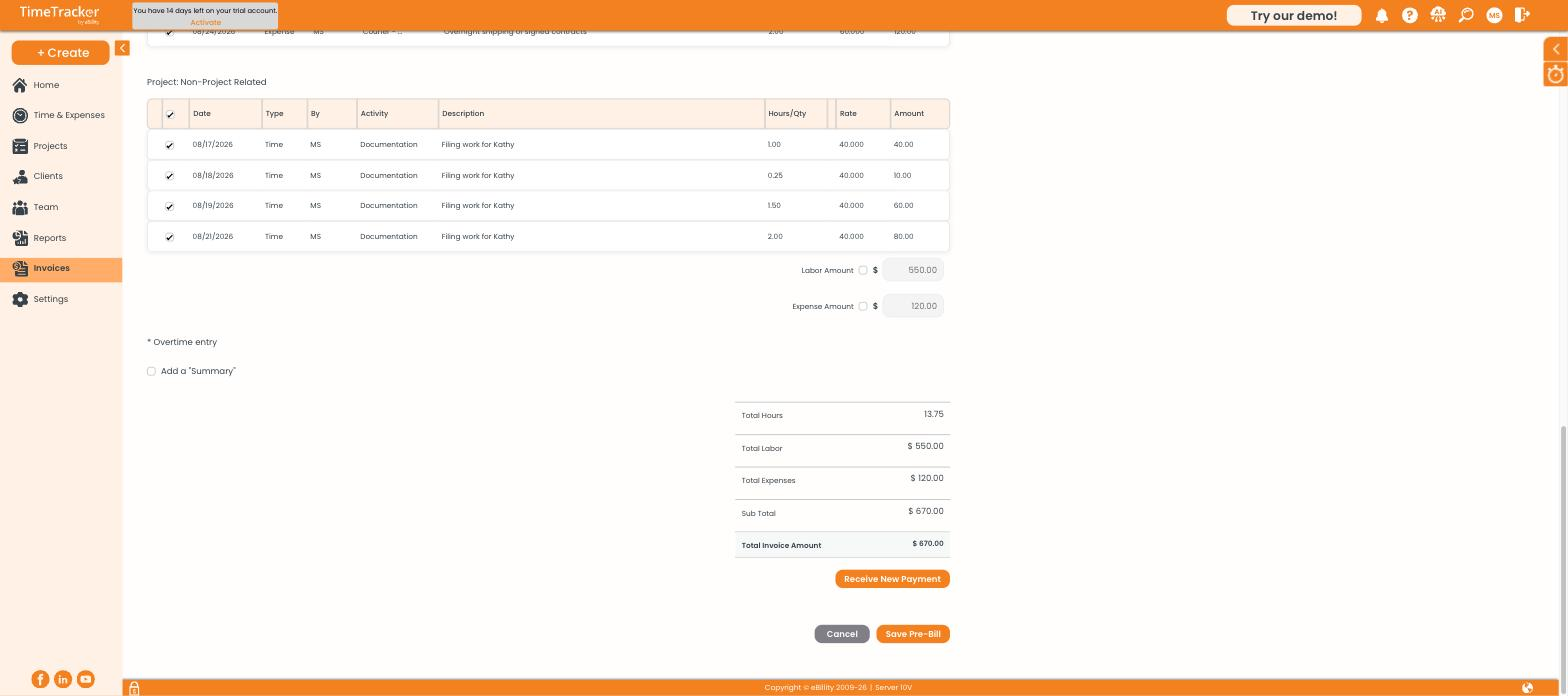
The invoice totals, with Save Pre-Bill below.
- Check the total hours, labor, expenses, and invoice amount.
- Click Save Pre-Bill.
Your invoice is now a draft, called a pre-bill. Its entries become Pre-Billed and it shows an orange P in the invoice list. Nothing is locked yet, so you can still edit or delete it. When it's ready, see Finalizing and Sending an Invoice.
Common Problems
- An entry you expected isn’t listed. Check the date range and the Project and User filters. Entries already on another invoice won't show. See Understanding Billing Statuses: UnBilled, Pre-Billed, and Billed.
- A line shows $0.00. No rate is set for that work. Set one, then rebuild the invoice. See How Billing Rates Work.
- The client’s open balance didn’t go up. A pre-bill only counts toward the unbilled balance. Finalize it to add it to the open balance.