
Applies to: Billing
The dropdowns your team uses every day, like activities, expense types, and payment terms, are lists you can edit. Click Settings > Customize > Custom Lists to make them match how your firm works.
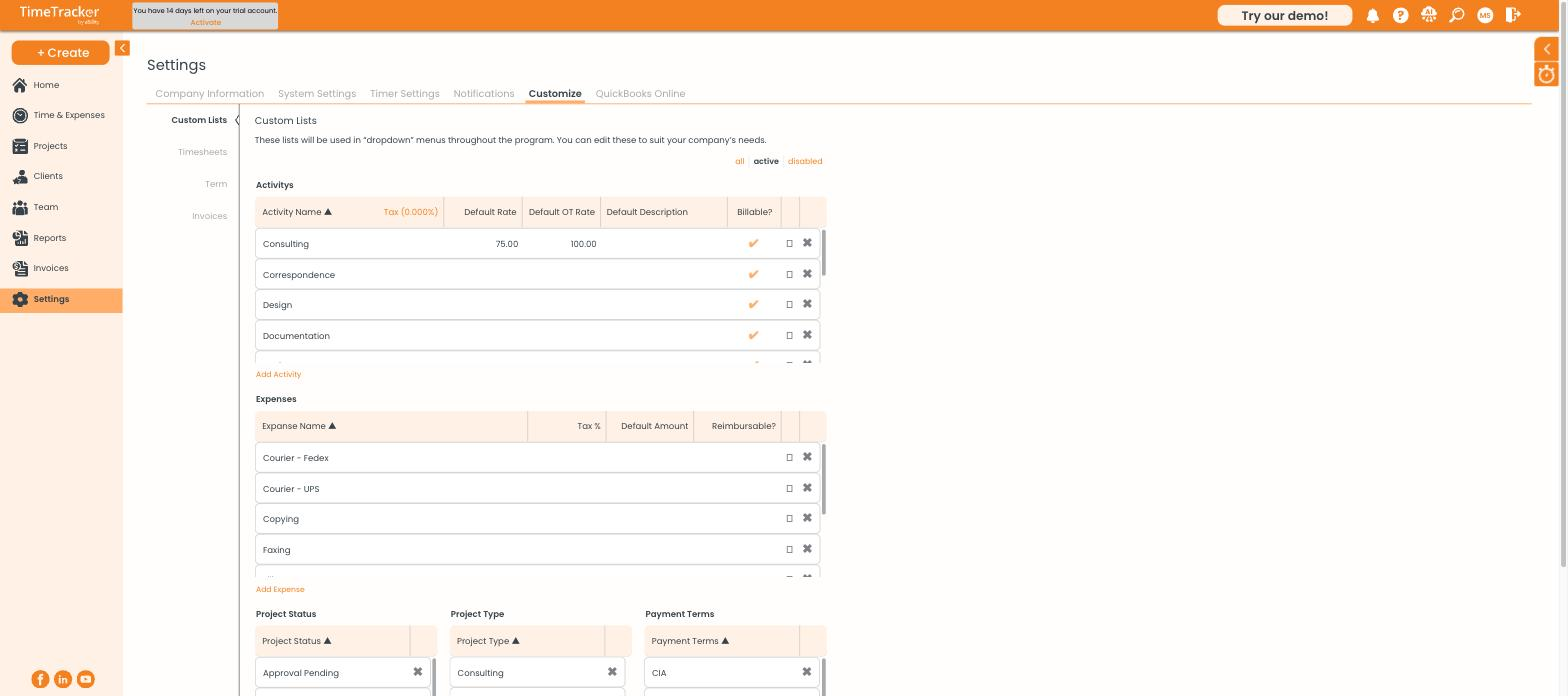
Custom Lists: activities, expenses, project statuses, project types, and payment terms.
Activities
An activity is the type of work on a time entry, such as Consulting, Design, or Correspondence. Activity names appear on invoices, so name them for your clients, not just your team. Each activity can have:
- Default Rate and Default OT Rate: an hourly price for this type of work. Use it to charge more for consulting than for admin without changing any client. A client or project rate still wins. See How Billing Rates Work.
- Tax: a tax percentage for this activity.
- Default Description: text that fills in the description for you.
- Billable?: whether entries with this activity start as billable.
Expense Types
Your expense categories, each with an optional tax percentage, default amount, and reimbursable setting. Give a default amount to costs you log often, and it fills in on the expense form. See Recording an Expense.
Project Status, Project Type, and Payment Terms
- Project Status: the stages a project can be in, such as Open or Approval Pending.
- Project Type: categories for reporting.
- Payment Terms: the terms you offer clients. These set invoice due dates.
Adding and Removing Items
- To add an item, click Add Activity or Add Expense below the list.
- To remove one, click the × at the end of its row. This disables it.
- To bring a disabled item back, use the all | active | disabled filters above the list.
Tip: Disable items instead of deleting them. Entries already logged to them stay linked, and your past reports stay readable.