
Applies to: Workforce · Premium
Connect Paychex Flex to send approved hours straight to payroll. There's no file to export: once you're connected, approved hours go to Paychex when you sync, and your Paychex employees and contractors come into Time Tracker.
Getting There
In the left menu, click Paychex > Connect to Paychex. The page has three tabs: Connect to Paychex, Payroll Item Mapping, and Employee/Vendor Mapping.
Setting Up Paychex
Work through the Paychex Setup checklist on the right: Enable Paychex, Connect to Paychex, Sync Queue Settings, Account Settings, and Sync with Paychex. When you're connected, the page shows "Time Tracker is now connected with:" and your Paychex company, and tells you to start syncing by clicking Sync at the top of the screen.
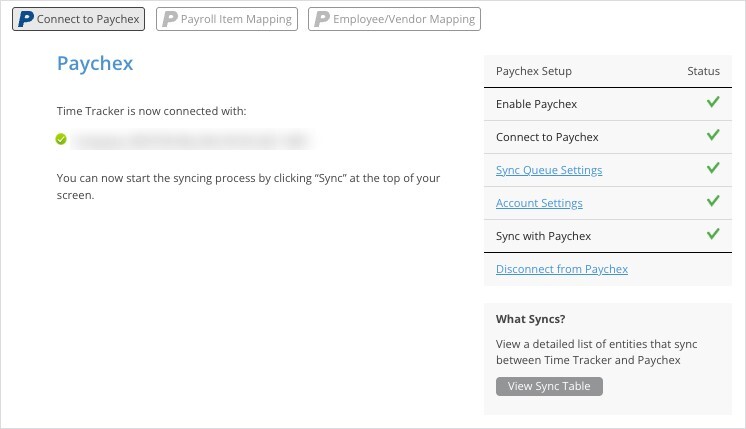
The Connect to Paychex tab once you're connected. Your company name appears under "Time Tracker is now connected with".
What Syncs
Payroll Item Mapping
On the Payroll Item Mapping tab, choose which Paychex pay item each worker's hours are paid as. Click a worker's name to expand their row and choose a Regular (R), Holiday (H), and Sick (S) item. Contractors aren't listed, because they sync to Paychex Flex as 1099-NEC contractors.
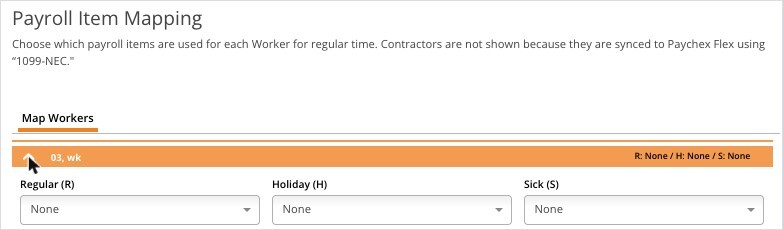
Payroll Item Mapping for Paychex, with one worker expanded.
Employee/Vendor Mapping (Contractors)
If some of your workers are paid as contractors through a vendor, link them on the Employee/Vendor Mapping tab so their time syncs to Paychex under that vendor.
- Click a vendor in the Paychex Vendors list on the left. It turns green.
- Tick that vendor's workers in the Paychex Employees list on the right.
- Click the left arrow in the middle to move them under the vendor.
- To remove a worker from a vendor, tick them on the left side and click the right arrow.
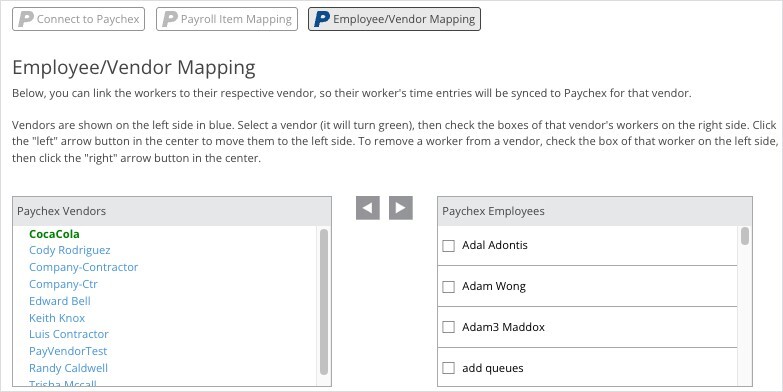
Vendors on the left, employees on the right.
Syncing
Approve the pay period's time, then click Sync at the top of the screen. The Sync section of the left menu also has the Sync Queue, Sync Log, and Auto Sync. See How Syncing Works: Sync Queue, Sync Log, and Auto Sync.
Common Problems
- A worker isn’t on the Payroll Item Mapping tab. Contractors aren't listed there, because they sync as 1099-NEC contractors.
- Hours were paid as the wrong type. Check the worker's Regular, Holiday, and Sick items on Payroll Item Mapping. See Payroll Item Mapping for Payroll Integrations.
- A sync failed. See My Integration Isn't Syncing: Finding and Fixing a Failed Sync.