
Applies to: Billing
A pre-bill is a draft, so the client hasn't been asked to pay anything yet. Finalizing makes it official: the invoice gets its number, the entries on it lock as Billed, and it's ready to send. You can unfinalize it later if you need to.
Previewing Before You Finalize
- On the Invoices page, click the menu icon at the end of the invoice's row.
- Choose View Invoice.
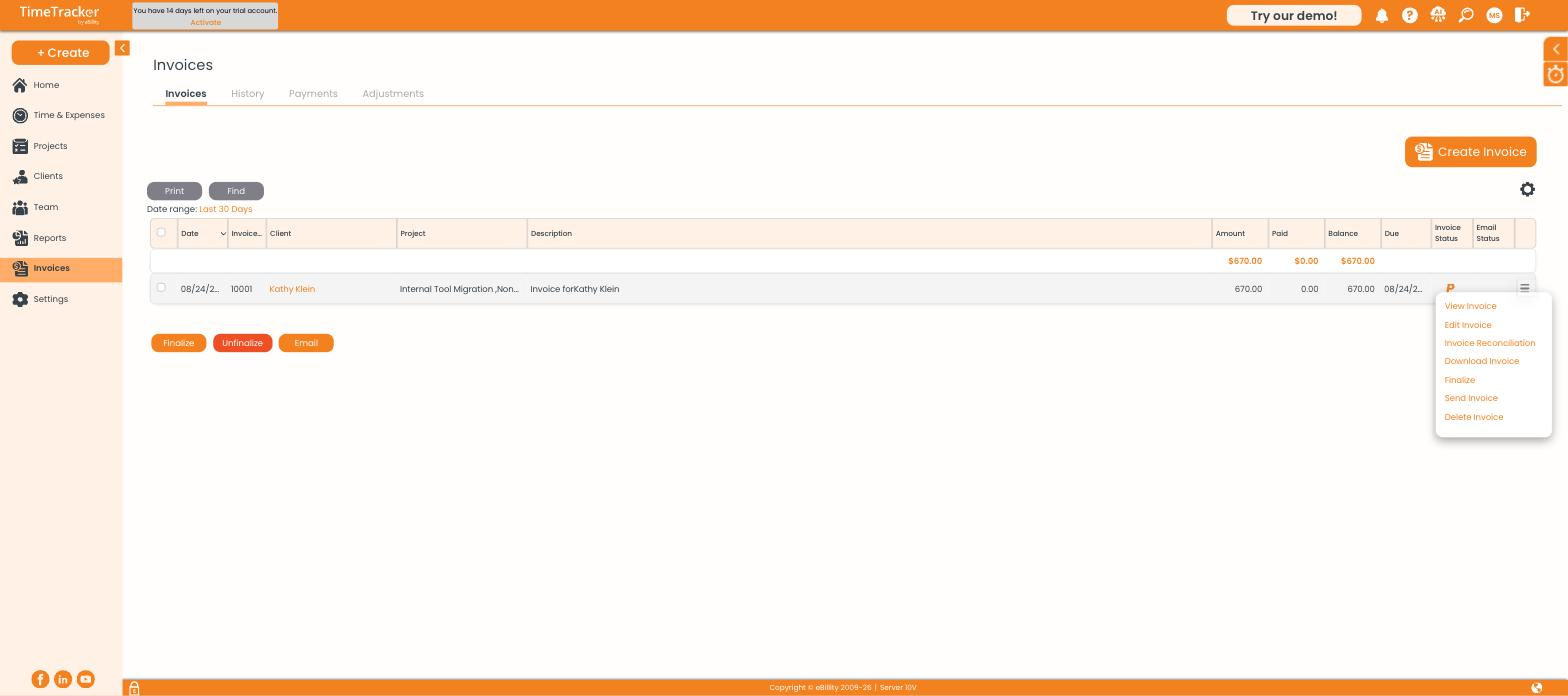
The row menu: View, Edit, Reconciliation, Download, Finalize, Send, and Delete.
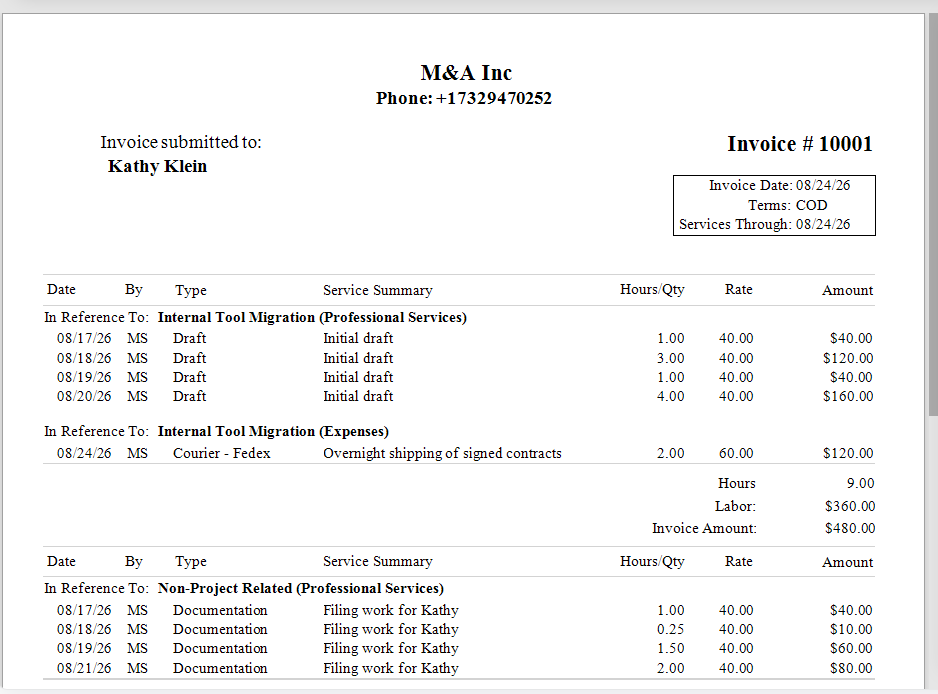
The preview shows exactly what your client will see, with entries grouped by project.
While it's a pre-bill, the bar above the preview offers Finalize, Delete Pre-Bill, Email Invoice, and Email History.

The action bar on a pre-bill.
Finalizing
- Check the client, the entries, and the rates one last time.
- Click Finalize. You can do this from the preview, from the row menu, or by selecting the invoice in the list and clicking Finalize.
The invoice number replaces TBD, every entry on it becomes Billed, and the row shows a green tick. In the preview, the badge changes to FINALIZED, Finalize becomes UnFinalize, and Delete Pre-Bill becomes Delete Invoice.

The same invoice after finalizing.
Sending It to the Client
- Email Invoice sends it from Time Tracker Billing, using the reply-to address in your invoice settings. See Customizing Your Invoices.
- Download Invoice saves a PDF you can attach to your own email.
- To send several at once, select them in the list and click Email.
Common Problems
- The client says they didn’t get it. Open the invoice and check Email History to see what was sent and when. Ask them to check their spam folder.
- You finalized too soon. Click UnFinalize on the invoice, or select it in the list and click Unfinalize. It goes back to a pre-bill. Only do this if the client hasn't received it. Otherwise, use an adjustment. See Understanding Billing Statuses: UnBilled, Pre-Billed, and Billed.