
Applies to: Workforce · Premium · LawBillity
If your team works at job sites or client locations, geolocation records where each person was when they entered time. Geofences go one step further: you draw a boundary around a site, and any entry made outside it is flagged for you to review.
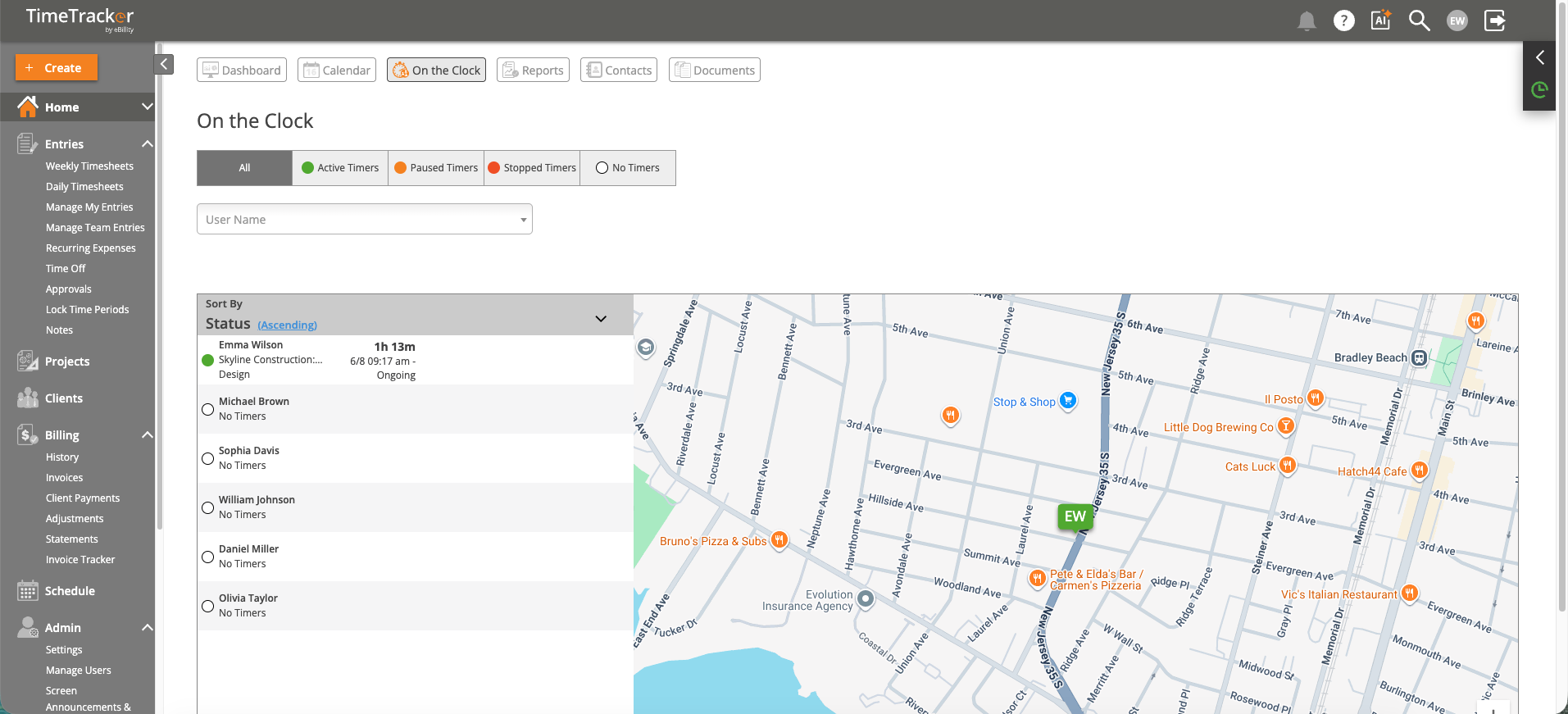
Home > On the Clock: where clocked-in people are right now, on a map.
Turning On Geolocation
- Click Admin > Settings > Geotracking and open the Geolocation tab.
- Enable geolocation.
- For each user, choose Off, On, or Required, and choose the default for new users.
- Click Save.
In the mobile app, location comes from the phone's GPS. It updates every 10 minutes, and keeps tracking offline and syncs later. On a computer, location comes from the IP address. Location records are kept for up to 2 months, and only admins can see them.
You can also set a user's mode on the Overview tab when you add or edit them in Admin > Manage Users.
Adding a Geofence
- In Geotracking, open the Geofencing tab and turn geofencing on.
- Add a geofence by its location on the map, and fill in the Name, Address, City, State/Province, and Country.
- Set the Range in miles: how far from that point someone can be and still be inside the fence.
- Choose the Users it applies to and set the Status to Active.
- Save.
A user can belong to several fences. To retire a fence, set its status to Disabled.
What Happens Outside a Fence
An entry made outside all of the user's assigned fences isn't blocked. It's saved with an Outside of Fence icon, so you can spot it and approve, reject, or delete it like any other entry.
To get an alert when this happens, tick A user creates a time entry at a location outside their geofence on the User Monitoring tab of the firm notifications. See Configuring Firm Notifications.
Common Problems
- An entry’s location is far from where the person was. It was probably entered on a computer, where location comes from the IP address, not GPS.
- Someone can’t enter time in the mobile app. Their mode is Required and location services are off for Time Tracker on their phone. See Mobile: App Permissions and Mobile: GPS Tracking.
- Employees ask to see their location history. Only admins can see location data.
- You need older location data. Records are only kept for up to 2 months.