
Applies to: Premium · LawBillity
Log an expense whenever you spend money on client work, such as travel, materials, filing fees, or software. Expenses go on the client's invoice next to your time, and you can flag the ones your firm needs to pay you back for.
Entering an Expense
- Click + Create and choose Expense Entry. The expense form opens in a new browser window.
- Check the date, then choose the client and project the expense belongs to.
- Choose the type of expense, such as Travel, Meals, or Software.
- Enter the cost and the quantity. The total is worked out for you.
- Add a Description. If you bill this client, write it so they'll understand it on the invoice.
- Set Reimbursable if you paid out of your own pocket, and Taxable if tax applies. Add a Markup Ratio only if your firm marks up expenses.
- Attach the receipt if you have it, then save the expense.
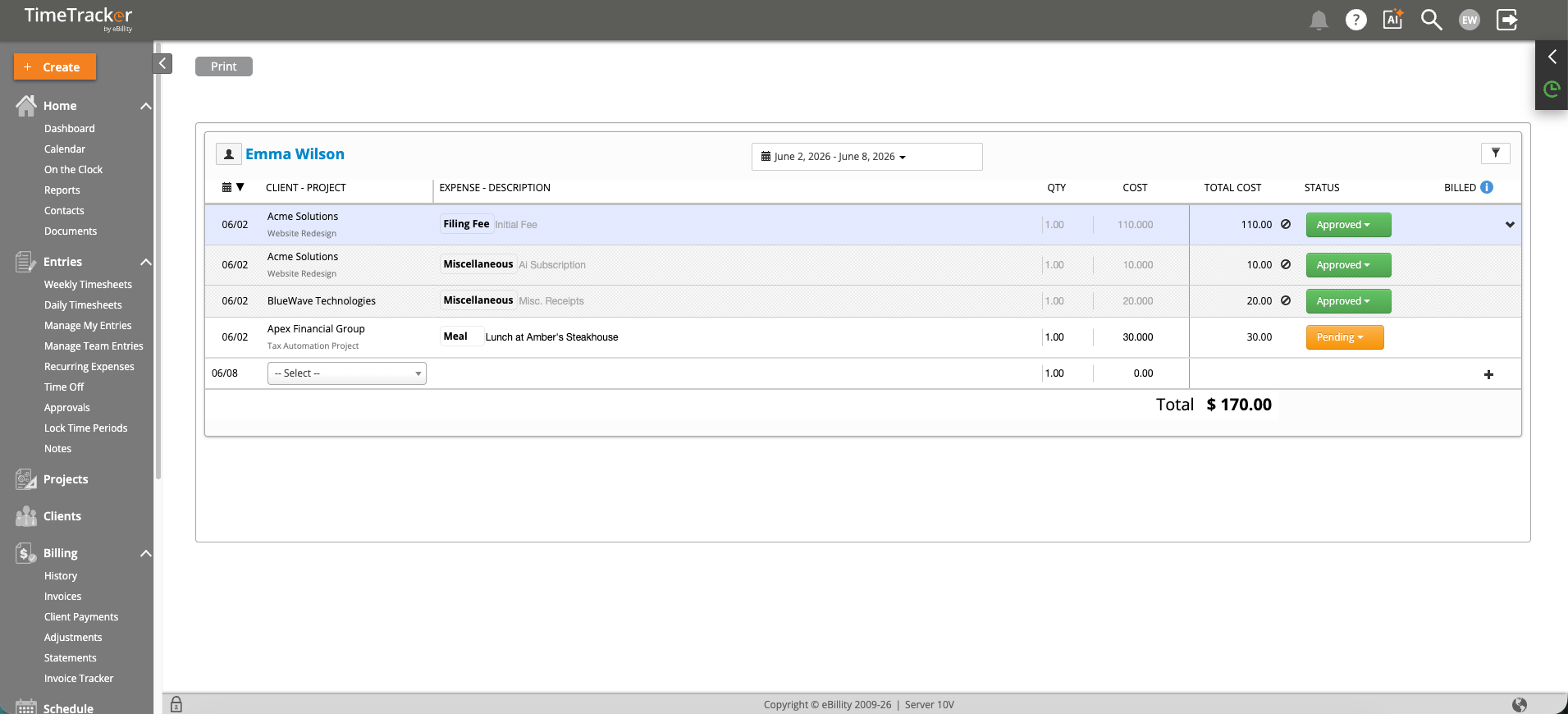
Expense entries with their client and project, description, cost, and approval status. Click the picture to see it full size.
Admins and managers can enter an expense for someone else by changing the User. It's set to you unless you change it.
What Happens Next
If your firm approves expenses (Approve/Reject Expense Entries is Enabled in Admin > Settings > System Settings), each expense has to be approved before it can go on a finalized invoice. See Approving Expenses. Then select it when you create the client's invoice. See How to Create a New Invoice.
To see the expenses you've entered, go to Entries > Manage My Entries and click the Expenses tab.
Common Problems
- Nothing happens when you click Expense Entry. The form opens in a new browser window, and your browser blocked it. Allow pop-ups for secure.ebillity.com, then try again.
- The expense type you need isn’t in the list. An admin can add it to the Expense list under Admin > Settings > Customize > Custom Lists. See Managing Custom Lists (Activities, Expense Categories, etc.).
- You can’t add or change an expense on a certain day. That day is locked for you. An admin or manager can still enter or edit it for you, or unlock the day. See Locking Time Entry Periods.
- Your client or project isn’t in the list. You may not have access to it, or it may be inactive. See Why Can't I See Certain Clients, Projects, or Activities?.
- The client was billed more than the receipt. The expense has a markup. See Expense Markup, Reimbursable, and Taxable Settings.
- You’re away from your desk. Enter the expense and snap the receipt in the mobile app. See Mobile: Adding an Expense.
- You pay the same cost every month. Set it up once instead. See Setting Up Recurring Expenses.