
Applies to: Premium · LawBillity
If you pay the same cost on a schedule, like a $99 monthly hosting fee you pass on to a client, set it up once as a recurring expense. Time Tracker creates the expense entry on each scheduled date, so nobody has to remember it.
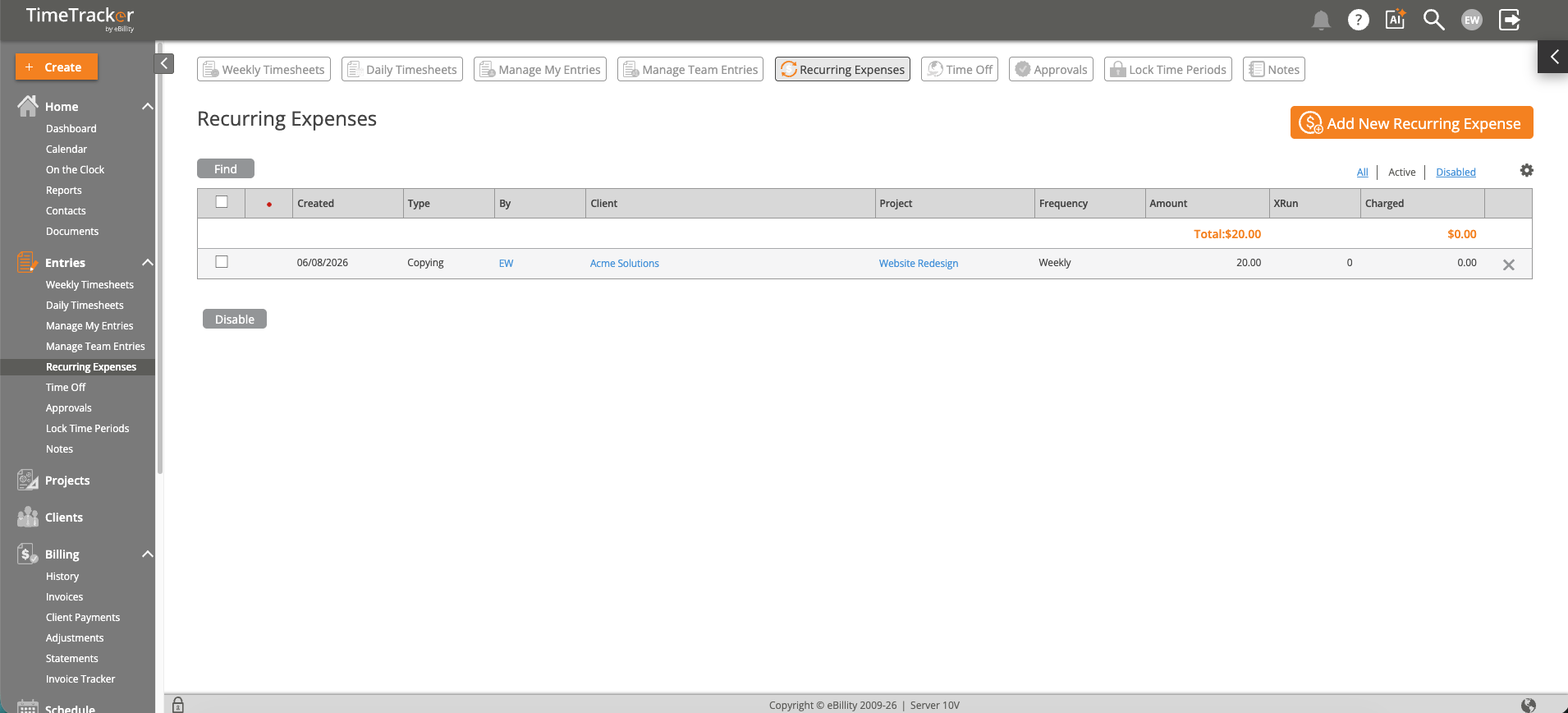
The Recurring Expenses page: each repeating expense with its client, project, how often it repeats, and the amount. Click the picture to see it full size.
Creating a Recurring Expense
- Click Entries > Recurring Expenses.
- Click Add New Recurring Expense.
- Choose the client and project, and the type of expense.
- Enter the quantity and cost. Mark it Reimbursable or Taxable if needed.
- Choose how often it repeats (weekly, monthly, and so on) and the start date.
- Click Save.
Changing or Stopping One
- To change the amount, schedule, client, or project, open the recurring expense and edit it.
- Pause it to stop it for a while without losing the setup.
- Delete it to remove it for good. Expense entries it already created stay where they are.
Good Uses
- Monthly software or hosting fees you bill to a client.
- Weekly mileage or parking costs.
- Monthly retainer fees passed through as expenses.
Common Problems
- This month’s expense didn’t appear. Check that the recurring expense isn't paused and that its start date has passed. Then look on the Expenses tab of Manage My Entries.
- One month’s amount is different. Edit that month's expense entry instead. The entries it creates are normal expenses. See How to Enter an Expense.
- You can’t find Recurring Expenses. It's part of Premium and LawBillity. If your menu uses different words, see Renaming Clients, Projects, and Other Terms.