
Applies to: Workforce · Premium · LawBillity
The Daily Timesheet shows one day at a time. Use it when you want to record exactly when you worked, with a start and end time for each task, such as a day of back-to-back meetings across several clients. If you only need total hours per day, the Weekly Timesheet is faster.
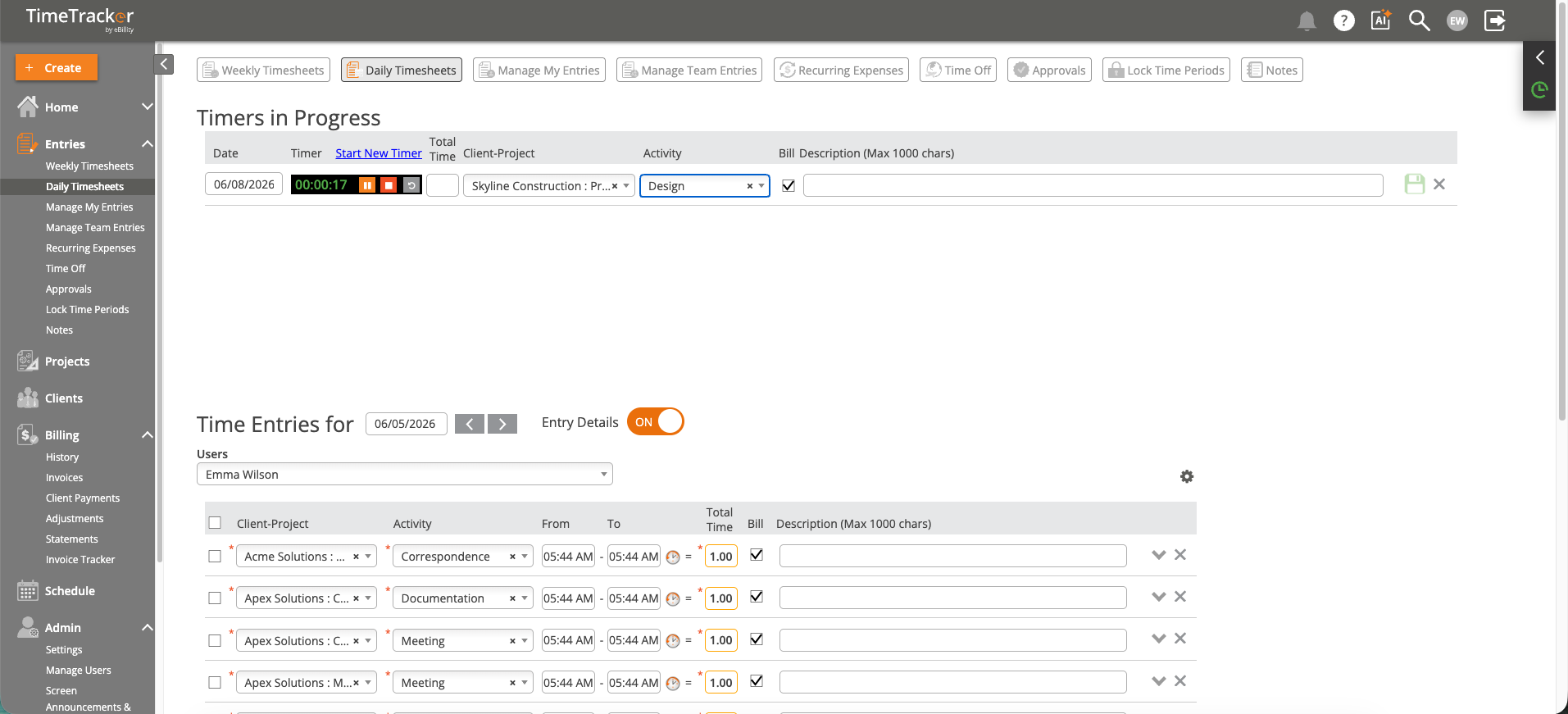
The Daily Timesheet: running timers at the top, the day's entries below. Click the picture to see it full size.
Adding an Entry
- Click Entries > Daily Timesheets.
- Use the date arrows at the top to go to the day you want.
- Choose the Client-Project and the Activity (the kind of work).
- Enter the From and To times. Total Time fills in for you. If your admin allows it, you can type the Total Time instead.
- Leave Bill ticked for billable work. Untick it for internal time.
- Add a Description. For billable work, write it for the client, since it appears on the invoice.
- Click away from the entry to save it, or click the Save icon.
Add as many entries for the day as you need: one per task, meeting, or client.
Note: Your firm may use different names, such as Customer-Project and Service Item. The steps are the same. See
Renaming Clients, Projects, and Other Terms.
Daily, Weekly, or Timer?
Common Problems
- You can’t type a Total Time. Your admin has set Total Time Lock to Restricted for you, so Total Time is worked out from your From and To times. It's set per user in Admin > Settings > Timer Settings.
- Your client or project isn’t in the list. See Why Can't I See Certain Clients, Projects, or Activities?.
- You get a warning when you save a billable entry. A billable entry needs both a Client-Project and an Activity. Fill in both, or untick Bill.
- You can’t change an entry. It's approved, or the day is locked. Ask your approver to reject it, or ask an admin or manager, who can still edit locked days. See I Can't Edit a Time Entry.
- You forgot to log a day. See How to Enter Time for a Previous Day.