
Applies to: Workforce · Premium · LawBillity
Time Tracker runs in your web browser, so you can sign in from any computer, tablet, or phone with an internet connection. Bookmark the sign-in page so it's always one click away.
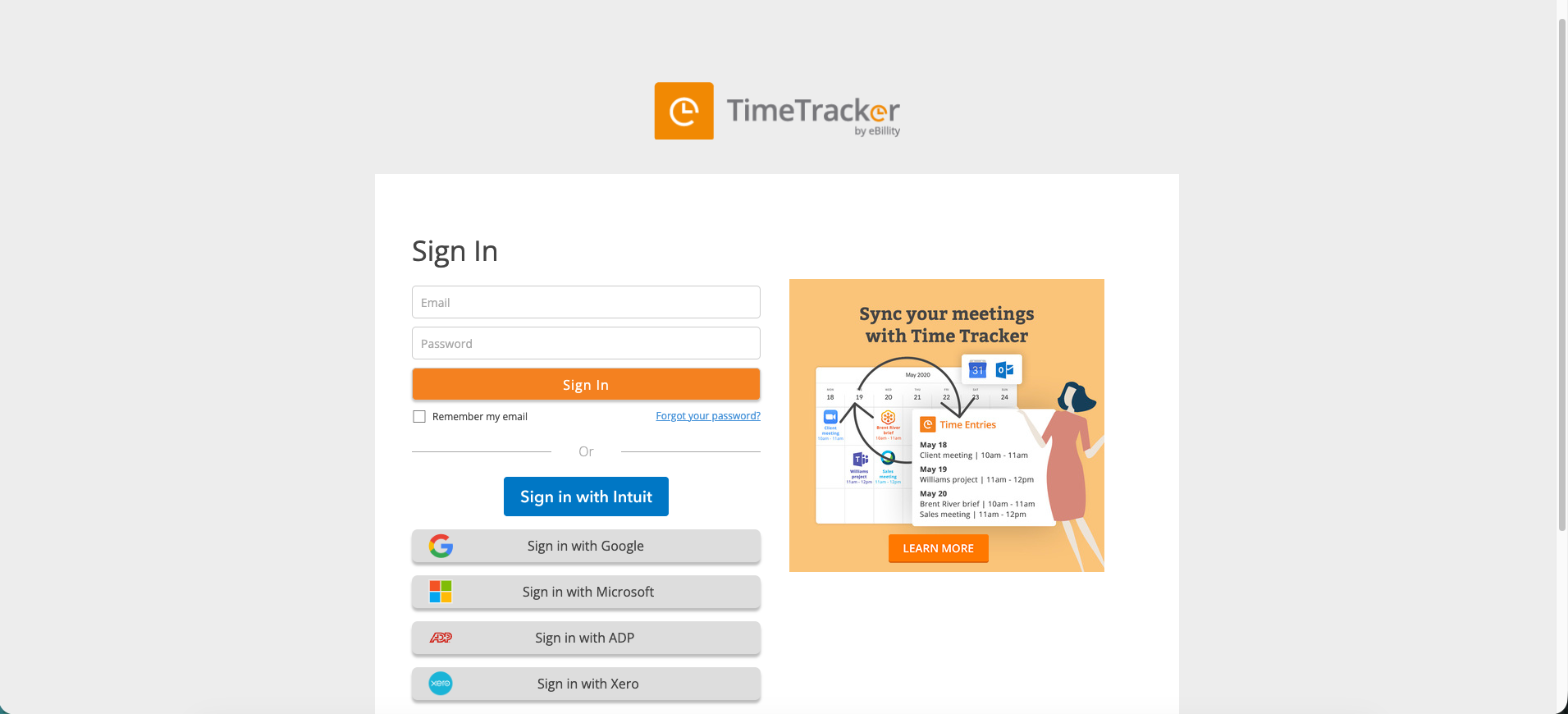
The sign-in page: email and password at the top, connected-account buttons below.
Signing In with Email and Password
- Go to secure.ebillity.com/web/session/new.
- Enter your email address and password.
- Click Sign In.
Tick Remember my email to have your email filled in next time. It saves your email only, not your password.
Signing In with Google, Microsoft, or Another Account
If you sign in with Intuit (QuickBooks), Google, Microsoft, ADP, or Xero, click that button under the sign-in form. You'll confirm who you are with that service, then come straight back to Time Tracker. If you sign in this way, you don't have a separate Time Tracker password.
What You'll See Next
You land on the Dashboard. Admins and managers see the full left menu and team-wide information, such as the Set Up Wizard on new accounts, team timesheets to approve, and the Billable vs. Non-Billable Hours chart. Employees see a simpler view with their own time entries and the projects they're assigned to, without settings, billing, or other people's data. See What Employees See vs. What Admins See.
Common Problems
- You forgot your password. Click Forgot your password? on the sign-in page. See How to Reset Your Password.
- Your password is right, but sign-in fails. Check the spelling of your email and make sure Caps Lock is off. If your firm uses two-factor authentication, enter the code you were emailed or the one in your Google or Microsoft authenticator app. See Enabling Two-Factor Authentication (2FA).
- You were signed out and got an email about two-factor authentication. Your admin just turned it on, which signs everyone out. Follow the setup steps in the email, then sign in again. If your firm allows it, you can trust your browser and skip the code for 30 days.
- The page won’t load or looks broken. Use Chrome, Firefox, Safari, or Edge. Clear your browser's cache, or try a private (incognito) window.
- You’re still stuck. See I Can't Log In for more fixes, or ask your Time Tracker admin. Contact eBillity support by phone at 1-800-851-0992 or 1-732-253-4200, or by email, Monday to Thursday 9:00 am to 6:00 pm ET and Friday 9:00 am to 4:30 pm ET. Live chat is open 24 hours a day, Monday to Friday. See Contacting eBillity Support or ebillity.com/contact-us.