
Applies to: Workforce · Premium · LawBillity
Reports turn your team's time and expenses into answers: hours by client, what's unbilled, which projects are over budget, what to send to payroll. Choose the report that matches your question, filter it, and export it or have it emailed.
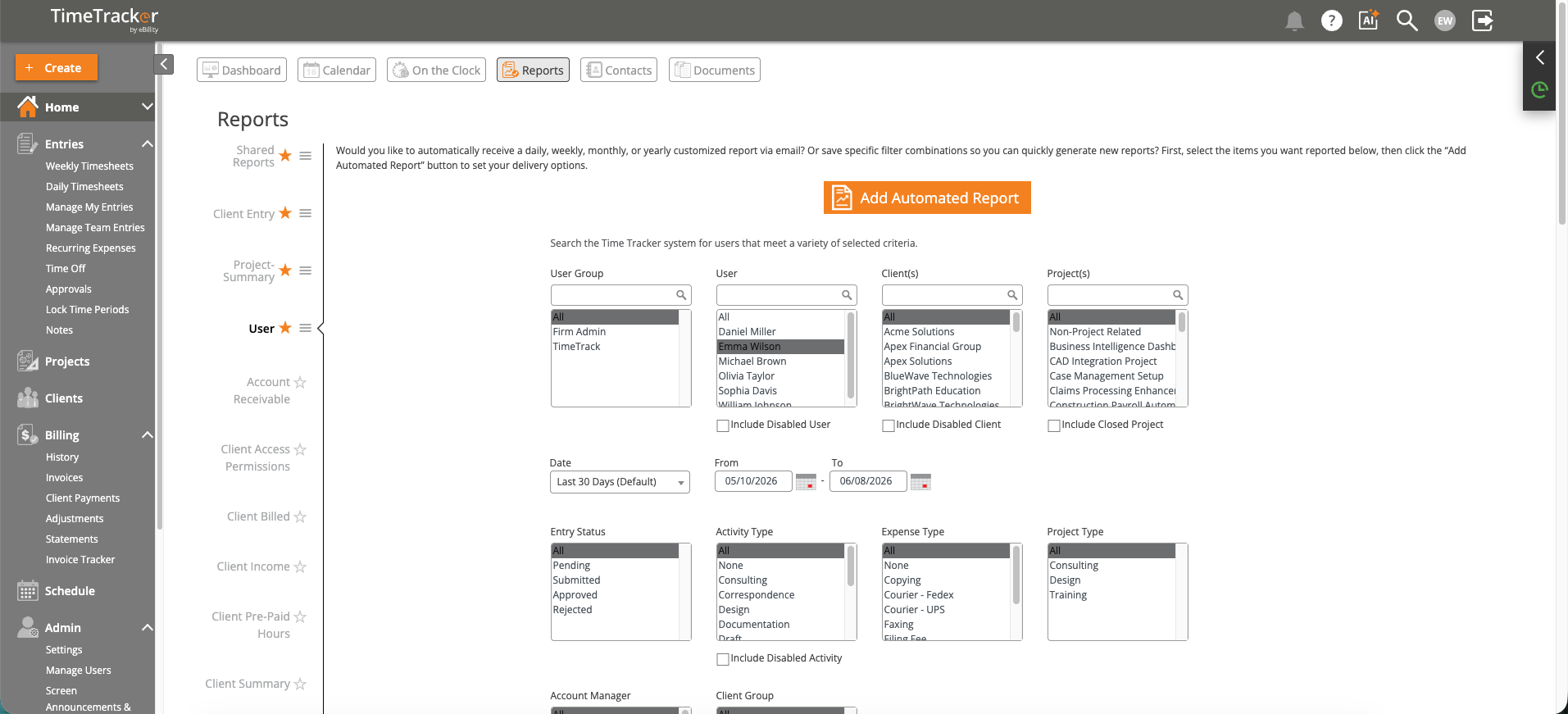
The report filters: users, clients, projects, date range, and entry status.
Running a Report
- Click Home > Reports.
- Choose a report from the list.
- Set the filters (see below). The date range starts at the last 30 days.
- Tick any Display Options you want, and type in the Notes box if you want text at the end of the report.
- Click Generate Report. Reset clears your choices.
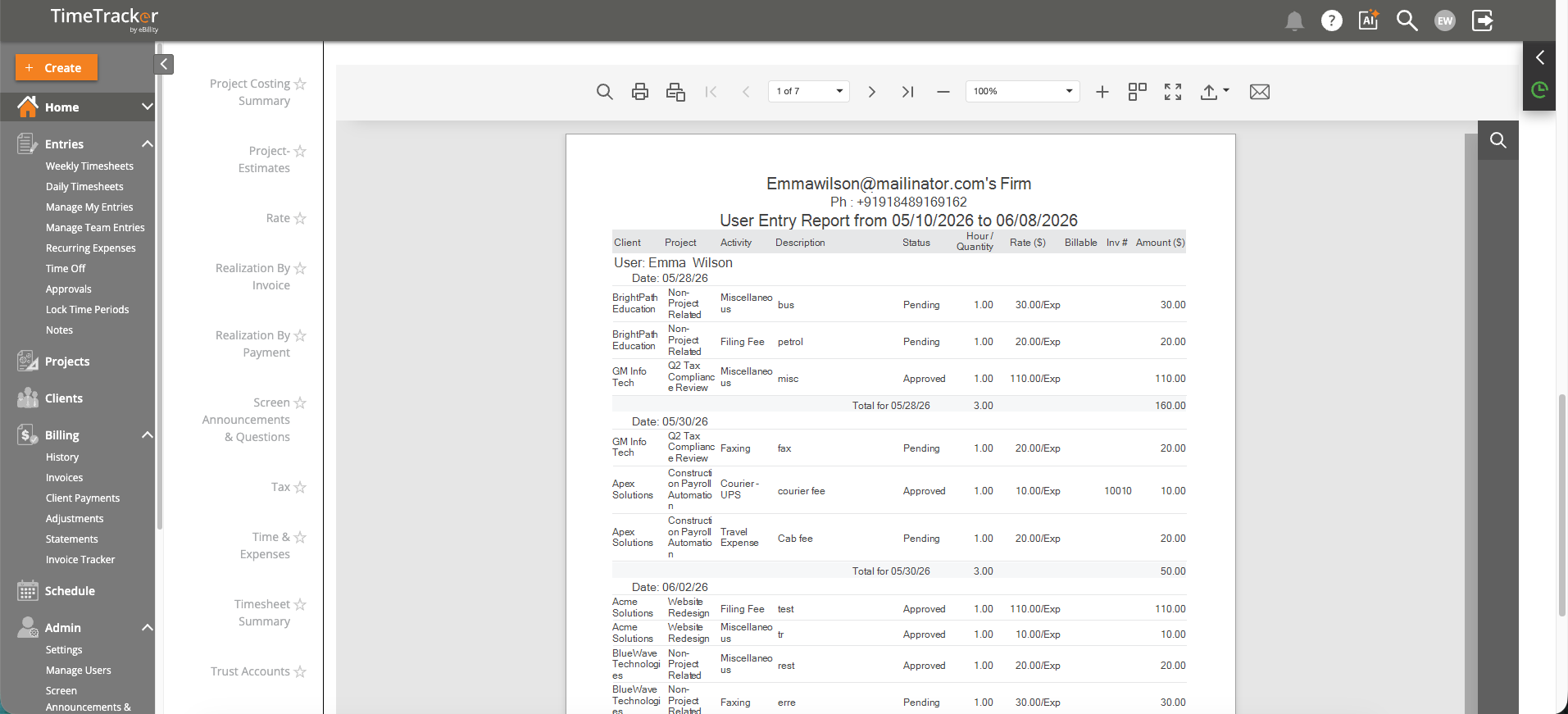
A User Entry Report: every entry, with the user, client, project, hours, and amounts.
Filters Worth Knowing
Useful display options include Show Financial Info, Show Graph, Start / End Times On, Include Internal Entry, and Show Signature Line(s) for reports someone has to sign.
Which Report?
For more help choosing, see Time Reports: Which Report Should I Use?, Billing & Invoice Reports, Project Reports: Budget vs. Actual and Profitability, Payroll Reports, Expense Reports, and User & Activity Reports.
Exporting and Scheduling
- Export To CSV to open the report in Excel or another spreadsheet.
- Add Automated Report to have the report emailed daily, weekly, monthly, or yearly, or to save the filters you chose so you can run it again.
- Shared Reports, at the top of the list, holds report setups shared with your team.
Common Problems
- The report is empty or too short. Check the date range (it starts at the last 30 days) and the Entry Status and Status filters.
- Someone who left is missing. Tick Include Disabled.
- You only see your own time. Employees see their own data in reports. Managers see the people they have access to. See Choosing What Each User Can See (Access Permissions).
- You can’t find the billing or expense reports. They're part of Premium and LawBillity.