
Applies to: Workforce · Premium · LawBillity
Each time report answers a different question. Find yours below, run that report, and filter it by date and people. For the basics of running any report, see How to Run a Report.
Pick by Question
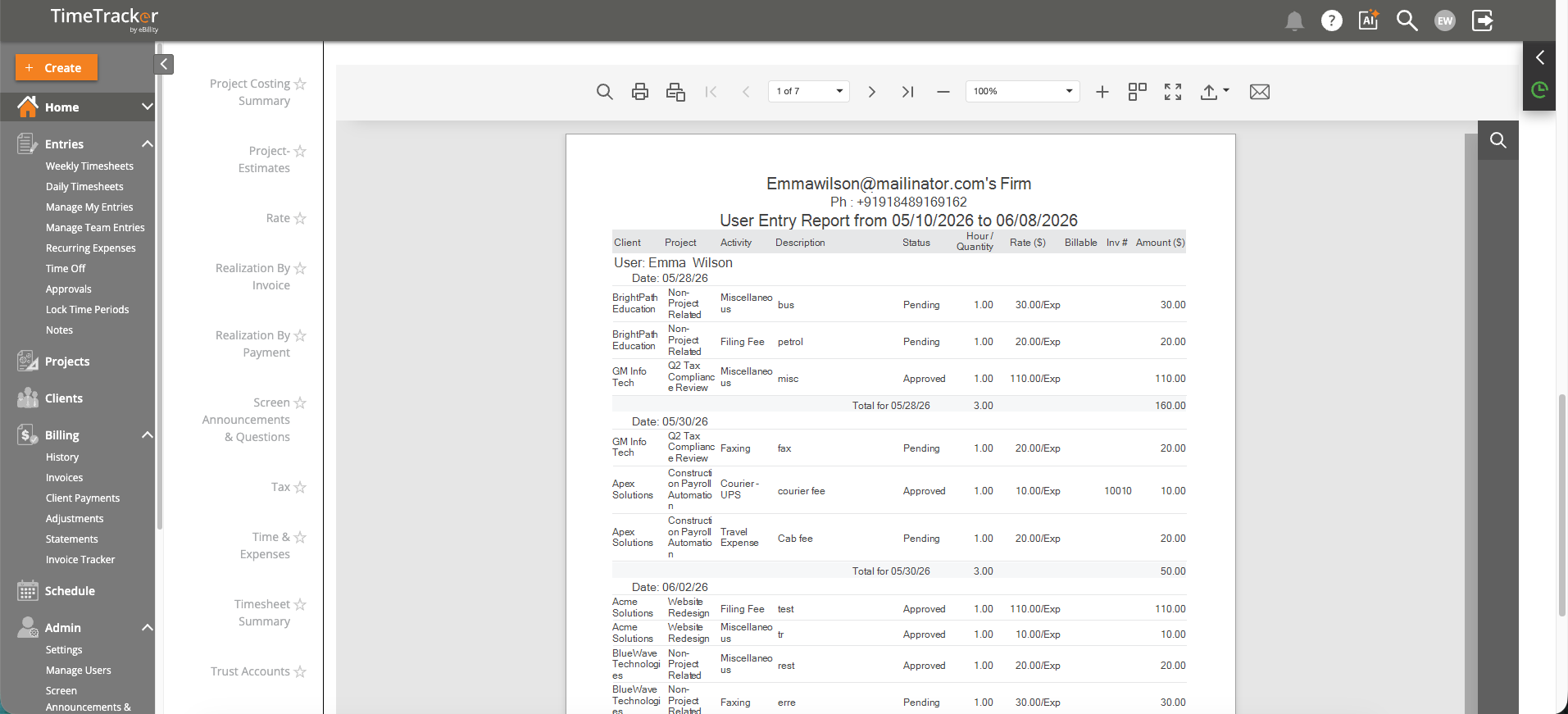
The User Entry Report lists every entry by date, with hours, rates, and amounts.
Not sure? Start with the User report. It shows every entry in full, so you can see exactly where the hours came from.
Tips
- For final numbers, set Entry Status to Approved.
- To see time that hasn't been invoiced yet, set Status to UnBilled.
- Group By (Date, User, Client, or Activity) reorganizes any of these reports.
- Export To CSV if you want to sort or chart the numbers yourself.
Common Problems
- Hours are missing. The entries may still be Pending or Submitted, and your Entry Status filter may leave them out. See How Time Entry Approvals Work.
- You only see your own hours. What you can see depends on your access. See Choosing What Each User Can See (Access Permissions).