
Applies to: Workforce · Premium · LawBillity
Once you've run payroll or sent invoices, a late change to someone's hours means your records no longer match. Locking days stops users from adding or editing time and expense entries on those days.
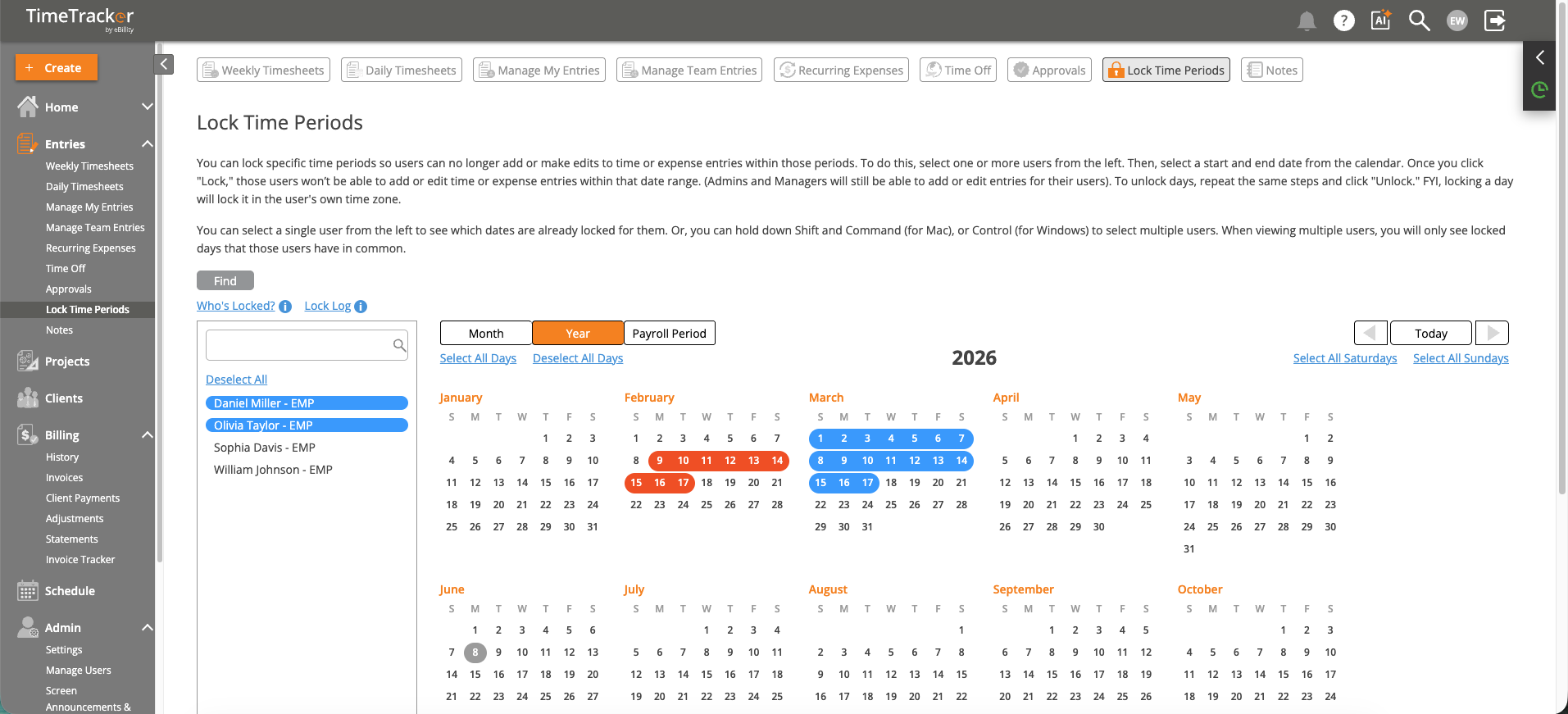
Entries > Lock Time Periods: pick users on the left and days on the calendar.
Locking Days
- Click Entries > Lock Time Periods.
- Pick one or more users on the left. Hold Shift or Ctrl (Cmd on a Mac) to pick several, or click Select All for everyone.
- Pick the days on the calendar. Switch between Month, Year, and Payroll Period views, or use Select All Days, Select All Saturdays, Select All Sundays, and Deselect.
- Click Lock.
To see what's locked now, click Who’s Locked?. Lock Log shows the history of locks and unlocks. Locks follow each user's own time zone.
Making a Correction in a Locked Period
Admins and managers can still add or edit entries for their users on locked days, so the quickest fix is often to make the change for them. If the user needs to make it:
- In Entries > Lock Time Periods, pick the user and the day.
- Click Unlock.
- Once they've fixed the entry, pick the same user and day and click Lock again.
When to Lock
Note: DCAA compliance mode (Time Entry Logs) doesn't lock entries. It only records changes. If you need both, turn on the log and lock your periods. See
DCAA Compliance Settings.
Common Problems
- A manager changed an entry on a locked day. That's expected. Locks stop users, not their admins and managers.
- Someone can’t edit an entry and the day isn’t locked. It may be approved. The approver has to reject it first. See I Can't Edit a Time Entry.
- A lock seems to start a day early or late for someone. Locks follow each user's own time zone. Check the time zone on their user profile.
- Employees keep asking for corrections. Lock a little later, for example a few days after payroll instead of the same day, so people have time to fix mistakes.