
Applies to: Workforce · Premium · LawBillity
The client list is where you find, organize, and tidy up your clients. Keeping it current means people find the right client fast when they log time, and old clients don't clutter the dropdowns.
Finding a Client
Click Clients in the left sidebar. Then:
- Search: type part of the name in the search bar.
- Filter by group: show only clients in one client group, such as one industry or account manager.
- Filter by status: switch between Active and Inactive. Only active clients show by default.
- Sort: click a column header to sort by name, balance, or date.
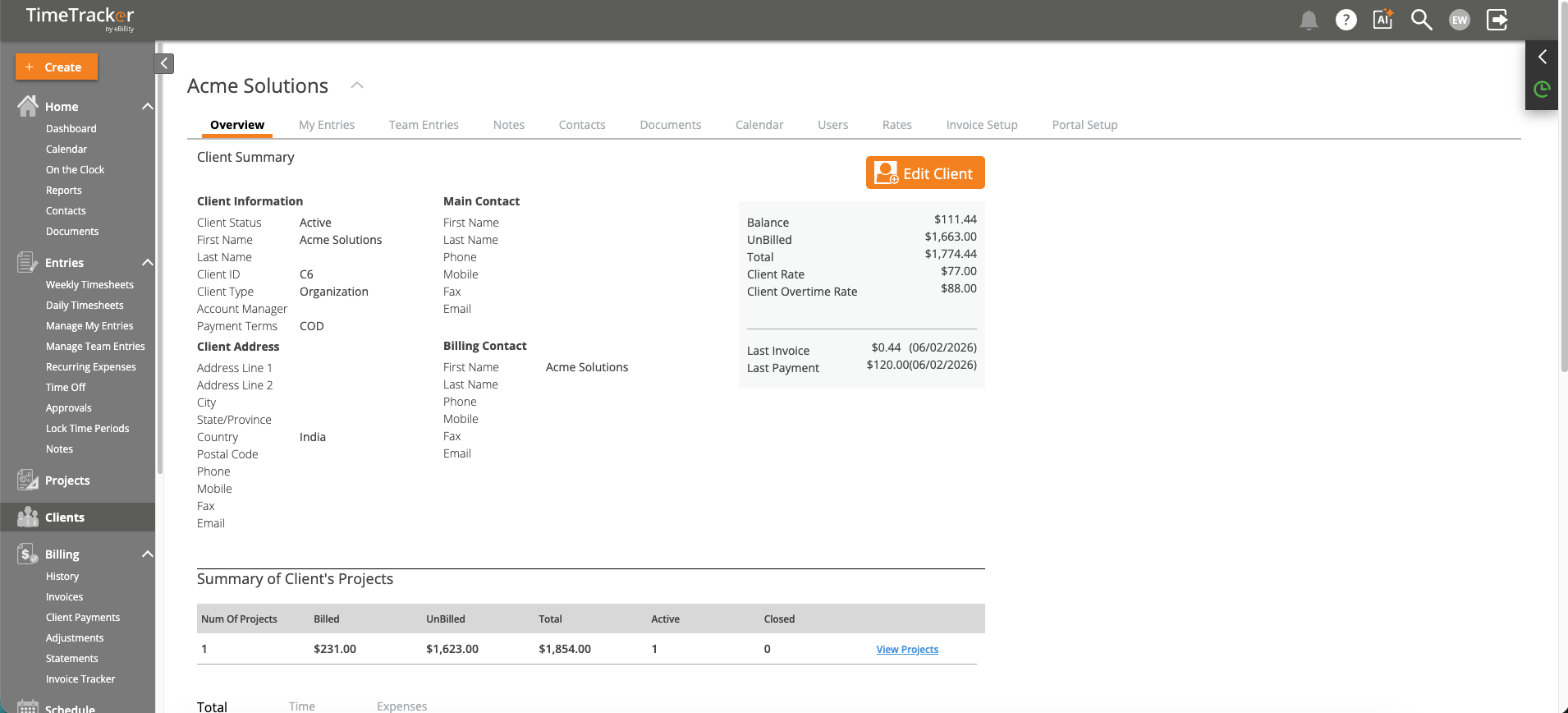
Click a client’s name to open its overview: contact details, billing figures, and project totals.
When You Stop Working with a Client
Deactivate the client instead of deleting it. A deactivated client:
- Disappears from the dropdowns for time entries, expenses, and invoices.
- Keeps all its history: time entries, invoices, payments, and reports.
- Can be reactivated any time if the work starts again.
- Open the client.
- Change the status to Inactive.
- Click Save.
Grouping Clients
Client groups let you sort clients by industry, region, or billing arrangement. You can then filter the list, and your reports, by group. For example, run a report for all Healthcare clients. Admins manage the groups in Admin > Settings > Customize > Custom Lists > Client Group. Reports can also be filtered by Account Manager.
Common Problems
- A client is missing from the list. It's probably inactive. Switch the status filter to Inactive.
- Someone can’t pick a client on their timesheet. The client may be inactive, or their access may be limited. Each user's client access is set to All, Some, or No, in the grid in Admin > Settings > System Settings or on the Access Permissions tab of their profile. See Why Can't I See Certain Clients, Projects, or Activities?.
- New users can’t see any clients. Check Set firm default for new users access to all firm clients in Admin > Settings > System Settings. New admins always get all clients.
- People are listed by first name and you want last name first. Change Display Client as to Last Name, First Name in Admin > Settings > System Settings.
- You need to add clients. See How to Create a New Client, or add many at once with Importing Users, Clients, and Projects from a Spreadsheet.
If your menu says Customers instead of Clients, see Renaming Clients, Projects, and Other Terms.