
Applies to: Workforce · Premium · LawBillity
Every code that tracks accruals keeps a running balance for each user. The Balances tab shows what each person has available, with a dated history of what was added, what was deducted, and by whom. It's also where you add hours by hand, for Manual codes or to fix a mistake.
Getting There
Go to Entries > Time Off and click the Balances tab. Pick a user in the User dropdown. The table lists every code assigned to that user with Paid/Unpaid, Accrual Type, Hours Available, and whether it's Use it or Lose it.
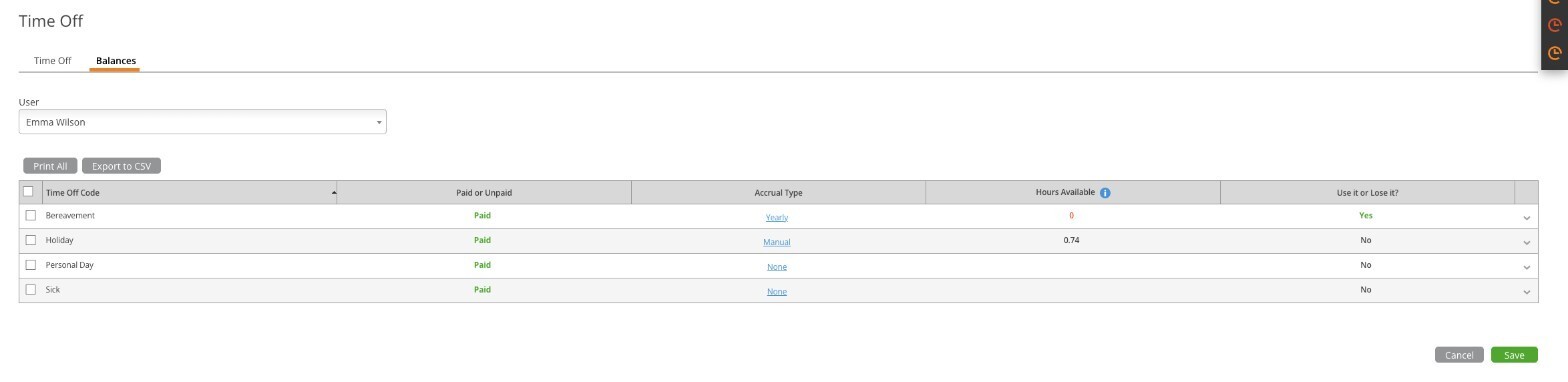
The Balances tab for one user. Click the picture to see it full size.
Reading the History
Click the arrow at the right end of a row to expand it. Each line is one event, such as a request deducted, a rejection that gave hours back, or a manual top-up, with a timestamp, who did it and why, and the running balance after it.
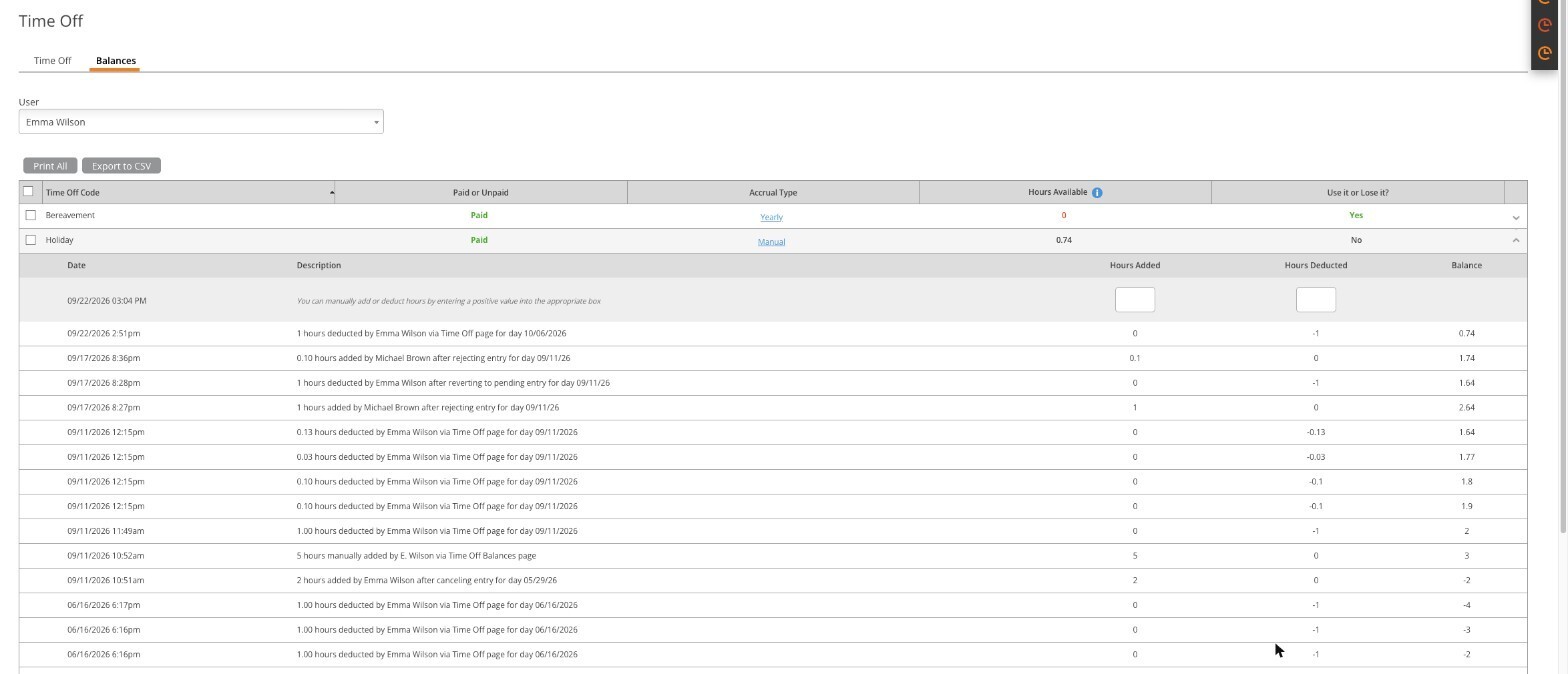
An expanded balance: manual adjustment boxes at the top, then the history. Click the picture to see it full size.
A few things the history makes clear:
- Hours are deducted the moment a request is saved, not when it's approved.
- Rejecting or canceling a request returns the hours automatically, and the history records it.
- Manual changes name the admin who made them, so there's always an audit trail.
Adjusting a Balance by Hand
- Expand the code's row.
- In the top line, type a positive number in Hours Added to grant hours, or in Hours Deducted to remove them.
- Click Save at the bottom of the page.
Exporting
Print All and Export to CSV produce a copy of the selected user's balances. The link in the Accrual Type column opens the firm-wide accrual settings for that code, handy if you spot a rule that needs changing while you're here.
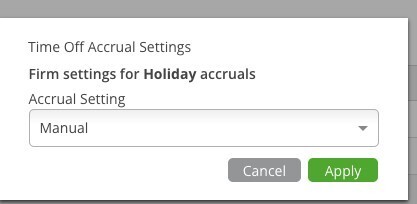
The Accrual Type link opens the same firm-wide accrual settings.
Next Steps
Users see their own balance when they request time off: the code dropdown shows, for example, "Holiday - Paid (1.74 Hours Available)". See How to Request Time Off. To change how hours are earned, see Setting Up Time Off Accrual Policies.