
Applies to: Workforce · Premium · LawBillity · Billing (mobile app)
Forgot to clock in, or need to log time from earlier? Add the entry by hand instead.
Adding the Entry
- Tap the + icon at the top right of the Time Card screen, or open the menu and tap New Time Entry.
- Choose the Client - Project and the Service (the type of work, such as Field Work).
- Add a Description of the work.
- Enter the time using Time In/Out or Duration (see below).
- Tap Save, or Save & Add New to log another one.
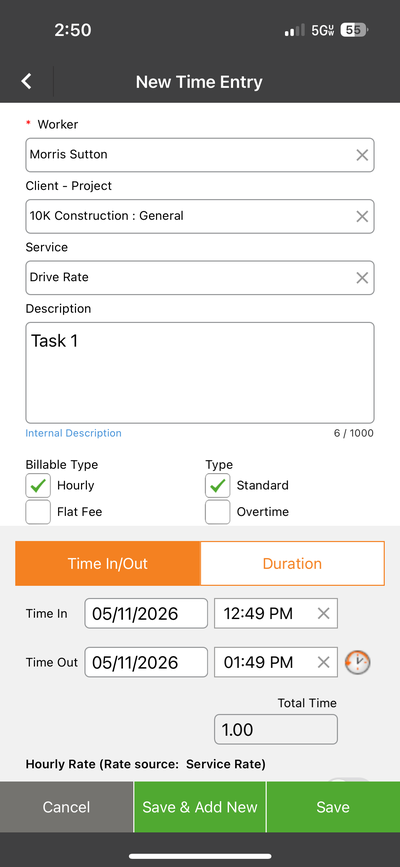
A new time entry in Time Card mode, with the Time In/Out tab selected.
Time In/Out or Duration?
Other Fields
- Worker: you, filled in already. Managers can pick someone else if the firm setting Create Time Entries for your Team in the Mobile App is turned on.
- Internal Description: notes for your team only. They don't appear on invoices. Up to 1,000 characters.
- Billable Type: Hourly or Flat Fee. Type: Standard or Overtime.
Common Problems
- Your client or project isn’t in the list. You may not have access to it. See Why Can't I See Certain Clients, Projects, or Activities?.
- You can’t save the entry. The date may be in a locked period. See I Can't Edit a Time Entry.