
Applies to: Workforce · Premium · LawBillity · Billing (mobile app)
When you have timers running, the clock icon at the top right of the Dashboard shows how many. Tap it to open the Timers screen, where you can pause, stop, or switch between them.
The Timers Screen
Each running or paused timer has its own card with the elapsed time (in orange), the person it belongs to, and its buttons. Tap Start New Timer at the top to add another. Unless your firm allows concurrent timers, starting a new one pauses the others.
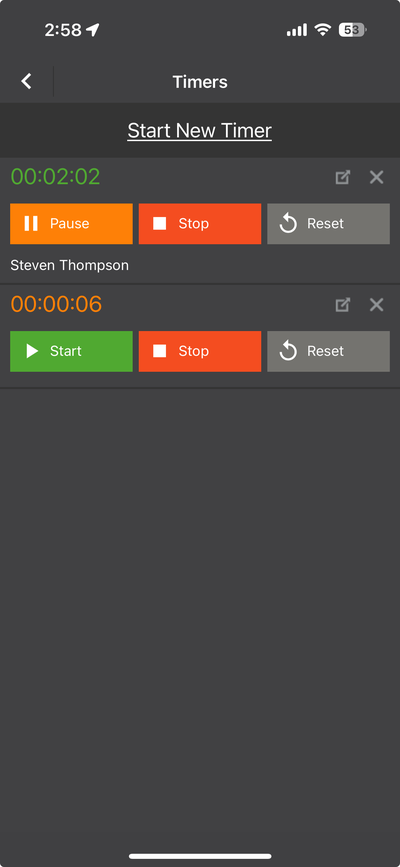
The Timers screen, with a card for each timer.
What Each Button Does
Common Problems
- You don’t see the clock icon. It only shows in Timer mode. In Time Card mode you clock in and out instead. See Mobile: The Time Card Screen.
- A timer stopped on its own. Your phone may have closed the app in the background. See Mobile: Common Issues and Fixes.
- The time is wrong. Stop the timer, then fix the From and To times before you save.