Skip to content
  • There are no suggestions because the search field is empty.

Mobile: Navigating the App

Use the menu to get to every screen, and know what the sync bar at the bottom tells you

Applies to: Workforce · Premium · LawBillity · Billing (mobile app)

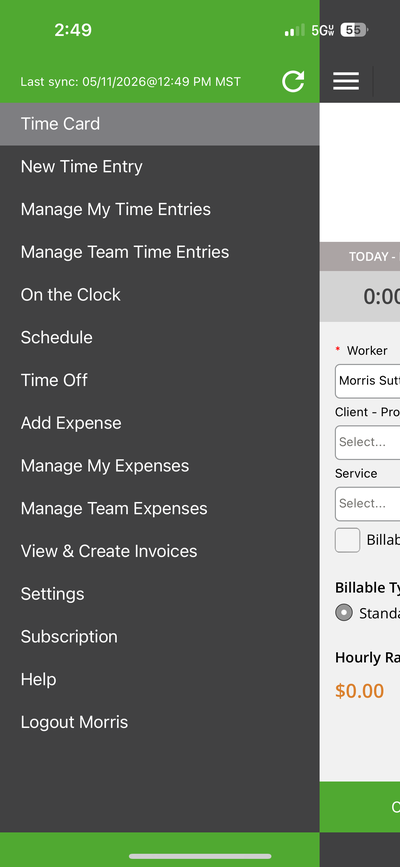
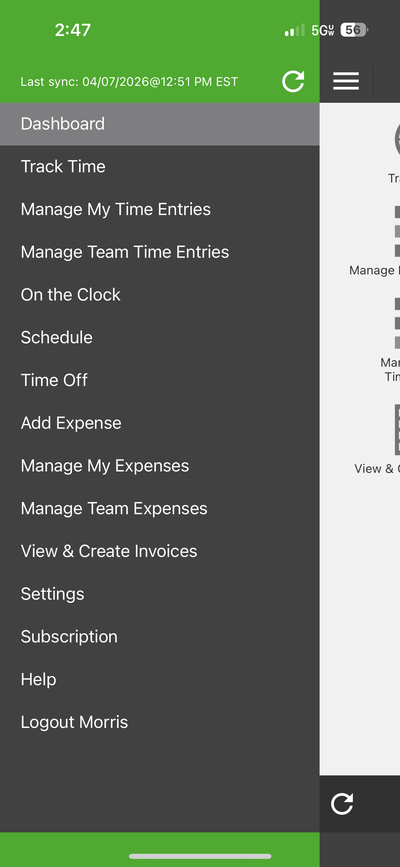
Every screen in the app is in the menu. Tap the three lines at the top left of any screen to open it.

What's in the Menu

You'll only see the items your plan, role, and tracking mode include.
Menu item
What it's for
Dashboard or Time Card
Back to the home screen. The name depends on whether you use timers or time cards.
Track Time or New Time Entry
A new time entry. Called Track Time in Timer mode and New Time Entry in Time Card mode.
Manage My Time Entries
Your own time entries.
Manage Team Time Entries
Everyone's time entries (managers and admins).
On the Clock
Who's clocked in, on a break, or clocked out.
Schedule
Your shifts.
Time Off
Your time off, and new requests.
Add Expense, Manage My Expenses, Manage Team Expenses
Log and review expenses. Team expenses are for managers and admins.
View & Create Invoices
Browse, create, and manage invoices.
Settings, Subscription, Help
App settings, your plan, and eBillity support.
Logout [Name]
Sign out of the app.

Mobile - Navigation Menu 1

The menu in Timer mode.

Mobile - Navigation Menu 2

The menu in Time Card mode.

The Sync Bar

The bar at the bottom of every screen shows when the app last synced with the web, for example "Last sync: 05/11/2026@12:49 PM MST". Tap the refresh icon to sync right now, or the gear icon to open Settings. See Mobile: How Syncing Works.

Common Problems

  • A menu item is missing. Your plan, role, or permissions don't include it. Ask your admin if you need it.
  • You can’t find Track Time. In Time Card mode it's called New Time Entry.