
Applies to: Workforce · Premium · LawBillity (mobile app)
Use On the Clock to see who's working right now, for example before you assign a job or call someone in. Open the menu and tap On the Clock.
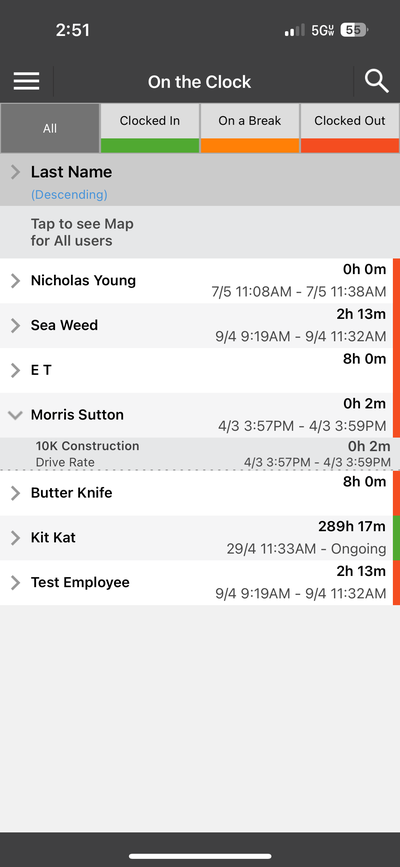
On the Clock, with tabs to filter by status.
Filtering by Status
Reading the List
Each person shows their name, clock-in date and time range, and total hours so far. The color bar on the right shows their status: green for clocked in, orange for on a break, and red for long stretches.
- To find someone fast, tap the search icon at the top right.
- The list is sorted by last name. You can switch between ascending and descending.
- Tap Tap to see Map for All users to see where everyone on the clock is.
Common Problems
- The map is empty or missing someone. Only admins can see locations, and they only show if your firm uses GPS tracking and that person allowed location on their phone. See Mobile: GPS Tracking.
- You don’t see On the Clock in the menu. Your permissions don't include it. Ask your admin.