
Applies to: Workforce · Premium · LawBillity · Billing (mobile app)
Request time off from your phone and see how many hours you have left before you send it.
Sending a Request
- Open the menu, tap Time Off, then tap the + icon at the top right.
- Choose the Time Off Code. Your hours left show in brackets, for example "Personal Day - Paid (38.00 hrs available)".
- Choose the Date and enter the Hrs and Min.
- Off for more than one day? Tap Add Date for each extra day.
- Add a Description if you want to give a reason (up to 1,000 characters).
- Check the Total Hours at the bottom, then tap Save. (Close cancels.)
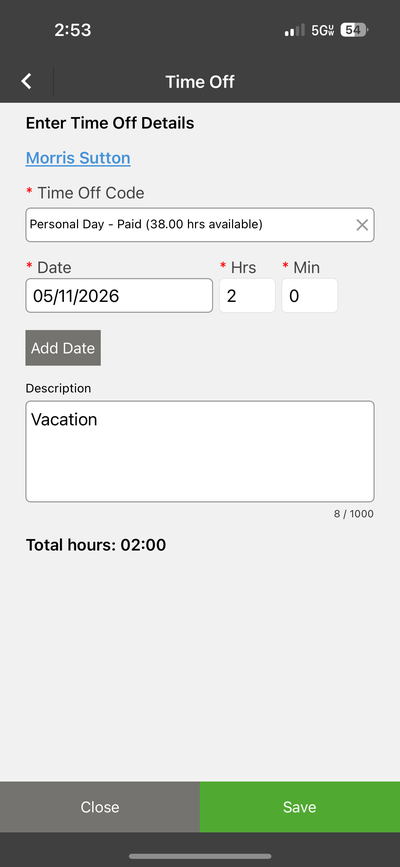
The time off form. Your available hours show next to each Time Off Code.
Common Problems
- You don’t have enough hours. The available hours update as you use them. If the number looks wrong, ask your admin to check your balance. See Managing Time Off Balances.
- The type of time off you need isn’t in the list. Your admin sets up the Time Off Codes. Ask them to add it.
- You want to see past requests. See Mobile: Viewing Time Off Entries.