
Applies to: Workforce · Premium · LawBillity · Billing (mobile app)
Start a timer when you begin a task and the app tracks the time for you. You can leave the screen or switch apps and it keeps running.
Starting a Timer
- On the Dashboard, tap Track Time. The New Time Entry screen opens with a timer at 00:00:00.
- Choose the Client - Project and the Activity. These are required (red asterisk), along with the Date, which is today unless you change it.
- Add a Description if you like. If you bill the client, write it so they'll understand it on the invoice.
- Tap Start (green).
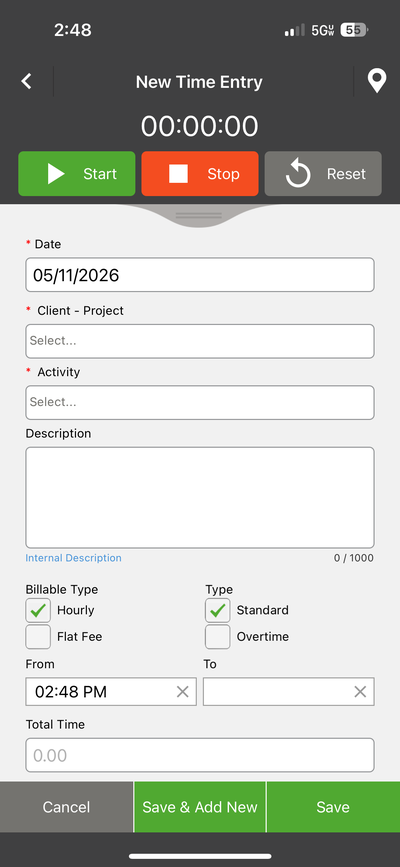
The New Time Entry screen with Start, Stop, and Reset at the top.
The clock icon on the Dashboard shows how many timers are running. When you're done, tap Stop and save the entry. See Mobile: Saving a Time Entry.
Fields You Might Change
Running More Than One Timer
If your firm has Concurrent Timers turned on, you can run several timers at once, for example one for a client meeting and one for admin work. If it's off, starting a new timer pauses the others. An admin changes this in the web app at Admin > Settings > Timer Settings. Manage your timers from the clock icon. See Mobile: Managing Running Timers.
Common Problems
- Your client or project isn’t in the list. You may not have access to it. See Why Can't I See Certain Clients, Projects, or Activities?.
- You can’t save or start. Fill in every field with a red asterisk.
- The timer stopped when you left the app. Your phone may be closing the app in the background. See Mobile: Common Issues and Fixes.
- There’s no Track Time icon. Your account uses time cards. See Mobile: The Time Card Screen.